
A training plan is easier to follow when people can see the session, timing, audience and preparation in one place. These training calendar templates help a coordinator turn a list of learning activities into a usable schedule without assuming that every session has the same format.
The training session calendar is an editable Excel register for dated sessions, trainers, locations and status. The weekly training timetable gives a Monday-to-Sunday view with space for two entries per day, including audience and preparation notes. Both downloads are XLSX files with blank planning fields.
Choose the view that matches the question you need to answer. The session calendar helps manage a set of activities across dates, while the weekly timetable helps people understand a particular week. Neither file tracks attendance automatically or certifies that a person has completed required training.
Start with learning needs before filling time slots
A calendar can look impressively full without addressing the skills people actually need. Begin with the activity or capability the training should support, then identify the audience and an appropriate format.
Some topics need demonstration and practice, while others may need a short briefing or a reference resource. Decide which sessions depend on earlier learning before choosing dates. This helps avoid scheduling an advanced activity before participants have the necessary foundation.
Keep the calendar focused on coordination; store detailed objectives and lesson plans in the appropriate training material.
The schedule should tell people what is happening and how to prepare, while the underlying plan explains why the session is needed and what a useful result will look like.
Use the session calendar for a program overview
The training session calendar provides sixteen starting rows with date, start and finish times, session, trainer, audience, location and status. Enter a program name and coordinator so the file has a clear owner. The status choices distinguish Planned, Confirmed, Complete and Postponed.
Use those labels consistently: a session should not become Confirmed simply because a tentative date has been typed into the row. Check the trainer, audience availability and venue or meeting arrangement first.
If a session is postponed, preserve enough context to explain the change and update the replacement arrangement in a controlled way. The overview is most useful when it reflects the actual state of the program rather than the most optimistic version of the plan.
A week with two audiences and one shared trainer
Suppose a coordinator is arranging introductory training for a new team and a refresher for experienced colleagues. The same trainer is available for both, but the groups need different content and preparation.
The session calendar records each audience separately and keeps both sessions Planned until timing and location are confirmed. The weekly timetable then reveals that an early draft placed the refresher too close to the introductory workshop, leaving no setup time.
The coordinator moves one session, adds the preparation reference and communicates the revised arrangement to both groups. After delivery, the calendar status changes to Complete, while attendance remains in the separate training record.
At the next review, the trainer notes that the introductory group needed more practice. The following timetable allows for that need instead of treating the original session length as a fixed rule. The files have helped coordinate the work without pretending to evaluate learning automatically.
Use the weekly timetable for practical coordination
The weekly training timetable gives two entry spaces for each day, with columns for timing, session, audience, trainer, room and preparation. Enter the week-beginning date so a copied timetable cannot be confused with a later week.
The second row for each day can hold another activity or remain blank. Do not treat the available spaces as a requirement to schedule two sessions daily.
A weekly view is useful for spotting pressure on a particular trainer, room or group, but it does not automatically detect conflicts. Read across the rows and compare overlapping times deliberately.
If the program needs more entries, extend a working copy and review the layout before sharing the timetable with participants.
Leave room for preparation, practice and normal work
Training time includes more than the visible session. Participants may need to read a short resource, arrange cover for regular work or complete a practice task afterward. Trainers may need setup time and a gap before the next group.
Use the Preparation column in the weekly file for concise instructions and point to the actual materials elsewhere. Avoid filling every available hour simply because a room is free.
Consider the practical working pattern of the audience and the time needed to apply what they learn. If a session is remote, include the approved joining route in the communication sent to participants rather than exposing private meeting credentials in a broadly circulated spreadsheet.
The calendar should support attendance and learning, not create preventable logistical barriers.
Name the audience and trainer clearly
A session title may be meaningful to the coordinator but unclear to the people expected to attend. Use a descriptive name and identify the intended audience at a useful level, such as a particular team or role group.
Where attendance is limited or prerequisites apply, explain that in the accompanying invitation or training information. Name the trainer or responsible contact so questions have somewhere to go. If delivery involves an external provider, confirm who handles changes and participant queries.
The calendar should not become a directory of unnecessary personal information. Include the work contact route people need and keep detailed participant records in the appropriate place. Clear ownership reduces the chance that an unanswered question prevents someone from preparing or attending.
Communicate changes through one current version
A training calendar often changes after it is first shared. Decide which file is the current working record and who can edit it. When a date, time or venue changes, update the calendar and notify affected people through the agreed communication route.
A revised spreadsheet stored quietly in a folder may not reach someone who downloaded last week’s copy. Use a clear filename or version date and keep the week or program identity visible inside the file.
For a postponed session, confirm whether invitations need to be cancelled, moved or reissued. A short change note can explain the effect without requiring readers to compare every cell against an earlier copy. Consistent communication matters as much as the appearance of the timetable.
Review delivery separately from the planning status
Marking a session Complete records that the planned activity took place according to your chosen definition. It does not automatically establish who attended, what each person learned or whether a formal requirement was met.
Keep attendance, assessment and any required evidence in the organization’s appropriate records. After delivery, use feedback and practical observations to improve the next schedule. Perhaps the group needed more practice time, the room was unsuitable or the session belonged later in the sequence.
Update the plan based on those findings rather than simply repeating the same calendar. The templates are coordination tools, and they work best alongside a clear learning purpose and a sensible way of checking what happened after the session.
2 downloadable templates and previews
These two downloads are editable files, with previews rendered from the actual documents. Choose the layout that fits your task, then use its download button to save the Word document or Excel workbook.
Keep a blank original and create a working copy before entering your own information. The preview shows the starting layout; longer text, additional rows and your local print settings may change how the edited file appears.
Check the finished document on screen and in print preview before sharing it. The two choices support different ways of organizing the topic, so you can use one independently or combine them where that is useful.
Training session calendar
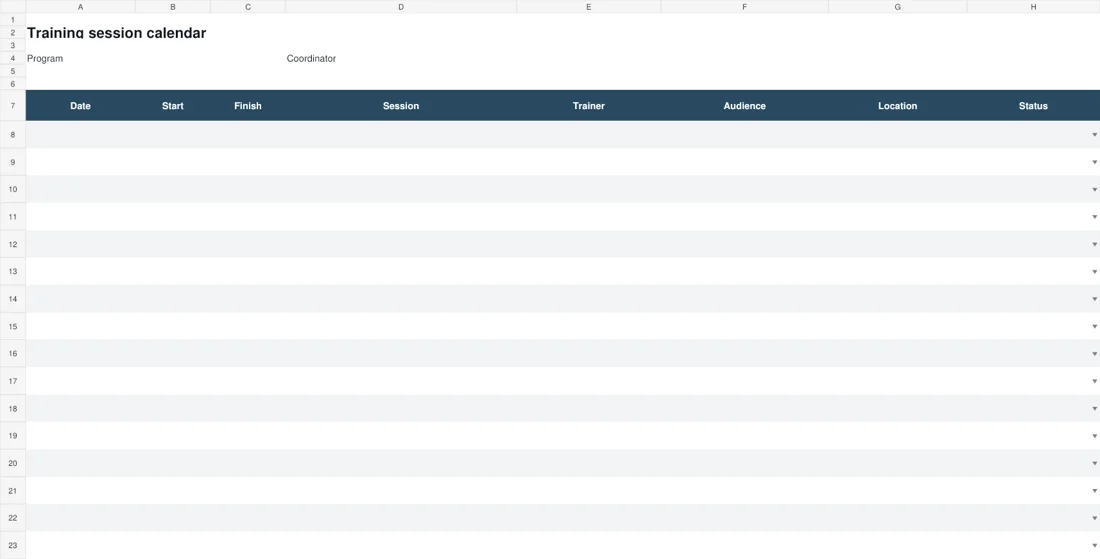
Download Training session calendar
Weekly training timetable
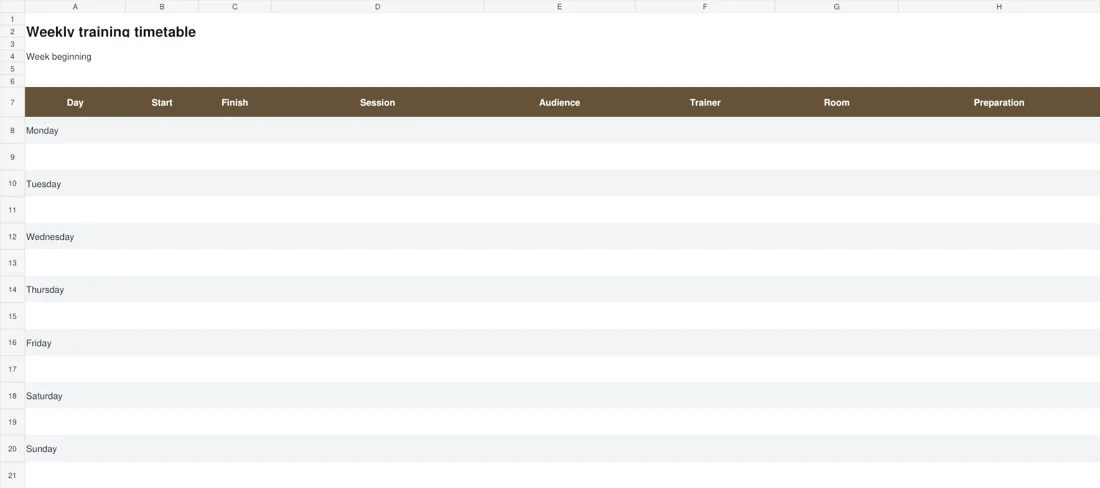
Download Weekly training timetable
A final check before using the template
- Confirm the learning need and intended audience.
- Enter the program or week identity clearly.
- Check trainer, room and audience availability.
- Allow preparation, setup and practice time.
- Use status labels consistently and communicate changes.
- Keep attendance and completion evidence in their proper records.
Check the calendar from a participant’s perspective
Before sharing, ask whether a participant can tell which session applies to them, when it begins, where to go and what to prepare.
Read dates and times in the format used by the audience, and state the timezone in the invitation when people are in different locations. Check long session names and room details for clipped text after editing.
If you print the weekly view, inspect print preview so useful columns do not disappear onto another page. Keep a blank master and a dated program copy.
When adding rows, check any formatting and validation in the new area rather than assuming every feature extends automatically. A brief final review can prevent several avoidable questions later.
Related templates
For a detailed running order within a training event, see event itinerary templates.
For a separate participant list, use sign-up sheet templates.
For transferring program responsibilities to another coordinator, explore handover templates.
Frequently asked questions
Are these training calendars editable in Excel?
Yes. Both downloads are XLSX workbooks. Enter the program details, dates and sessions in a working copy, then check readability and print settings before sharing the schedule.
What is the difference between the two files?
The session calendar lists dated activities with a planning status. The weekly timetable groups entries by day and adds preparation details, making it easier to coordinate a particular week.
Do the workbooks detect scheduling conflicts?
No. Review overlapping times, trainer availability and room use yourself. The layouts make those details visible but do not automatically resolve clashes or send calendar invitations.
Does Complete mean every participant is qualified?
No. The status records the session’s planning or delivery state. Attendance, assessment and any required evidence of individual completion belong in the appropriate separate training records.
You can also browse more options in the Samples category.
