
A newsletter earns attention by giving its readers something relevant, clear and timely. These Word newsletter templates provide two editable starting layouts so you can spend more time choosing useful stories and less time assembling the page from scratch.
The community newsletter includes a lead update, a short events table and neighborhood items. The team update newsletter organizes a main focus, upcoming activities, progress and recognition. Both downloads are DOCX documents with editable headings, prompts and a sample image that you should replace with an appropriate image of your own.
The layouts start as single-page newsletters, but they are not a substitute for editorial choices. Decide who the issue is for, what deserves the most attention and what action readers should take. Then adapt the content and check the final page before distribution.
A final check before using the template
- Define the audience and purpose of the issue.
- Choose a lead with a clear reader benefit.
- Verify names, dates, figures and event details.
- Replace the sample image and check the crop and permissions.
- Inspect the Word layout and the distribution copy.
- Save the issued version and a separate blank master.
Give the newsletter a clear editorial purpose
A community audience may want practical dates, local developments and ways to participate. A team audience may need progress, priorities and recognition connected to shared work. Write a short purpose for the issue before gathering content so contributors know what belongs.
This also helps you decline items that are interesting but unrelated. Avoid trying to serve every possible reader with the same page. A focused newsletter can link to other information where needed.
Enter the organization or community name, issue identity and month or date so a forwarded copy still makes sense. The title tells people who is speaking; the content should quickly show why the issue is useful to them at this particular time.
Choose a lead story that deserves the largest space
The lead update should explain the most useful development or priority for the audience. Start with what happened or what is changing, then explain why it matters and what readers need to do.
A short, specific opening is more inviting than several sentences of general celebration. The template’s sample paragraph is a prompt, not text to publish unchanged. Replace it with a real update and verify names, dates and claims.
If the topic needs more detail than the page allows, give a clear summary and point to the fuller source. The lead does not need to sound dramatic.
It needs to help a reader understand the significance of the information without relying on inside knowledge or inflated language.
One event, two different newsletter treatments
Imagine an organization has completed a community open day. In the community newsletter, the lead might explain what visitors learned, where follow-up information is available and which public activity comes next.
In the internal team newsletter, the same event may be a shorter progress item highlighting the work completed and a practical lesson for the next event. The audience changes the emphasis even though the underlying facts remain the same.
The editor checks the attendance figure and names with the event owner, chooses an approved photograph and adds a useful contact. They remove a general paragraph that repeats the headline without adding information.
The finished page feels more personal because the content is selected for its readers, not because the editor has added exaggerated enthusiasm. The layout supports that choice by making the lead, dates and short items easy to distinguish.
2 downloadable templates and previews
These two downloads are editable files, with previews rendered from the actual documents. Choose the layout that fits your task, then use its download button to save the Word document or Excel workbook.
Keep a blank original and create a working copy before entering your own information. The preview shows the starting layout; longer text, additional rows and your local print settings may change how the edited file appears.
Check the finished document on screen and in print preview before sharing it. The two choices support different ways of organizing the topic, so you can use one independently or combine them where that is useful.
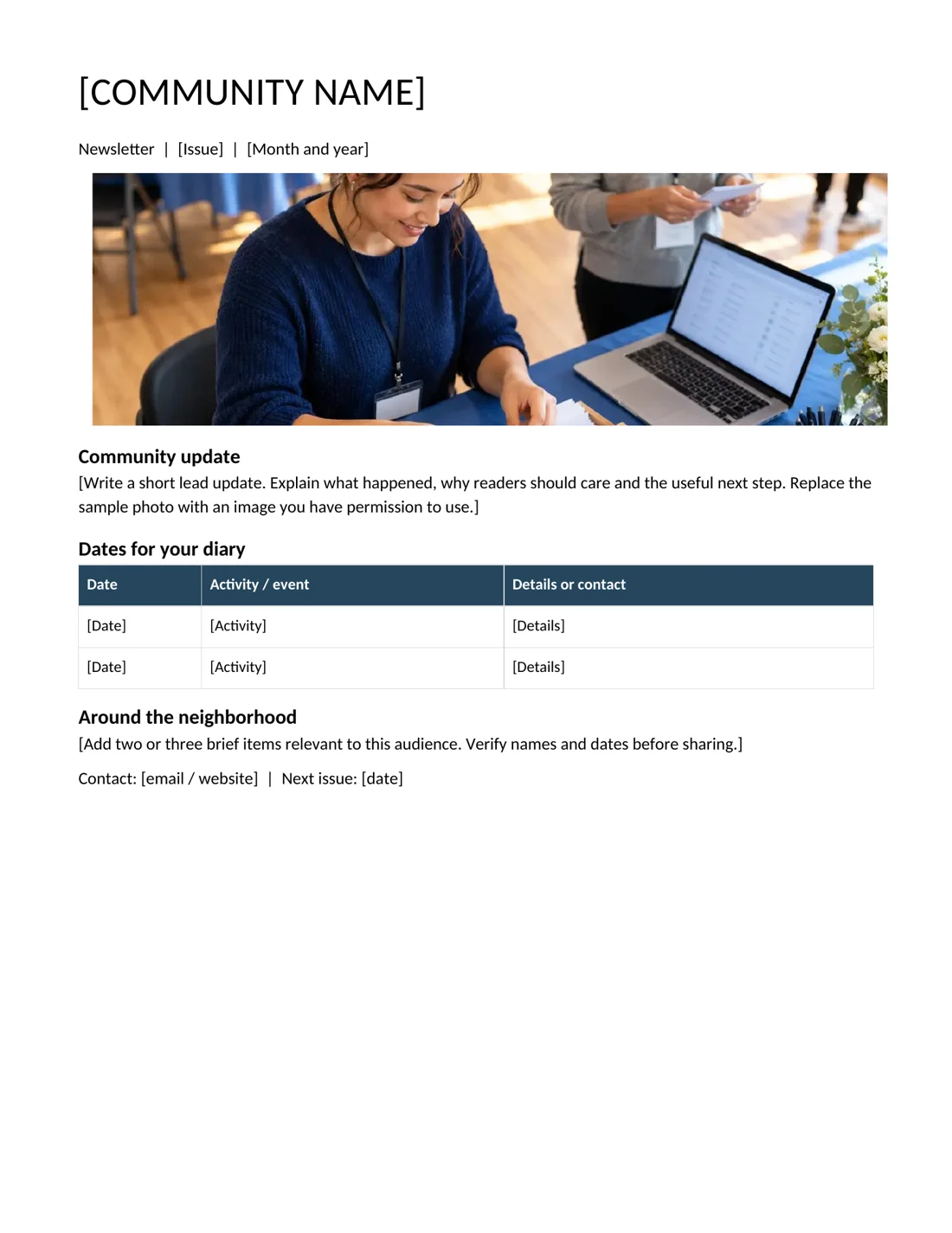
Community newsletter
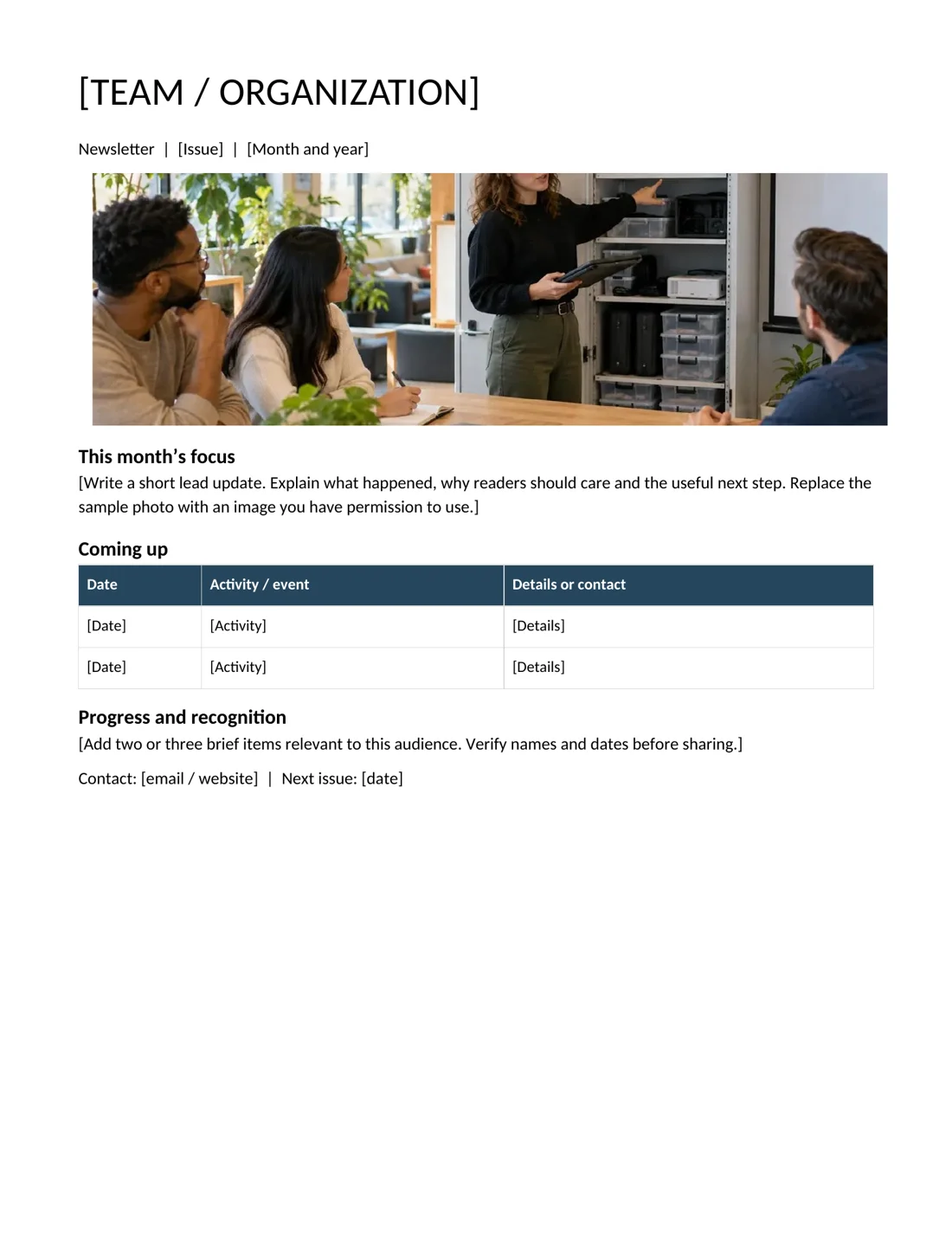
Team update newsletter
Download Team update newsletter
Use the event table for information people can act on
An upcoming activity needs more than an attractive name. Include the date and enough detail to help readers decide whether it applies to them, such as location, timing or the contact route.
The community and team templates both provide a small table for concise event information. Adjust the column headings if another arrangement is clearer, but keep the entries consistent. If a date is provisional, label it rather than letting the table imply confirmation.
Check the details with the activity owner before the newsletter is issued. A beautifully formatted date that is wrong creates avoidable confusion.
If space is tight, remove lower-priority items or link to a maintained calendar rather than shrinking the type until the table is difficult to read.
Make short items specific and varied
The lower section can hold a few brief updates, practical reminders or recognition items. Give each one a clear point and avoid repeating the lead story in different words.
For recognition, explain the contribution accurately and check that the person is comfortable being named where appropriate. For a reminder, state the action and deadline rather than writing only a general encouragement.
Variety comes from the material and the reader’s needs, not from changing the wording of the same announcement several times. A useful issue might combine a substantive update, two upcoming dates and one short contribution from the community.
Keep the number of items manageable so the page has a visible order and readers can find the information that matters to them.
Replace the sample image thoughtfully
Both Word templates contain a sample photograph to demonstrate the visual space. Replace it with an image you have permission to use and that fits the story or audience.
A real event or relevant activity image can add context, while an unrelated decorative picture may take space from more useful information. Crop to fit the image area without stretching faces or objects.
In Word, check the picture after replacement because a different aspect ratio can change the page flow. Add a concise caption or alternative text where useful, especially if the image conveys information the reader would otherwise miss.
Confirm names and permissions before publishing identifiable people in a community or workplace newsletter. The sample image is a layout aid, not evidence of your organization’s activity.
Edit the layout after the real content is in place
The templates use ordinary Word headings, paragraphs and a compact table, so you can change text and spacing directly. Keep a blank master and work in an issue-specific copy. Once the content is inserted, inspect line breaks, table widths, image crop and the contact line.
A short item that grows into a long paragraph can push the newsletter onto another page. Decide whether that extra page serves the issue or whether the content needs editing. Avoid solving every overflow by reducing the font size.
Read the document at a normal viewing size and check print preview. If you create a PDF for distribution, inspect the exported file as well, since the version readers receive should preserve the intended order and readable text.
Build a repeatable issue workflow
Choose who gathers contributions, checks facts and approves the issue, then set a realistic deadline for each stage. Keep the process proportionate to the newsletter’s size.
A small team may need only one editor and a quick review by content owners, while a broader community issue may need more coordination. Record the next issue date in the contact area only when it is useful and realistic.
Maintain a simple list of potential stories so each issue does not begin from an empty page. After distribution, note which questions readers asked and whether the contact routes worked. Those observations help improve the next issue’s selection and clarity.
The template saves layout time, but a consistent editorial routine is what makes the publication dependable.
Keep the editable issue and the distribution copy together
Save the final Word file with an issue date and retain the exact PDF or other version distributed to readers. This makes it easier to check what was actually published if a date or contact later changes.
Keep the master template separate so next month’s editing does not overwrite the previous issue. Before reusing content, verify that the information is still current and that any permissions still suit the new context.
Test links and read the contact line carefully; these small details often receive less attention than the headline but are essential to a useful newsletter. Remove all bracketed prompts and sample text before sharing the finished issue.
Related templates
For a longer editorial layout, explore Word magazine templates.
For a separate online news-style site layout, see Blogger news templates.
For the running order behind an event announcement, use event itinerary templates.
Word editing guidance
Microsoft explains how to save a Word document as a reusable template when you want to retain a master for future issues.
Frequently asked questions
Are these newsletter templates editable in Microsoft Word?
Yes. Both downloads are DOCX files with editable text, headings, tables and a sample photograph. Save a working copy for each issue and replace every prompt before distribution.
Can I replace the photographs?
Yes. Use a relevant image you have permission to share. Crop it to the available space, check that it is not stretched and inspect the page after replacement.
Are the newsletters limited to one page?
The starting layouts are one page, but you can expand them. Keep the content purposeful and readable; do not reduce the type excessively just to preserve the original page count.
What is the difference between the community and team versions?
The community version emphasizes local updates and dates, while the team version focuses on priorities, progress and recognition. Both can be adapted, but their section prompts support different reader needs.
You can also browse more options in the Samples category.
