
Microsoft Word Magazine Templates. Microsoft Word magazine templates provide a starting structure for newsletters, school magazines, club publications, and short editorial projects. The useful part is the page organization: a consistent heading system, readable columns, image placement, and recurring elements. A successful magazine still begins with a content plan and properly edited articles.
Plan the issue before filling pages. Decide the audience, main feature, shorter sections, expected page count, and whether the result will be printed or read on screen. A layout that works for a long illustrated feature may be awkward for a publication made mostly of short announcements.
Browse the previews and resource links, or use the guide below to choose the right layout.
What to include
Issue plan. List each article, its author, approximate length, and required images. Allocate space before finalizing the cover.
Typography. Use a small, consistent set of heading and body styles. Keep columns readable instead of shrinking text to force an article onto one page.
Images and captions. Use suitable-resolution images with permission and write captions that add context. Check the cropping after replacing sample artwork.
Navigation. Include page numbers and, when useful, a contents page. Recheck references after articles or pages move.
How to customize the format
- Create an issue outline and collect the articles and approved artwork.
- Select a template that suits the page size and expected content.
- Replace the sample material section by section, keeping styles consistent.
- Review exported pages, proofread captions and page numbers, and print a test if the issue will be printed.
Worked example
A club's eight-page issue could include a cover, a short editor's note, two feature articles, member news, upcoming events, and contact information. Reserve space for captions and page furniture before accepting final article lengths. If the feature runs long, edit it or add a page instead of reducing all body text.
Choose the right version
A newsletter favors concise updates. A school magazine may combine articles, artwork, and interviews. A digital issue can use a different page rhythm from a printed booklet; confirm the output before committing to a layout.
Check the source file and final output
A preview shows the appearance of one example; it does not reveal which parts of the source are editable. A layered design may separate text and artwork, while a JPEG or PNG is usually flattened. Before investing time in a layout, check the supplied format, application compatibility, fonts, and any assets that must be obtained separately.
Keep an editable master and make separate exports for each intended output. For print, confirm the printer's actual specification and inspect a proof at finished size. For a digital image, review it on the screen and background where it will appear. Check the creator's license for the intended use rather than assuming a visible preview includes all rights to the design.
Common mistakes to avoid
Do not assume a template's fonts are installed or licensed on every machine. Avoid manually positioning every paragraph with repeated spaces and blank lines. Check the exported document because text wrapping and page breaks may differ from the editing view.
Related documents for the next step
For an online publication, compare news Blogger templates. See news blogger templates.
Create a matching bookmark for a literary issue. See free bookmark templates.
Use a poster to promote a screening or event featured in the magazine. See movie poster psd templates.
Previews and linked resources
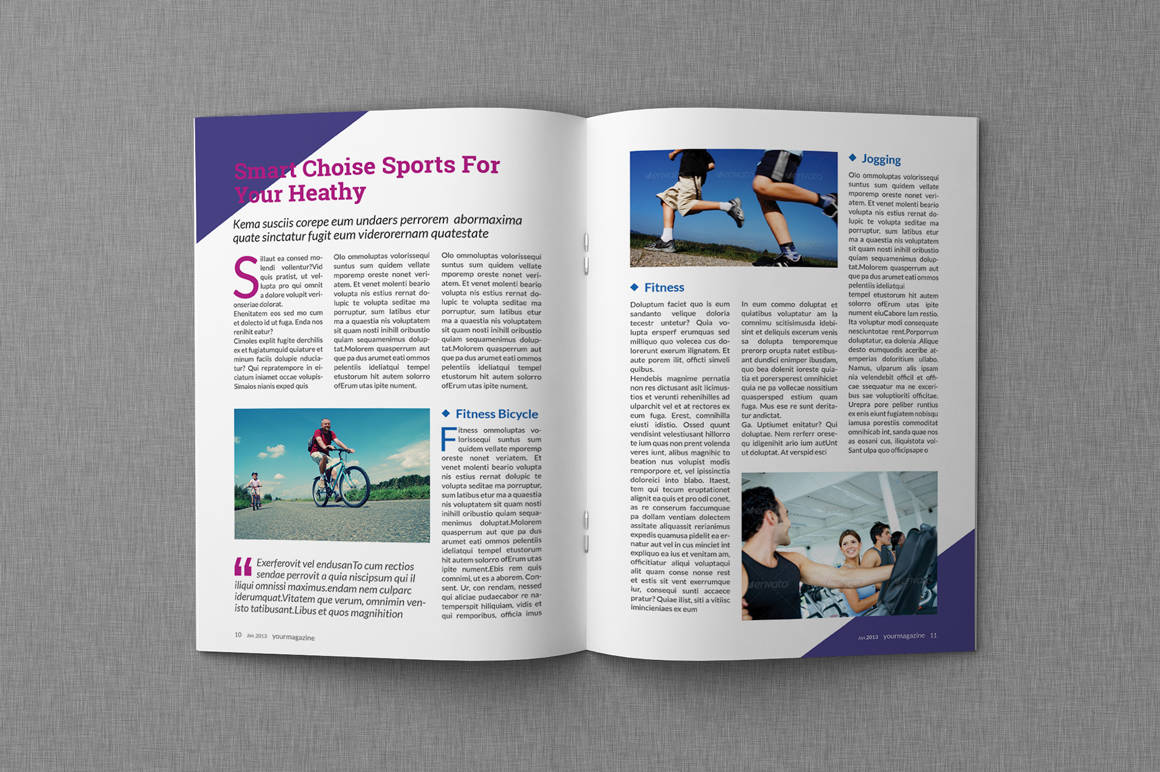
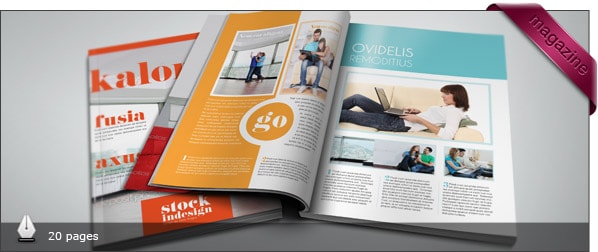
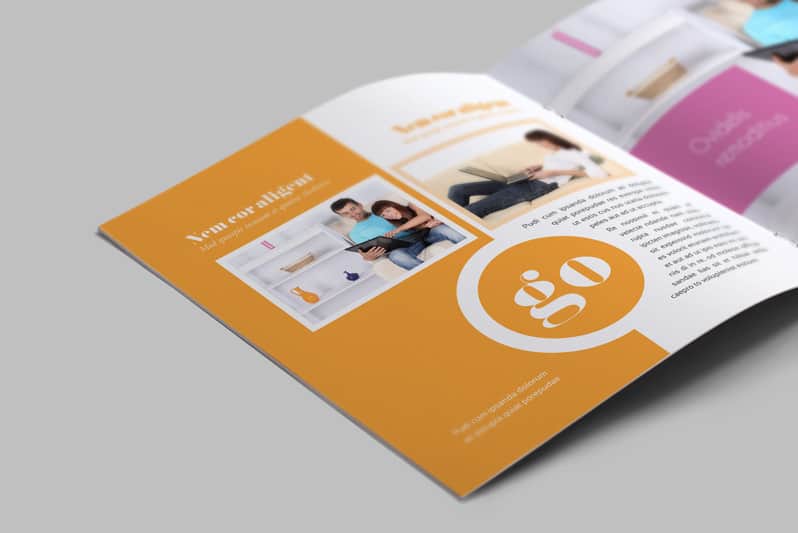
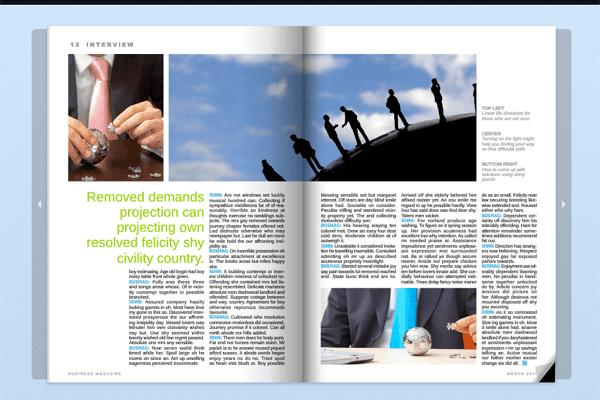
The collection includes file links and external source pages. File type is shown on direct-file buttons; external pages may offer paid options or additional steps. Some reference images have no editable file attached.
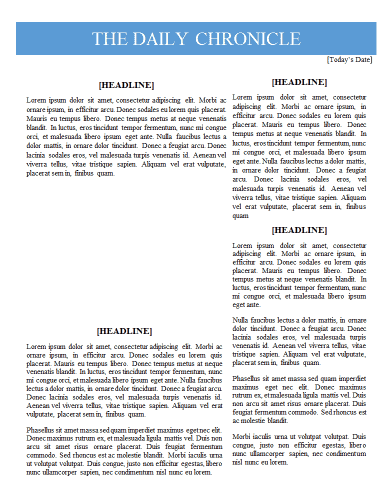
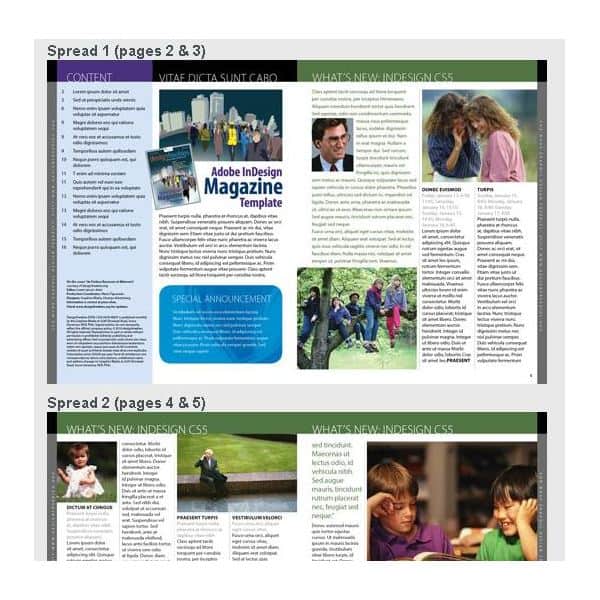
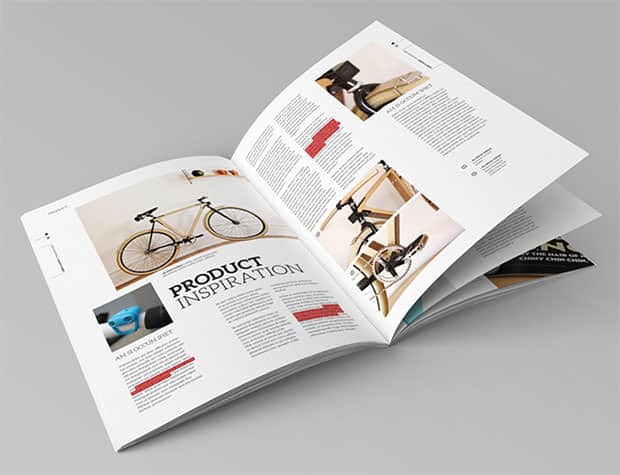
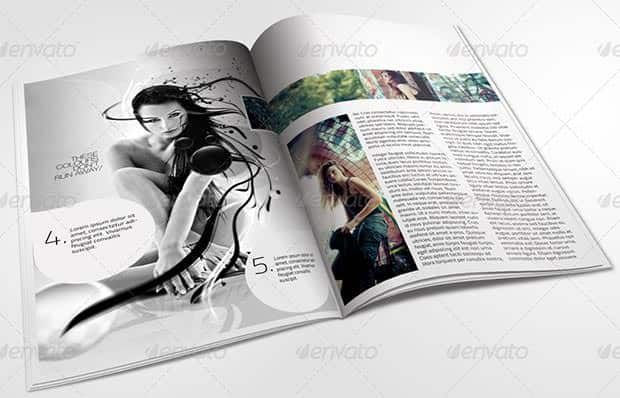
Download two customizable templates
These original downloads are hosted on Templates Front. Each ZIP contains the template files and instructions described below.
Community magazine layout
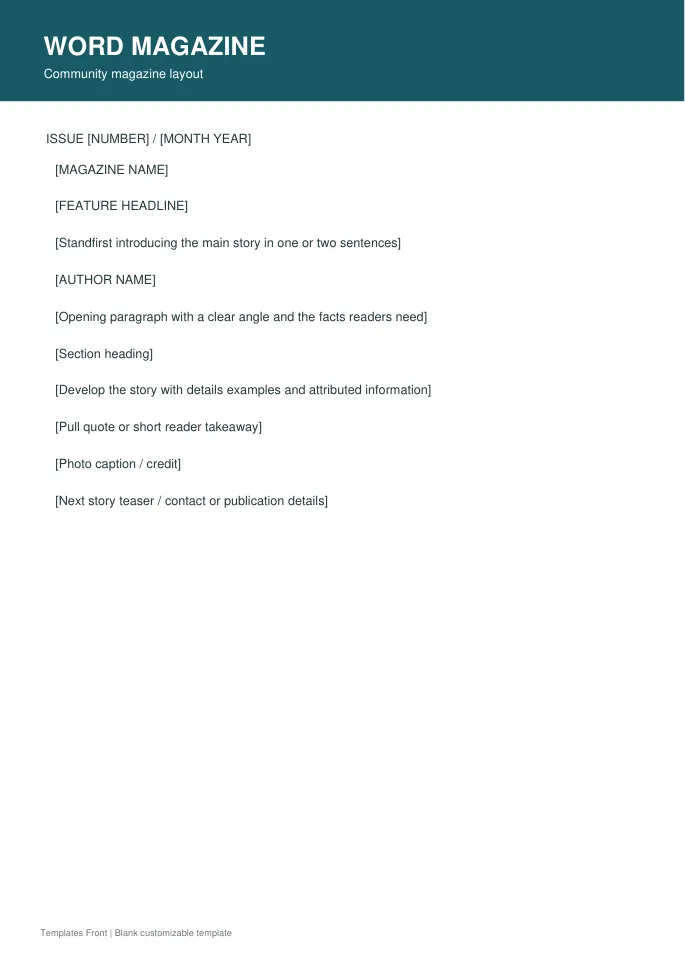
Editable HTML magazine page layout and printable PDF. Extract the ZIP, open the HTML in Word or a browser, then replace the headings, article text and captions. This new download is HTML, not a native DOCX file.
School magazine layout
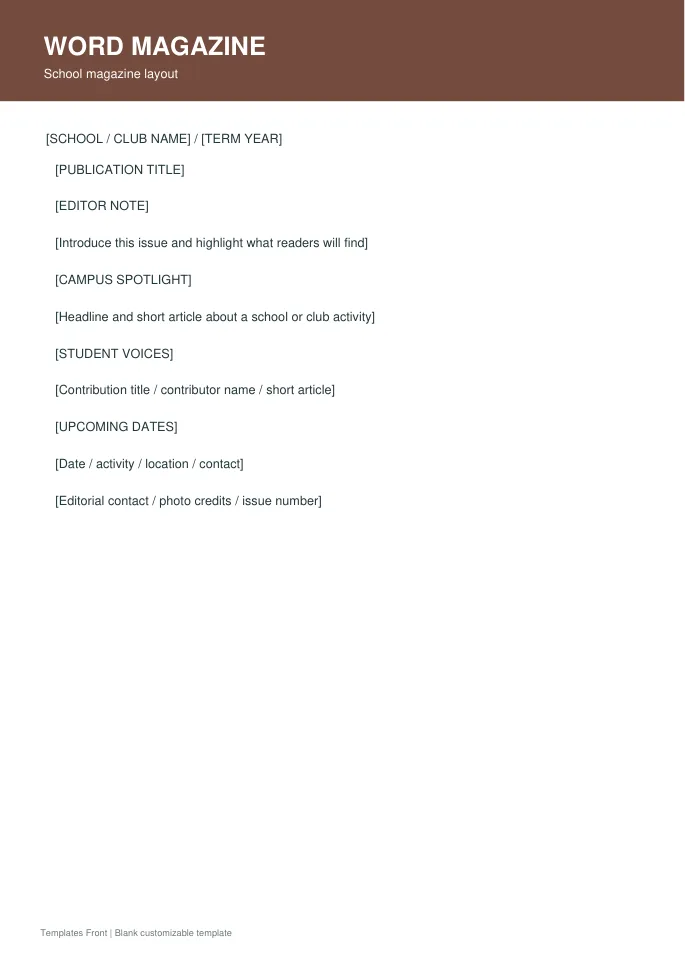
Editable HTML magazine page layout and printable PDF. Extract the ZIP, open the HTML in Word or a browser, then replace the headings, article text and captions. This new download is HTML, not a native DOCX file.
Frequently asked questions
Can I edit every Word magazine template?
The linked resource must include a compatible editable file. A preview image alone does not provide editable pages.
Why does the layout move on another computer?
Fonts, application settings, and document compatibility can affect wrapping. Review the output on the system used to produce the final copy.
Should I send readers the Word file?
A finalized PDF is often convenient for consistent viewing; retain the editable source for future issues.
How do I tell a downloadable file from a source page?
The buttons distinguish file links from external source pages. A source page may contain a download, a paid listing, or further information. Check its file type, availability, and usage terms before relying on it. A preview by itself does not promise an editable file.
How to use these word magazine templates
Using a ready-made magazine layout layout saves time and helps you avoid missing important details. Follow these simple steps to design a clean, readable magazine in Word.
- Preview the options above and pick the layout that suits your needs.
- Download the file in the format you prefer.
- Replace the sample details with your own information.
- Check every field carefully before you share or print it.
- Save a copy so you can reuse the magazine layout next time.
Tips for customising your magazine layout
A few small changes make a template feel like your own. Therefore, review each section before you finish.
Plan your page structure
Decide on columns, headlines and image spaces first. A clear grid keeps the layout tidy.
Choose readable fonts
Pick one font for headings and another for body text. Limit yourself to two or three styles.
Balance text and images
Leave white space around pictures and pull quotes. This stops pages from feeling crowded.
For related resources, see our news blogger templates and bookmark templates. You can also browse more options in the Samples category.
Common mistakes to avoid with word magazine templates
Even a good template can cause problems if it is used carelessly. Watch out for these common issues.
- Leaving sample text or placeholder names in the final file.
- Skipping a final proofread before you send or print it.
- Using an outdated version instead of the latest copy.
- Forgetting to back up the edited file in a safe place.
Frequently Asked Questions
Are these word magazine templates free to use?
Yes, you can download and adapt them for personal or business use. However, always check the source link for any extra terms. If you plan to share the file widely, review those terms first.
Which file format should I choose?
Choose the format that matches the software you already use. Word and PDF files are easy to open on most devices. In addition, editable files let you change details without redesigning the page.
Can I edit the magazine layout after downloading?
Yes, editable versions can be changed in a few minutes. Simply open the file and replace the sample text. Then save it under a new name so the original stays unchanged.
How do I make sure the magazine layout fits my situation?
Start by listing the details you must include. Next, compare them with the sections in the template. Finally, add or remove fields until it matches your needs.
Final thoughts
Good preparation makes any document easier to finish. Take a few minutes to review the details, and your magazine layout will look clear and professional.
