
Bookmark Templates and Printable Design Resources. A bookmark template helps arrange a short message, image, reading reminder, or event detail on a narrow printable piece. Bookmarks can support classroom reading, a library activity, a book club, or a small promotional project. Choose a design around the final size and purpose, then keep the content short enough to read comfortably.
Decide whether the bookmark should be decorative, informative, or interactive. A reading log needs writing space. A promotional bookmark needs a clear name and contact route. A classroom set may need consistent fronts with space for each learner's name.
Browse the previews and resource links, or use the guide below to choose the right layout.
Build the document around its purpose
Final size. Choose dimensions that fit the intended book and printing method. Confirm the scale on a paper proof.
Main content. Use one clear message or visual theme. Long paragraphs rarely work well on a narrow strip.
Artwork and margins. Keep important content away from cut edges and allow the printer's requested bleed where relevant.
Back panel. If printing both sides, check orientation and alignment before producing the full set.
Prepare and review your version
- Define the purpose and choose the finished dimensions.
- Prepare concise text and permitted artwork.
- Print a test sheet and check the cut size and any reverse-side alignment.
- Produce the approved copies and retain the editable source for future changes.
Putting the layout to work
A school reading bookmark could show a student's name on the front and a small list of books to read on the back. A book-club version might include the next meeting date and discussion question. Both need a clear purpose, but they should not be forced into the same crowded layout.
Adapt the layout to the situation
Use a simple single-sided layout for quick classroom printing, a double-sided version for extra information, or a design with a small writing area for reading goals.
Check the source file and final output
A preview shows the appearance of one example; it does not reveal which parts of the source are editable. A layered design may separate text and artwork, while a JPEG or PNG is usually flattened. Before investing time in a layout, check the supplied format, application compatibility, fonts, and any assets that must be obtained separately.
Keep an editable master and make separate exports for each intended output. For print, confirm the printer's actual specification and inspect a proof at finished size. For a digital image, review it on the screen and background where it will appear. Check the creator's license for the intended use rather than assuming a visible preview includes all rights to the design.
Before sharing the finished version
Do not assume a listing provides a free editable template. Avoid stretching a small preview for print or placing important text where it will be cut. Check the permissions for quotations, illustrations, and fonts.
Related documents for the next step
Pair a classroom bookmark with a cereal-box book report. See free cereal box templates & reports.
Use a matching magazine layout for a reading-club publication. See microsoft word magazine templates.
Compare Arabic calligraphy resources when the project requires appropriate Arabic typography. See arabic calligraphy fonts.
Previews and linked resources
The collection includes file links and external source pages. File type is shown on direct-file buttons; external pages may offer paid options or additional steps. Some reference images have no editable file attached.


Blank Bookmark Templates


Download two customizable templates
These original downloads are hosted on Templates Front. Each ZIP contains the template files and instructions described below.
Reading journal bookmark
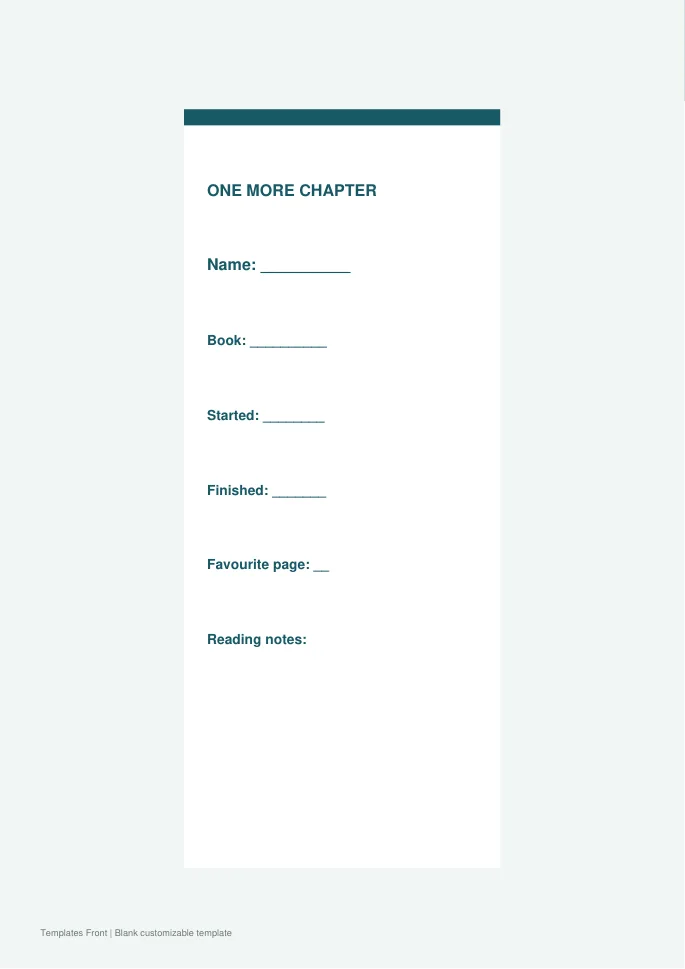
Editable SVG artwork and printable PDF. Open the SVG in a vector editor and replace sample text / photo placeholders.
Botanical library bookmark
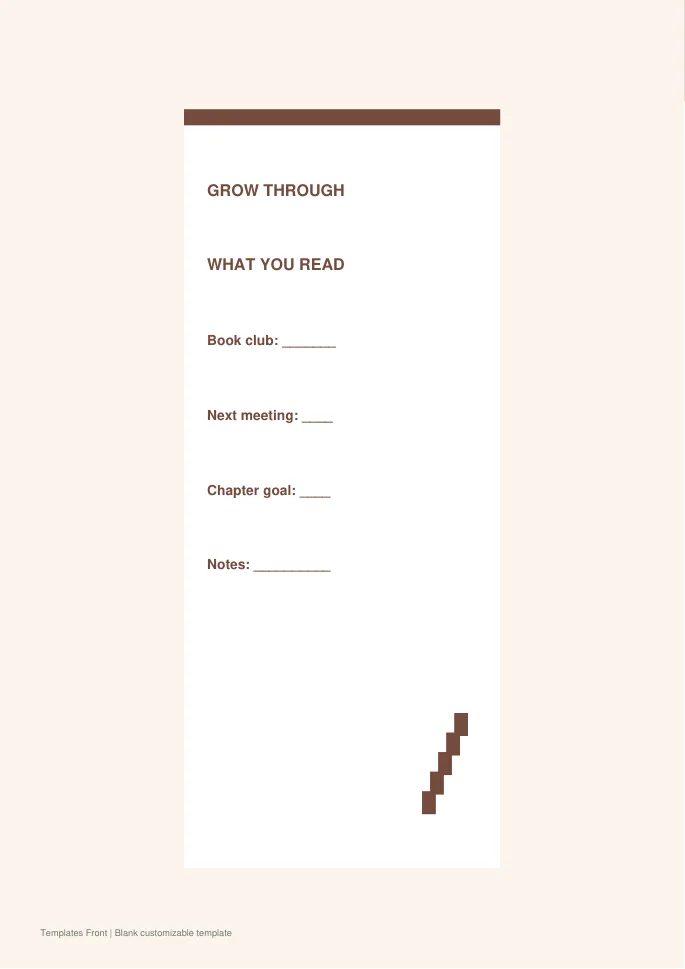
Editable SVG artwork and printable PDF. Open the SVG in a vector editor and replace sample text / photo placeholders.
Frequently asked questions
Can I make bookmarks in a word processor?
Yes. A compatible editable document can use repeated panels or a table, but print a test to confirm the dimensions.
Should I laminate them?
That depends on the intended use and materials. Test the finished thickness and leave any writable areas suitable for writing.
Are source listings always free?
No. Check the specific download, license, and any purchase requirement.
How do I tell a downloadable file from a source page?
The buttons distinguish file links from external source pages. A source page may contain a download, a paid listing, or further information. Check its file type, availability, and usage terms before relying on it. A preview by itself does not promise an editable file.
