
WhatsApp Chat Templates and Mockup Resources. WhatsApp chat templates are useful for illustrating a conversation in a presentation, training exercise, storyboard, or design mockup. This collection focuses on visual chat examples and design resources. A chat mockup is different from a message template submitted through a business messaging platform, and a screenshot-style image does not function as an actual conversation.
Begin with the situation you want to explain: a support interaction, an order update, a classroom dialogue, or a product demonstration. Write the conversation first. When the dialogue is clear, place it into a layout with readable bubbles and enough space between messages.
Browse the previews and resource links, or use the guide below to choose the right layout.
Build the document around its purpose
Conversation purpose. State what the reader should understand from the exchange. Remove side conversations that distract from the main teaching point.
Names and sample content. Use fictional contacts and non-sensitive example details. Mark illustrative exchanges as examples so they are not mistaken for evidence of a real chat.
Message sequence. Arrange incoming and outgoing messages in a logical order. Check dates, times, and response wording so the exchange makes sense.
Image export. Choose a readable output size for the destination. Keep an editable working copy and export an image for the presentation or document.
Prepare and review your version
- Draft a short fictional conversation with a clear opening, response, and next action.
- Select a layout that supports the required number of messages without shrinking the type excessively.
- Replace contact names, pictures, messages, and time labels with your own illustrative content.
- Review the mockup at the size your audience will see and label it as an example before sharing.
Putting the layout to work
A customer-service training mockup might show a customer asking when an order will arrive, an agent checking a fictional order reference, and a final reply giving the next step. The lesson can focus on acknowledging the question and providing a useful response. There is no need to insert real phone numbers or imitate a private individual's conversation.
Adapt the layout to the situation
A single-screen mockup works for slides. A longer conversation may need several panels or a storyboard. A plain text script is easier to revise during planning, while a finished image can be inserted into a training handout. Pick the simplest form that communicates the intended exchange.
Check the source file and final output
A preview shows the appearance of one example; it does not reveal which parts of the source are editable. A layered design may separate text and artwork, while a JPEG or PNG is usually flattened. Before investing time in a layout, check the supplied format, application compatibility, fonts, and any assets that must be obtained separately.
Keep an editable master and make separate exports for each intended output. For print, confirm the printer's actual specification and inspect a proof at finished size. For a digital image, review it on the screen and background where it will appear. Check the creator's license for the intended use rather than assuming a visible preview includes all rights to the design.
Before sharing the finished version
Do not confuse visual templates with approved business messaging templates. Avoid publishing real customer details, presenting edited mockups as authentic evidence, or claiming that a design file sends messages. Check the creator's usage terms before reusing interface artwork in a commercial project.
Related documents for the next step
Use order confirmation formats to decide which purchase details belong in an illustrative order-update conversation. See order confirmation templates.
A delivery schedule can supply the planning context for a fictional dispatch update. See delivery schedule templates.
For a printed training handout, consider a magazine-style document layout. See microsoft word magazine templates.
Previews and linked resources
The collection includes file links and external source pages. File type is shown on direct-file buttons; external pages may offer paid options or additional steps. Some reference images have no editable file attached.
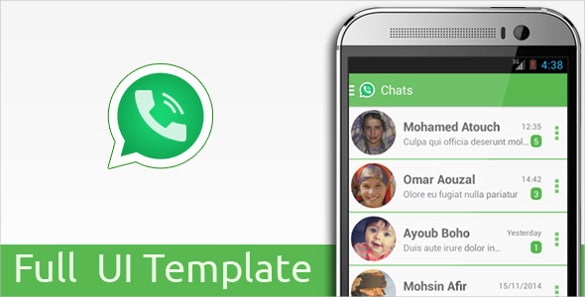


Download two customizable templates
These original downloads are hosted on Templates Front. Each ZIP contains the template files and instructions described below.
Customer support conversation
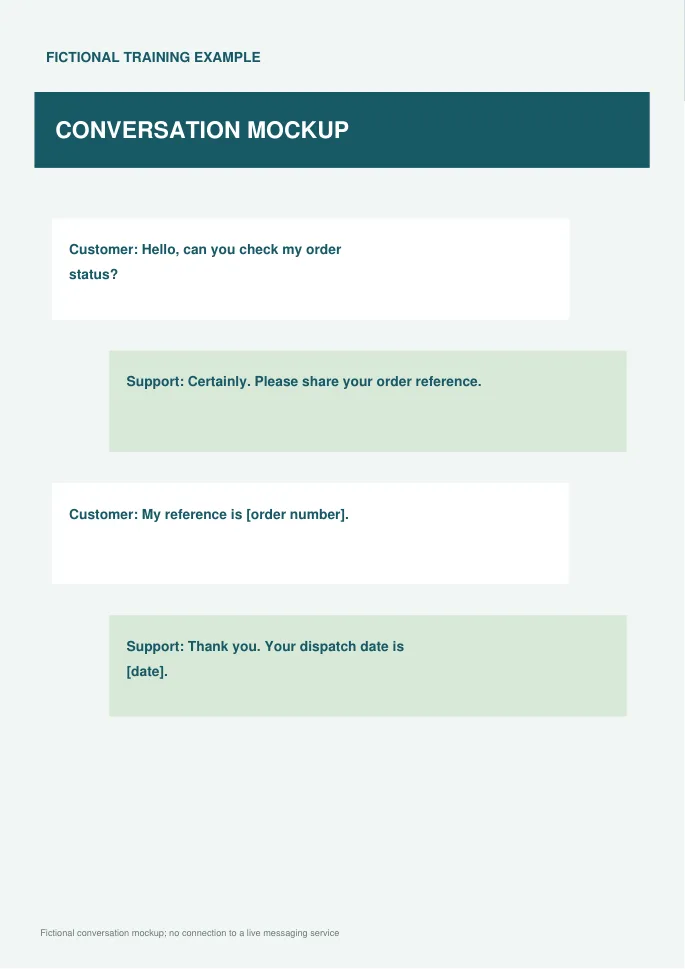
Editable SVG artwork and printable PDF. Open the SVG in a vector editor and replace sample text / photo placeholders.
Appointment reminder conversation
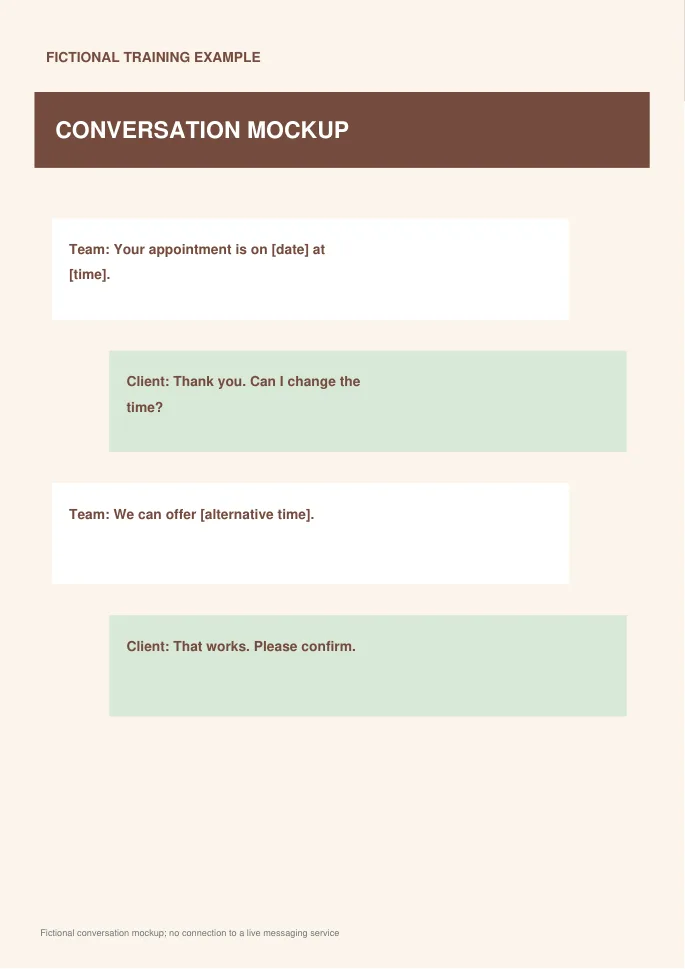
Editable SVG artwork and printable PDF. Open the SVG in a vector editor and replace sample text / photo placeholders.
Frequently asked questions
Does a chat mockup send WhatsApp messages?
No. A visual mockup is a design example. Messaging and business-platform submission require separate tools and processes.
Can I use a real customer's conversation?
Prefer fictional or properly anonymized examples. Obtain any necessary permission before sharing material that identifies a person.
Can I customize the text?
That depends on the linked file. An editable design can support text changes; a flat preview image may only provide a visual reference.
How do I tell a downloadable file from a source page?
The buttons distinguish file links from external source pages. A source page may contain a download, a paid listing, or further information. Check its file type, availability, and usage terms before relying on it. A preview by itself does not promise an editable file.
