
Delivery Schedule Templates. A delivery schedule organizes planned dispatches, destinations, time windows, and the people responsible for each stop. It helps the team see what is expected, what has changed, and which deliveries still need confirmation. A schedule records the plan; a delivery note records the items accompanying a particular shipment.
Start with the delivery commitments and available capacity. Grouping every order into the same morning window is not a realistic plan if loading, travel, unloading, and access restrictions have not been considered. Use the schedule to expose conflicts before the vehicle leaves.
Browse the previews and resource links, or use the guide below to choose the right layout.
Build the document around its purpose
Order and destination. Connect each stop with an order reference and a complete delivery location. Keep billing details separate where they differ.
Time window. Record the agreed delivery window and any access limits. Distinguish a planned arrival from an actual arrival.
Load and responsibility. Identify the vehicle or delivery owner and the shipment information needed for planning.
Status and exceptions. Track planned, dispatched, delivered, delayed, or rescheduled states with clear notes and update times.
Prepare and review your version
- Collect confirmed orders, destinations, and delivery windows.
- Estimate realistic loading and travel arrangements with the delivery team.
- Assign responsibility and check that the plan fits available capacity.
- Update actual status and communicate significant changes to the affected people.
Putting the layout to work
A driver with three stops may need a loading period before the first departure and an unloading allowance at each location. If the second site only accepts deliveries after 11:00, record that constraint before ordering the stops. A simple time-window note can prevent a wasted journey.
Adapt the layout to the situation
A daily route sheet suits a driver. A weekly dispatch board helps a coordinator. A customer-facing window list should be simpler and exclude internal contact or capacity notes.
Editable files, calculations, and shared copies
Choose a spreadsheet when the task depends on repeated rows, totals, or filtering. Use an editable document when explanatory wording and page layout matter more than calculations. A PDF may be convenient for a finalized copy, but it is not automatically fillable. A ZIP is a container; inspect its contents before deciding which application you need.
When adapting a spreadsheet, test a few representative entries and check the totals independently. Adding a row or moving a column can leave a formula pointing at the wrong range. Keep dates and numbers in a consistent format. If you share a completed copy, retain a separate blank master so the next version does not accidentally include a previous customer's or participant's details.
Before sharing the finished version
Avoid presenting a plan as proof of delivery. Do not hide failed deliveries by simply deleting the original stop. Keep customer contact information limited to the people who need it.
Related documents for the next step
Prepare a delivery note for the goods dispatched. See delivery note templates.
Use the order confirmation to verify what the customer agreed. See order confirmation templates.
Update stock records when goods are actually issued. See inventory list templates.
Previews and linked resources
The collection includes file links and external source pages. File type is shown on direct-file buttons; external pages may offer paid options or additional steps. Some reference images have no editable file attached.


Download two customizable templates
These original downloads are hosted on Templates Front. Each ZIP contains the template files and instructions described below.
Daily route dispatch sheet
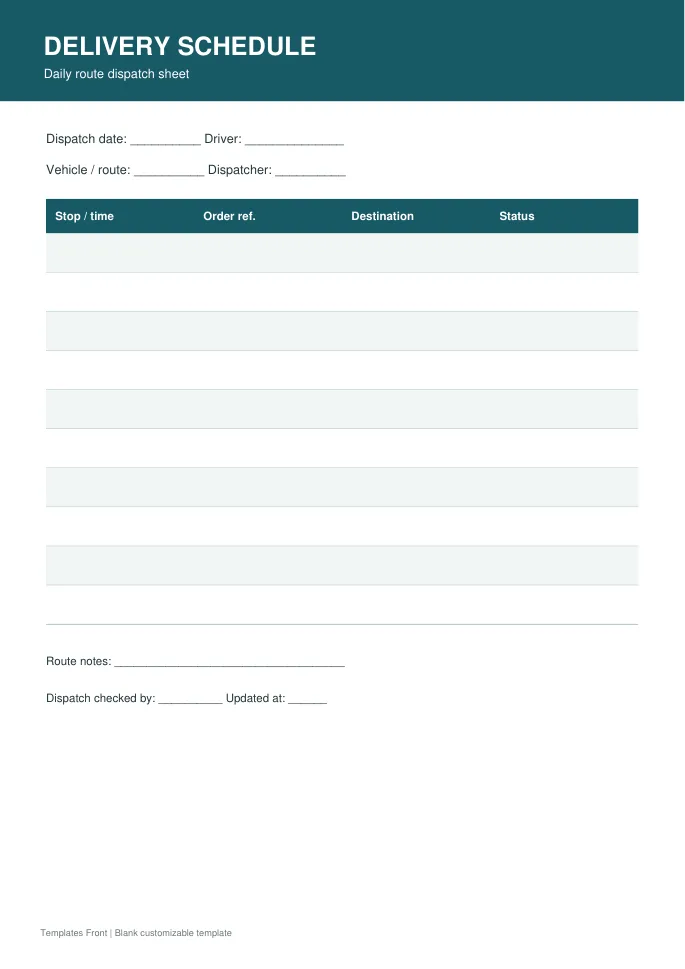
Printable PDF and editable HTML document. Open the HTML in a browser, click the text to edit, then print or save. Tables do not calculate automatically.
Weekly delivery planning board
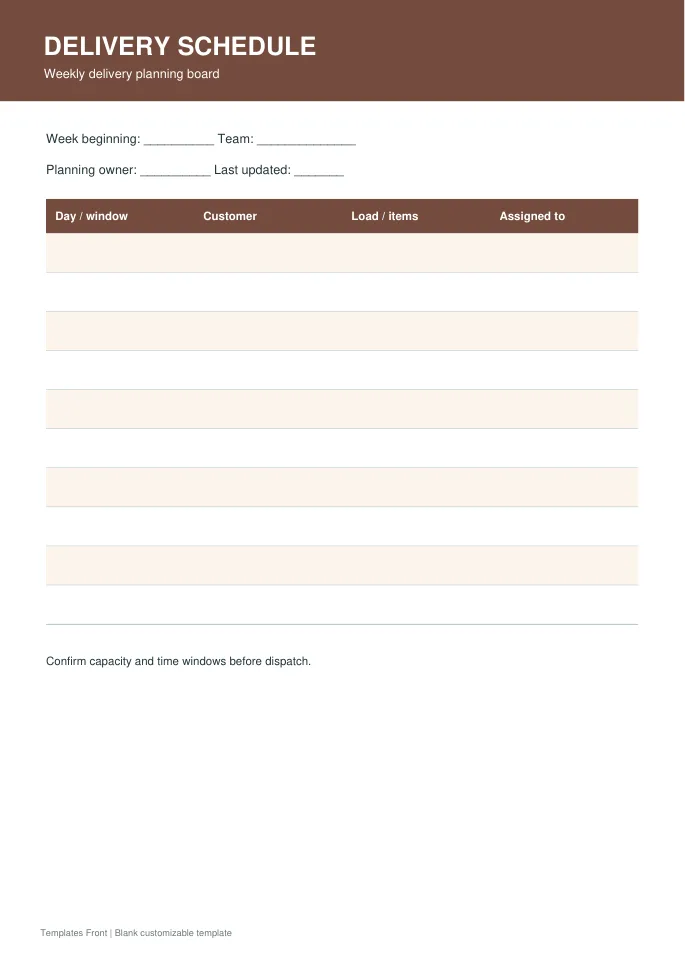
Printable PDF and editable HTML document. Open the HTML in a browser, click the text to edit, then print or save. Tables do not calculate automatically.
Frequently asked questions
Does a schedule confirm delivery?
No. It records the plan. Completion should be recorded through the organization's actual delivery process.
Should it include actual arrival times?
That can be useful if planned and actual values are clearly separate.
How do I handle a missed delivery?
Record the exception and agreed next action rather than silently replacing the original entry.
How do I tell a downloadable file from a source page?
The buttons distinguish file links from external source pages. A source page may contain a download, a paid listing, or further information. Check its file type, availability, and usage terms before relying on it. A preview by itself does not promise an editable file.
How to use these delivery schedule templates
Using a ready-made schedule layout saves time and helps you avoid missing important details. Follow these simple steps to plan deliveries so customers know when to expect their orders.
- Preview the options above and pick the layout that suits your needs.
- Download the file in the format you prefer.
- Replace the sample details with your own information.
- Check every field carefully before you share or print it.
- Save a copy so you can reuse the schedule next time.
Tips for customising your schedule
A few small changes make a template feel like your own. Therefore, review each section before you finish.
List dates and time windows
Show the delivery date and a clear time window. Customers can then plan to be available.
Assign drivers and routes
Note who is responsible for each delivery and the route. This avoids confusion on busy days.
Track status updates
Add a column for delivered, delayed or rescheduled. Quick updates keep everyone informed.
For related resources, see our delivery note templates and order confirmation templates. You can also browse more options in the Samples category.
Common mistakes to avoid with delivery schedule templates
Even a good template can cause problems if it is used carelessly. Watch out for these common issues.
- Leaving sample text or placeholder names in the final file.
- Skipping a final proofread before you send or print it.
- Using an outdated version instead of the latest copy.
- Forgetting to back up the edited file in a safe place.
Frequently Asked Questions
Are these delivery schedule templates free to use?
Yes, you can download and adapt them for personal or business use. However, always check the source link for any extra terms. If you plan to share the file widely, review those terms first.
Which file format should I choose?
Choose the format that matches the software you already use. Word and PDF files are easy to open on most devices. In addition, editable files let you change details without redesigning the page.
Can I edit the schedule after downloading?
Yes, editable versions can be changed in a few minutes. Simply open the file and replace the sample text. Then save it under a new name so the original stays unchanged.
How do I make sure the schedule fits my situation?
Start by listing the details you must include. Next, compare them with the sections in the template. Finally, add or remove fields until it matches your needs.
Final thoughts
Good preparation makes any document easier to finish. Take a few minutes to review the details, and your schedule will look clear and professional.
