
Delivery Note Templates. A delivery note lists the items accompanying a shipment and connects them with an order or dispatch reference. It helps the sender and recipient check what was supplied. Keep it distinct from an invoice: the delivery note explains the contents of the delivery, while the invoice records the charges.
Prepare the note from the goods actually being dispatched, not merely the original order. A partial shipment should show the dispatched quantity clearly. Where the business uses a receipt or acknowledgment section, define what the signature is intended to confirm.
Browse the previews and resource links, or use the guide below to choose the right layout.
What to include
Dispatch reference. Give the shipment its reference and connect it with the customer order.
Sender and destination. Use the actual delivery address and contact details needed for the shipment.
Items and quantities. List product references, descriptions, quantities, and units. Identify separate packages where that helps checking.
Exceptions and acknowledgment. Provide room to record shortages, visible damage, or other exceptions through the agreed receiving process.
How to customize the format
- Compare the picked goods with the order and identify any partial quantities.
- Prepare the delivery note using the actual dispatch details.
- Check the shipment and paperwork together before release.
- Record receipt or exceptions through the business's delivery process and retain the note.
Worked example
If a customer orders 12 units and only 8 are sent, the delivery note should identify the 8 dispatched units. The remaining 4 belong in the outstanding-order record rather than being listed as though they were delivered. This also helps prevent stock records from being reduced by the wrong quantity.
Choose the right version
A simple note suits one package. A multi-package note can list package references. A return note should be identified separately so returned goods are not confused with a new dispatch.
Editable files, calculations, and shared copies
Choose a spreadsheet when the task depends on repeated rows, totals, or filtering. Use an editable document when explanatory wording and page layout matter more than calculations. A PDF may be convenient for a finalized copy, but it is not automatically fillable. A ZIP is a container; inspect its contents before deciding which application you need.
When adapting a spreadsheet, test a few representative entries and check the totals independently. Adding a row or moving a column can leave a formula pointing at the wrong range. Keep dates and numbers in a consistent format. If you share a completed copy, retain a separate blank master so the next version does not accidentally include a previous customer's or participant's details.
Common mistakes to avoid
Do not treat an unsigned note as proof that the customer received the goods. Avoid copying unrelated medical or service documents into a goods-delivery collection simply because their filenames contain the word delivery.
Related documents for the next step
Check the shipment against the order confirmation. See order confirmation templates.
Update stock quantities from actual goods issued. See inventory list templates.
Coordinate dispatch timing with a delivery schedule. See delivery schedule templates.
Previews and linked resources
The collection includes file links and external source pages. File type is shown on direct-file buttons; external pages may offer paid options or additional steps. Some reference images have no editable file attached.


Another file follows.
Download two customizable templates
These original downloads are hosted on Templates Front. Each ZIP contains the template files and instructions described below.
Goods dispatch delivery note
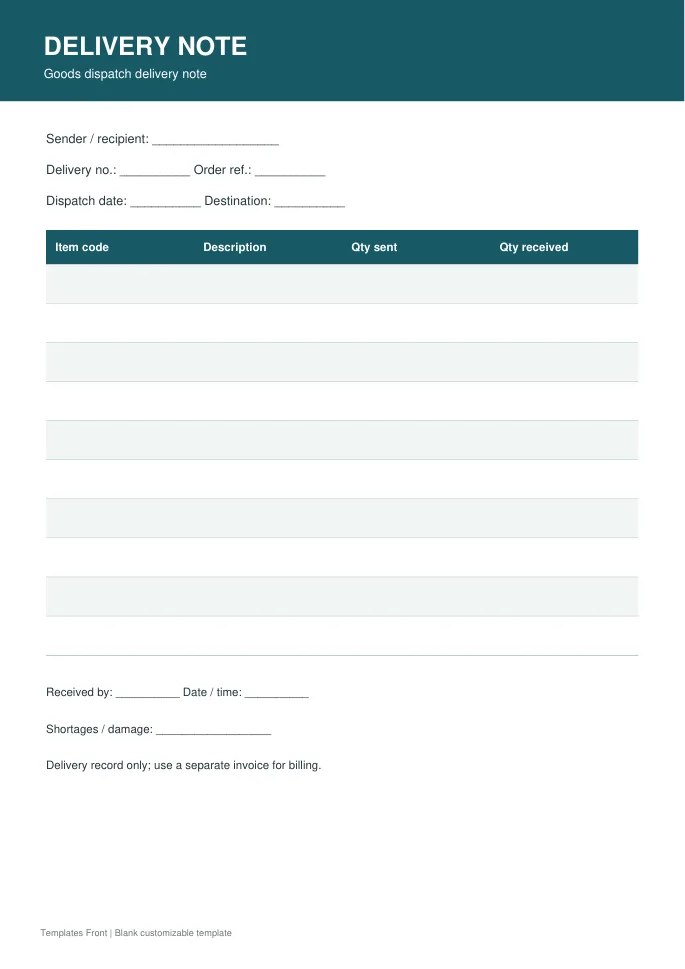
Printable PDF and editable HTML document. Open the HTML in a browser, click the text to edit, then print or save. Tables do not calculate automatically.
Equipment return delivery note
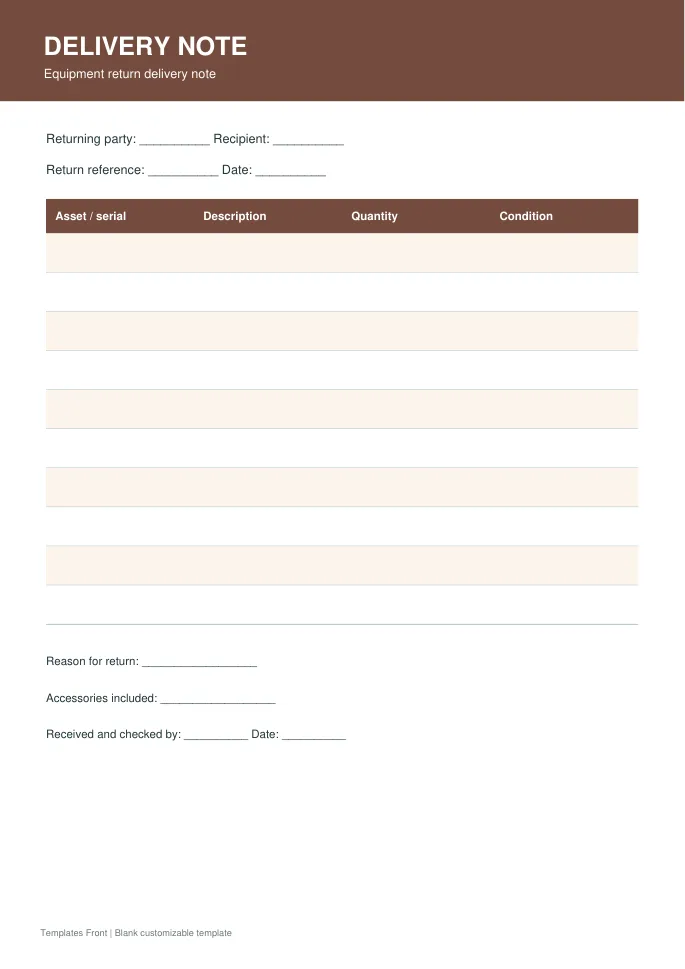
Printable PDF and editable HTML document. Open the HTML in a browser, click the text to edit, then print or save. Tables do not calculate automatically.
Frequently asked questions
Should prices appear on a delivery note?
That depends on the business process. A note can focus on descriptions and quantities, with prices shown on the invoice.
Is it proof of payment?
No. It records shipment contents and any agreed acknowledgment, not payment.
How should partial deliveries be shown?
List the quantity actually dispatched and keep the outstanding amount clearly recorded elsewhere in the order process.
How do I tell a downloadable file from a source page?
The buttons distinguish file links from external source pages. A source page may contain a download, a paid listing, or further information. Check its file type, availability, and usage terms before relying on it. A preview by itself does not promise an editable file.
How to use these delivery note templates
Using a ready-made delivery note layout saves time and helps you avoid missing important details. Follow these simple steps to record what was delivered and confirm receipt.
- Preview the options above and pick the layout that suits your needs.
- Download the file in the format you prefer.
- Replace the sample details with your own information.
- Check every field carefully before you share or print it.
- Save a copy so you can reuse the delivery note next time.
Tips for customising your delivery note
A few small changes make a template feel like your own. Therefore, review each section before you finish.
List every item and quantity
Describe each item and the quantity sent. The recipient can then check the delivery on arrival.
Add sender and recipient details
Include names, addresses and the order reference. This links the note to the correct order.
Provide a signature area
A signature and date confirm the goods were received. Keep a copy for your records.
For related resources, see our order confirmation templates and delivery schedule templates. You can also browse more options in the Samples category.
Common mistakes to avoid with delivery note templates
Even a good template can cause problems if it is used carelessly. Watch out for these common issues.
- Leaving sample text or placeholder names in the final file.
- Skipping a final proofread before you send or print it.
- Using an outdated version instead of the latest copy.
- Forgetting to back up the edited file in a safe place.
Frequently Asked Questions
Are these delivery note templates free to use?
Yes, you can download and adapt them for personal or business use. However, always check the source link for any extra terms. If you plan to share the file widely, review those terms first.
Which file format should I choose?
Choose the format that matches the software you already use. Word and PDF files are easy to open on most devices. In addition, editable files let you change details without redesigning the page.
Can I edit the delivery note after downloading?
Yes, editable versions can be changed in a few minutes. Simply open the file and replace the sample text. Then save it under a new name so the original stays unchanged.
How do I make sure the delivery note fits my situation?
Start by listing the details you must include. Next, compare them with the sections in the template. Finally, add or remove fields until it matches your needs.
Final thoughts
Good preparation makes any document easier to finish. Take a few minutes to review the details, and your delivery note will look clear and professional.
Quick checklist before you send
First, compare the goods with the order. Next, enter the quantities you actually dispatched. Then, add the delivery address and the order reference. After that, check the totals carefully. Also, note any damaged or missing items. In addition, ask the receiver to sign and date the note. However, do not sign before the goods are checked. As a result, both sides have a clear record. Finally, keep a copy of the signed note. For example, store it with the order file. Moreover, share a copy with the customer. Therefore, any later question is easy to answer.
