
A cleaning plan is easier to use when it fits the week you actually have. These weekly cleaning spreadsheet templates help divide chores into manageable entries, identify who will do them and show what still needs attention. They are editable Excel files with two different layouts.
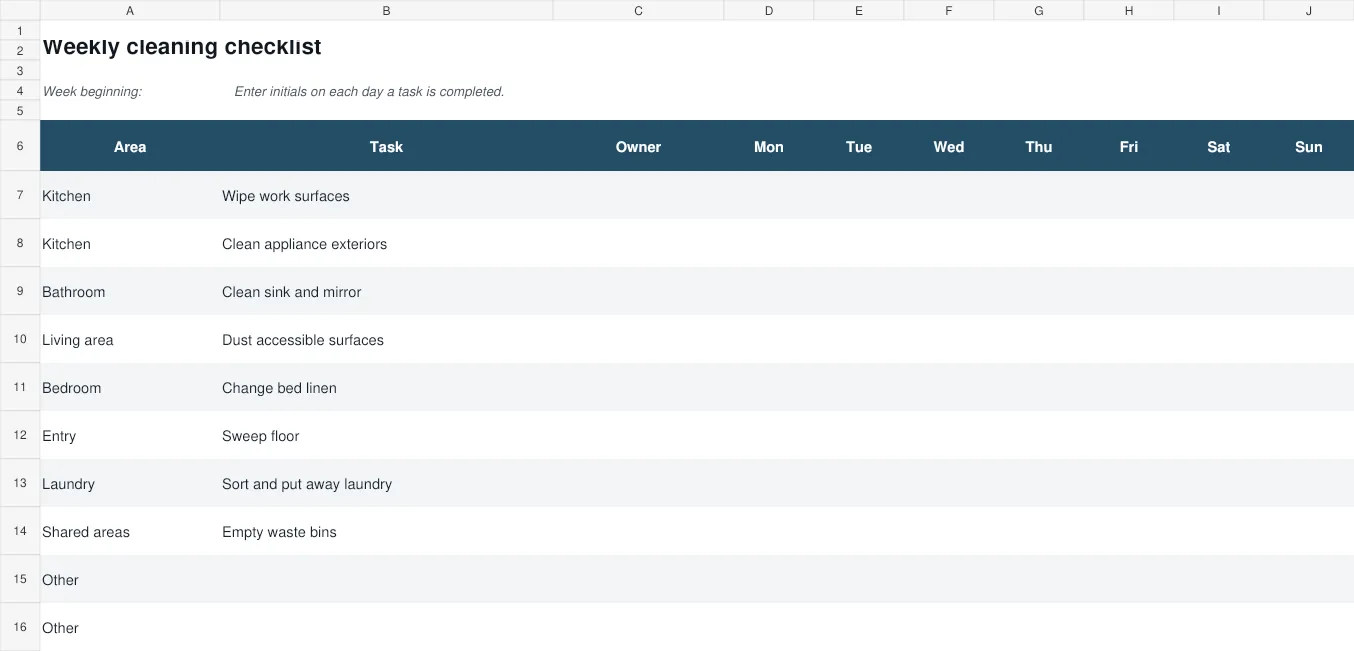
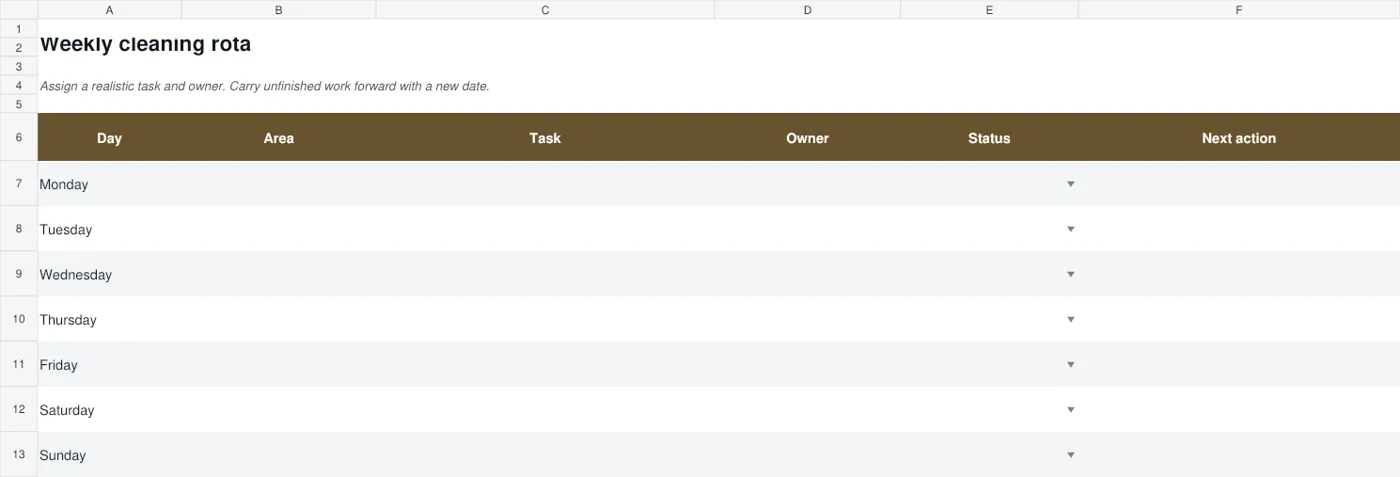
The weekly matrix groups starter tasks by area and gives you a column for each day. The rota takes a day-by-day approach with an owner, status and next-action field. Both have matching previews and direct download buttons below, so you can compare the structure before choosing.
Use the starter wording as a prompt rather than a fixed routine. Adjust the tasks, frequency and responsibility to your household or workplace, and follow the relevant surface and equipment instructions for the work itself. The spreadsheet organizes the plan; you decide what is appropriate for the setting.
Start with areas rather than an endless chore list
List the areas that belong in your plan, such as the kitchen, bathroom, shared rooms, entrance and laundry. Then choose the tasks that matter for each area in this particular routine. Avoid adding every possible cleaning activity to the weekly sheet.
A task done less often can have a separate reminder rather than crowding the current week. Use descriptions that tell someone what to do, such as wiping an accessible work surface or sorting laundry. Broad entries such as “clean everything” are difficult to complete consistently.
Keep the plan focused enough that the people using it can recognize what a finished task means.
Choose the matrix when tasks repeat across days
The weekly matrix puts the task and area at the left, followed by an owner and daily columns. This is useful when you want to see repeated checks or completion marks across the week.
The starter rows include common household areas, but you can replace them with the rooms or work zones that apply to you. Decide how users will mark a completed task, such as initials, and use that convention consistently.
Leave non-scheduled days clear rather than making every blank look overdue. If you need more than one owner or a different schedule, edit the row so the responsibility remains understandable.
A shared household plan with room for a busy day
Consider a fictional household that wants to stop leaving every chore for the weekend. The adults first choose a few tasks for each area, then compare them with their availability.
Monday receives a short kitchen task, Wednesday has time for a living-room reset and Saturday keeps a flexible slot for work that takes longer. On a particularly busy Tuesday, the plan includes only a brief agreed task rather than an unrealistic list.
When one job cannot be finished, the rota records a next action and a new day. At the weekend review, the household notices that the same long entry is always deferred and splits it into two smaller tasks.
This example shows how a weekly cleaning checklist can support a practical conversation. The spreadsheet does not need to dictate a universal routine to be helpful.
| Layout | Useful when |
|---|---|
| Weekly cleaning matrix | You want a task-by-day view with consistent completion marks. |
| Weekly cleaning rota | You assign different tasks by day and need status and next actions. |
Choose the rota when the day is the starting point
The day-by-day rota works well when each day has a different main task or a clear division of work. Its columns record the day, area, task, owner, status and next action. The status choices are Planned, In progress, Complete and Needs review.
Use a status only when it reflects the task’s actual position. A next-action field is useful when work cannot be finished as expected, because it explains what happens next. Add rows when a day needs more than one entry, and keep the day labels clear.
The layout should help you adjust the week rather than hide changes behind a series of crossed-out notes.
Assign work according to realistic availability
Discuss who will take each task and when there is time to do it. Do not assume that a name in the owner column means the person has accepted the responsibility. Spread larger chores across the week where that helps, and allow for ordinary interruptions.
A busy day may need only a short essential task, while another day can accommodate a longer one. If the plan is shared at work, keep it consistent with the actual responsibilities and resources.
The sheet should make the division of work clearer, not create a schedule that depends on everyone having an uninterrupted hour at the same time.
Use clear completion marks and useful exceptions
Agree what the completion mark means and when it should be entered. A tick made at the start of a task tells a different story from one made after it is finished.
If an item cannot be completed, record the specific reason or next action where the chosen layout provides space. For example, a supply may need replacing or the area may be unavailable. Keep the explanation short enough to use during the next review.
Avoid changing the meaning of a symbol from one day to another. A simple consistent record makes it easier to identify unfinished work without turning the checklist into a lengthy diary.
Carry unfinished work forward deliberately
At the end of the week, review what remains and decide whether it still belongs in the next plan. Give it a realistic new slot and an owner rather than copying every incomplete task automatically.
Repeated carry-forward can show that the task is too broad, the timing is unsuitable or the responsibility is unclear. Adjust the plan when that pattern appears.
Keep any infrequent tasks in the appropriate reminder system so they are not forgotten simply because they do not fit the weekly page. The purpose of review is to make the next week more workable, not to preserve an increasingly long list of overdue entries.
Keep a clean master and test your edits
Save a blank master before completing the workbook for a particular week. Give each working copy a clear week reference so people can find the current plan.
If you add columns or rows, check that labels, status fields and the view you share still make sense. Review the file at the size users will see on screen or in print. Long task descriptions may need wrapping or a wider column.
Do not shrink the whole sheet until it is difficult to read merely to fit more chores. A clear smaller plan is more useful than a dense page that nobody wants to update.
2 downloadable templates and previews
These are two newly prepared Excel workbooks. The weekly matrix includes common household starter tasks and Monday-to-Sunday columns. The rota uses one row per day with space for an area, task, owner, status and next action. You can edit the labels and add rows. The previews show the actual files rather than unrelated design examples.
Weekly cleaning matrix
Download Weekly cleaning matrix
Weekly cleaning rota
A final check before using the template
- Choose the areas and tasks that apply.
- Select the matrix or rota for your way of planning.
- Agree owners and realistic timing.
- Use one clear completion convention.
- Give unfinished work a specific next action.
- Save the current week separately from the blank master.
A five-minute weekly review
Look at the current week before preparing the next copy. Ask which tasks were useful, which were unclear and which repeatedly needed more time. Check whether the people assigned had the necessary supplies and access.
Remove entries that do not serve the routine and make the important ones more specific. Keep a small number of changes so the plan remains familiar enough to use. If the sheet is shared, confirm the next week’s owners rather than silently carrying names forward.
A review is successful when the new plan better fits the setting, even if the list becomes shorter.
Related templates
For checking household or workplace items separately from chores, use inventory templates.
If the routine depends on supplies arriving, keep that timetable separate with delivery schedule templates.
For a workplace transfer of outstanding tasks, prepare a separate handover report templates.
Frequently asked questions
Are these actual Excel files?
Yes. Both downloads are editable XLSX workbooks, and the previews are taken from those files. One uses a weekly task matrix and the other a day-by-day rota. Keep a clean master before entering a particular week’s information.
Can I change the starter tasks?
Yes. Replace the starter wording with the areas and chores that fit your setting. Keep task descriptions specific enough that another person can understand what completion means. Check the layout after adding long entries or extra rows.
Which layout is better for a household?
Choose the matrix for a task-by-day view, or the rota when days and named responsibilities are the main organizing feature. The better choice is the one people can update consistently. You do not need to use both for the same routine.
Does a blank cell mean the task was missed?
Define the marking convention first. A blank may mean a task was not scheduled for that day, is not yet complete or was left unrecorded. Keep those meanings clear so the sheet does not create a misleading picture.
What should happen to an unfinished task?
Review why it was not completed and decide whether it still belongs in the next plan. Assign a realistic next action, day and owner. Repeated deferral is a reason to reconsider the task’s size or timing, rather than keep copying it unchanged.
You can also browse more options in the Templates category.
