
A worksheet is useful when it gives a task somewhere to begin and a clear record to leave behind. Also, these worksheet templates cover different purposes, from organizing activities and goals to recording repeated information. Choose the structure around the work you need to do, rather than the file format alone.
The collection contains 28 downloadable examples with previews. An Excel worksheet can be useful for repeated rows and calculations; a Word page may suit written prompts or a printable form. A PDF may provide a stable reference or print layout, but it is not automatically editable or fillable.
Start by deciding what the completed page should tell you. If a field will not help the task, review it before carrying it into every new copy. A simple worksheet that people understand is usually easier to maintain than a complicated page inherited unchanged from a sample.
28 downloadable examples and previews
Use the preview to compare the layout, then choose the download button for the actual file. Extract ZIP packages before opening them. Check the file format and contents before editing; a preview is not itself an editable document. In addition, keep a blank original and save completed versions with clear filenames.
What is a Worksheet Template?
- Safety Inspection Worksheet
- Time Management Worksheet
- Self Development Worksheet
- Stock Control Worksheet
- Accounting Worksheet
- Project Worksheet
- Planning Worksheet
Free Editable Worksheet Templates
Road Safety Inspection Worksheet Template
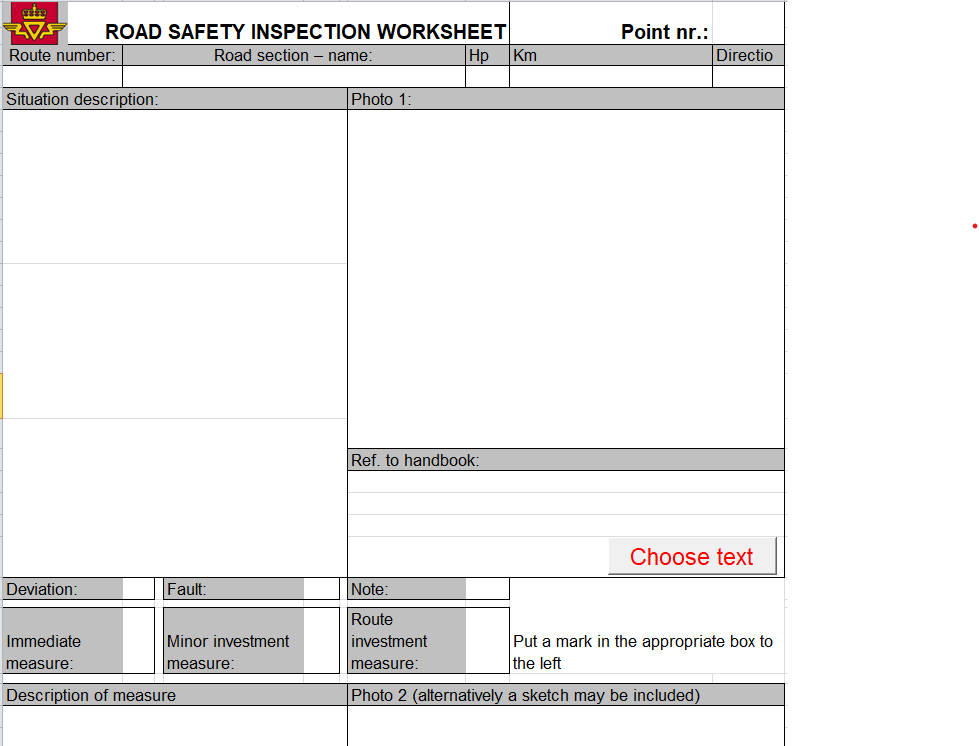
File Size: 71 KB
Time Management Worksheet Excel Template
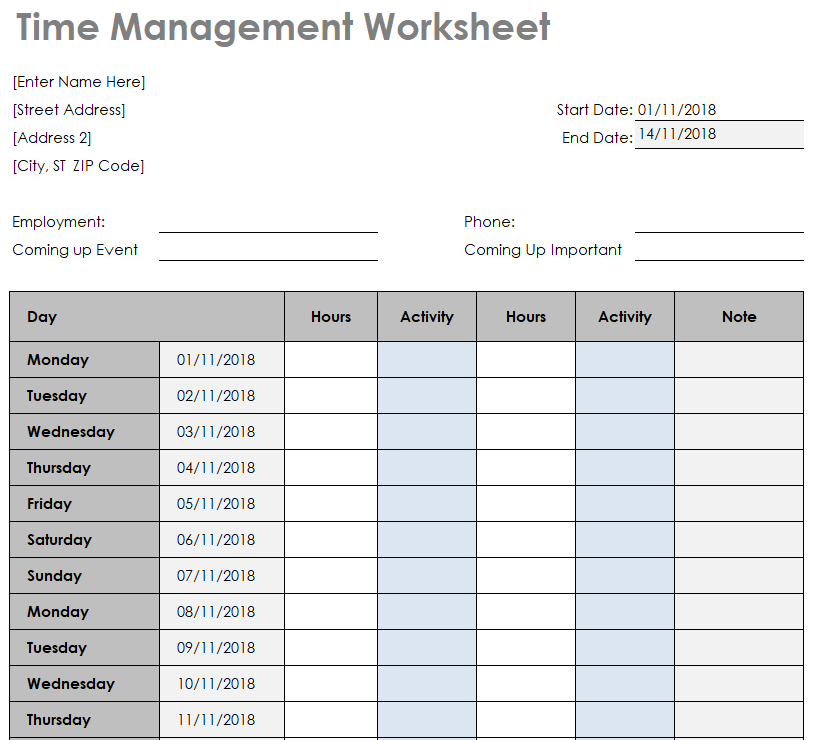
File Size: 11 KB
Goal Setting Worksheet Template Word
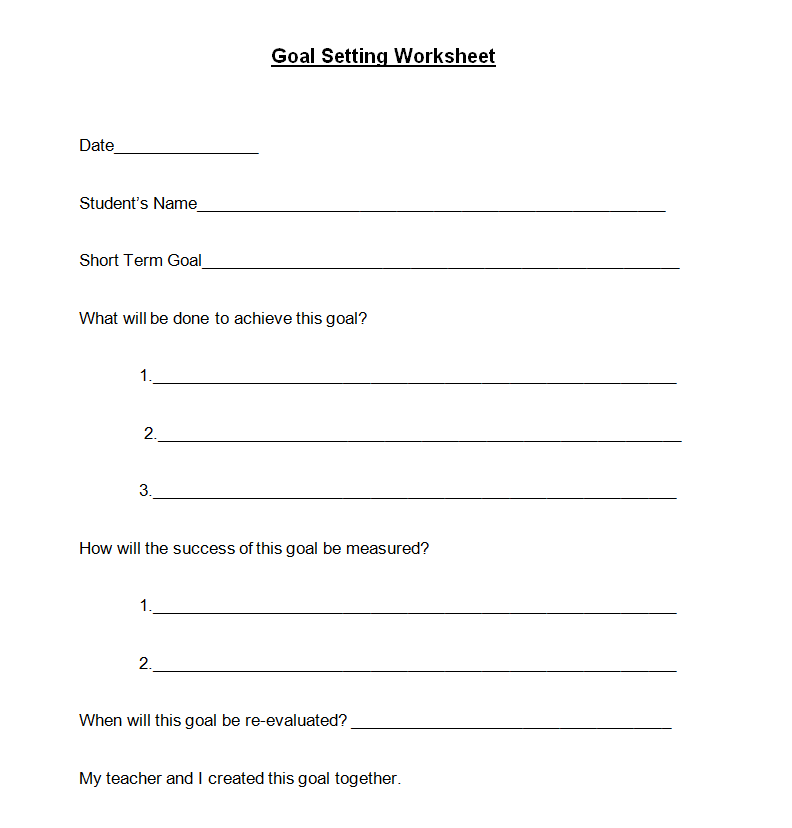
File Size: 06 KB
Standard Work Combination Sheet Template
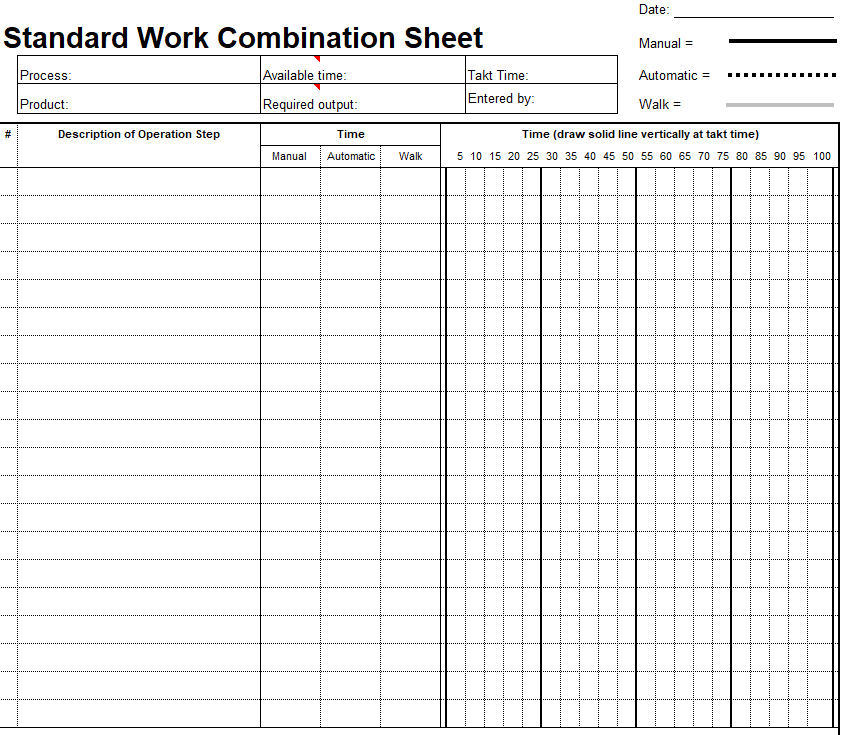
File Size: 10 KB
Stock / Inventory Control Worksheet Template Excel
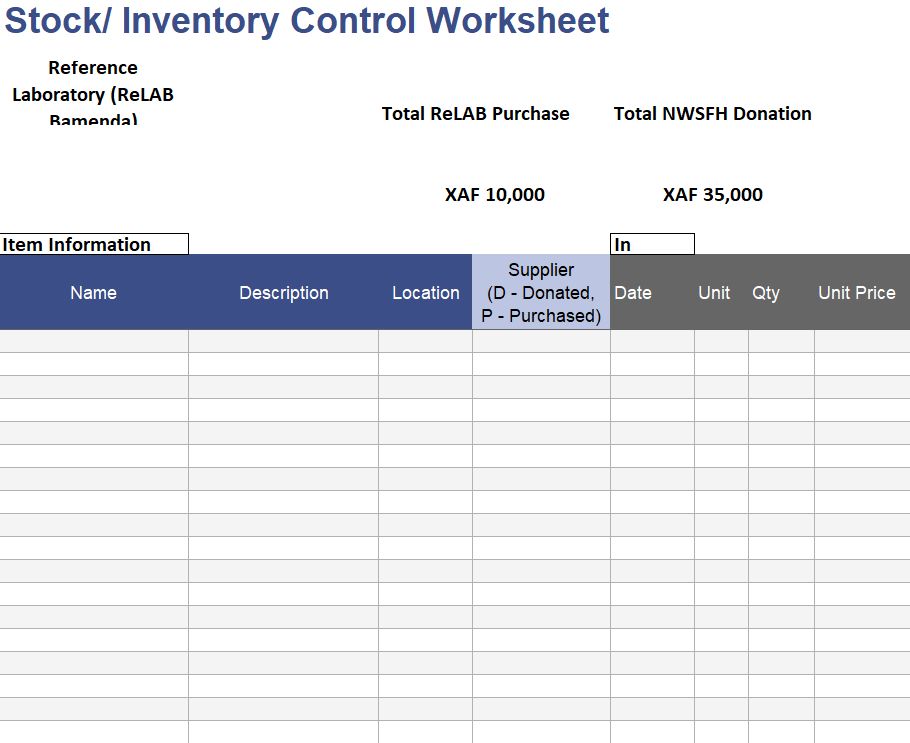
File Size: 20 KB
Simple Daily Activity Worksheet Template in XLSX Format
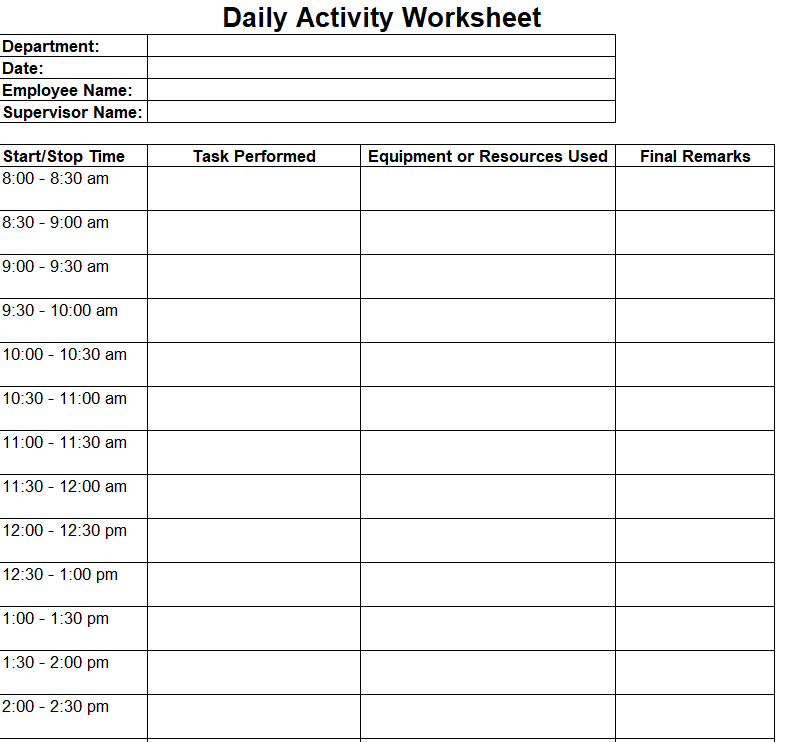
File Size: 08 KB
Blank Daily Worksheet Sample DOC
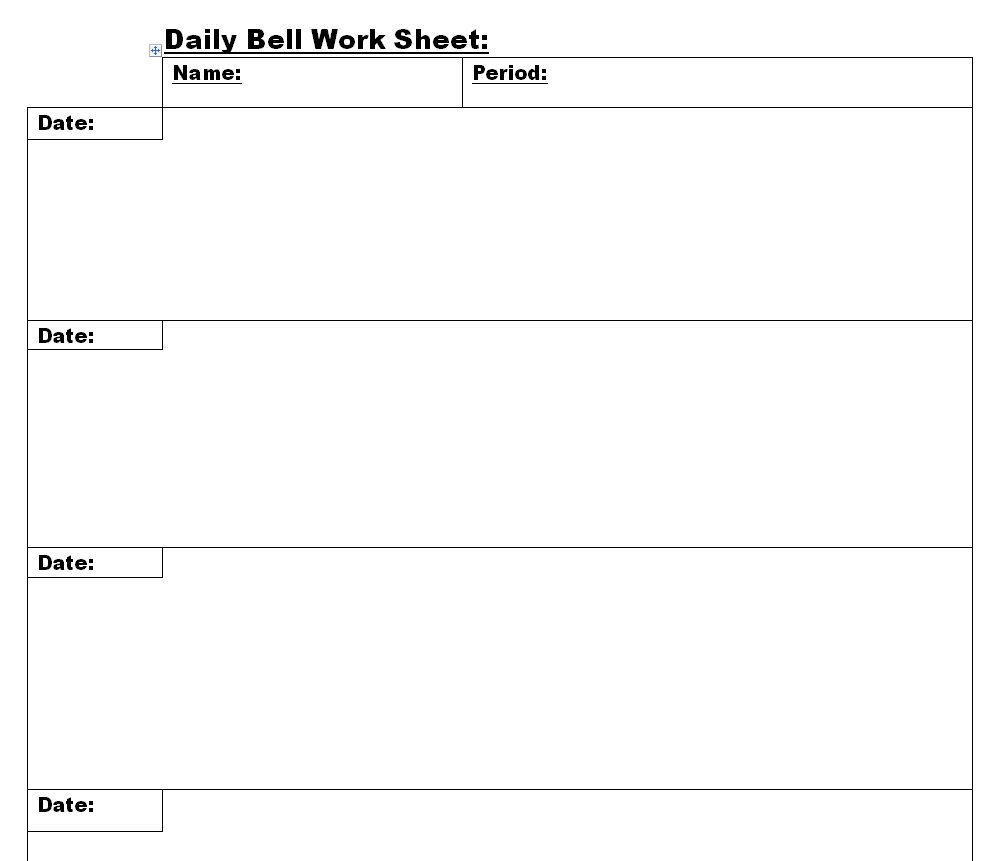
File Size: 07 KB
Feedback Analysis Worksheet Template
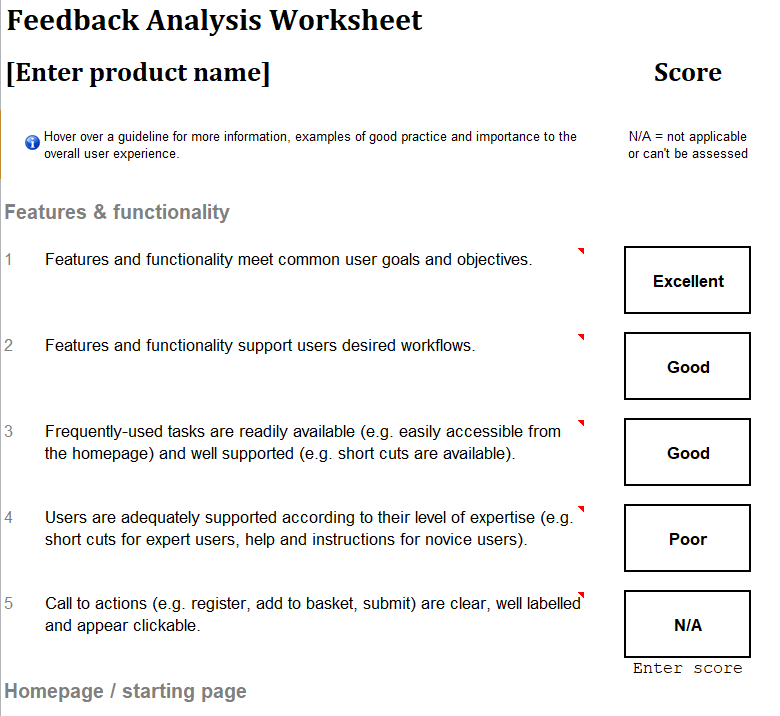
File Size: 33 KB
Free Profit & Loss Worksheet Template in Excel
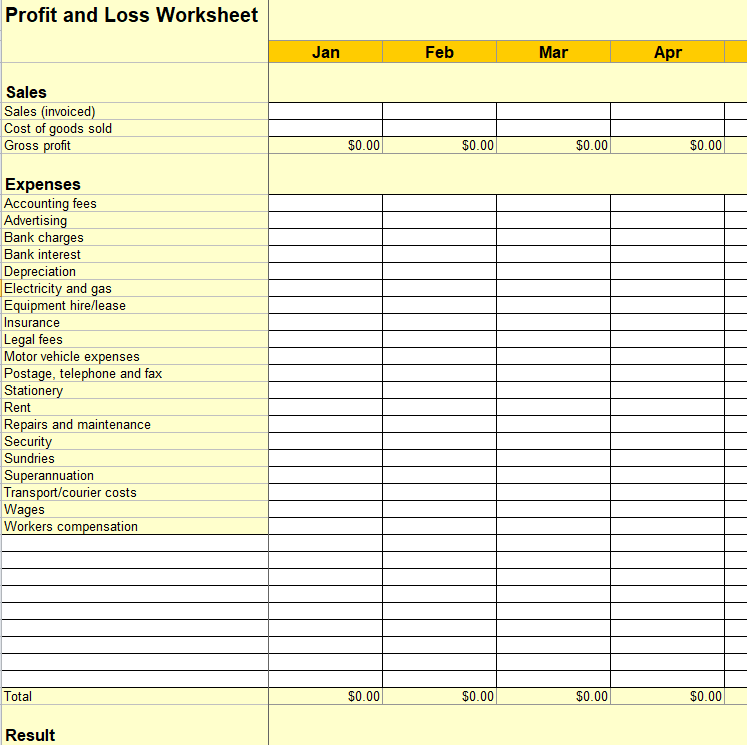
File Size: 35 KB
Church Event Planning Worksheet Template MS WORD
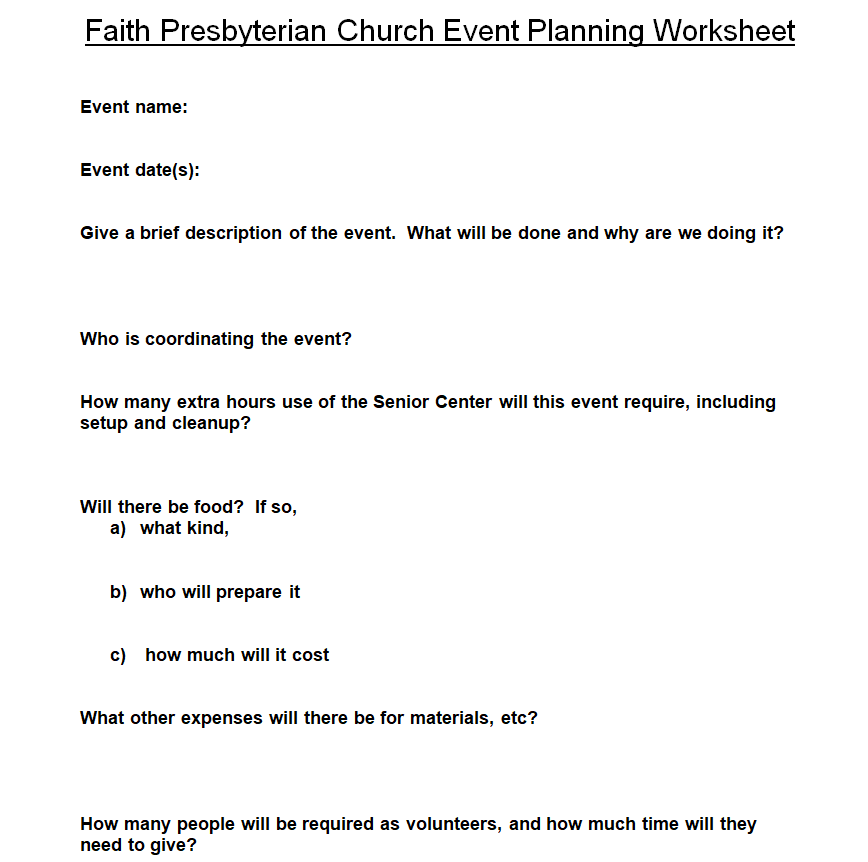
File Size: 04 KB
Sample Accounting Worksheet in MS EXCEL
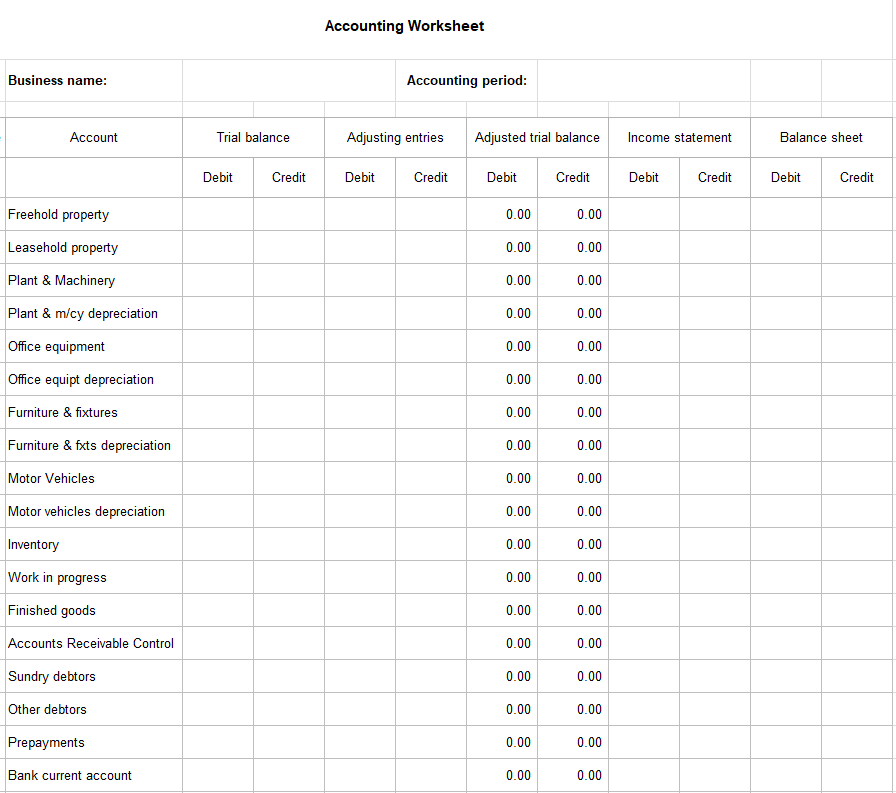
File Size: 15 KB
Customizable Cash Flow Worksheet Template
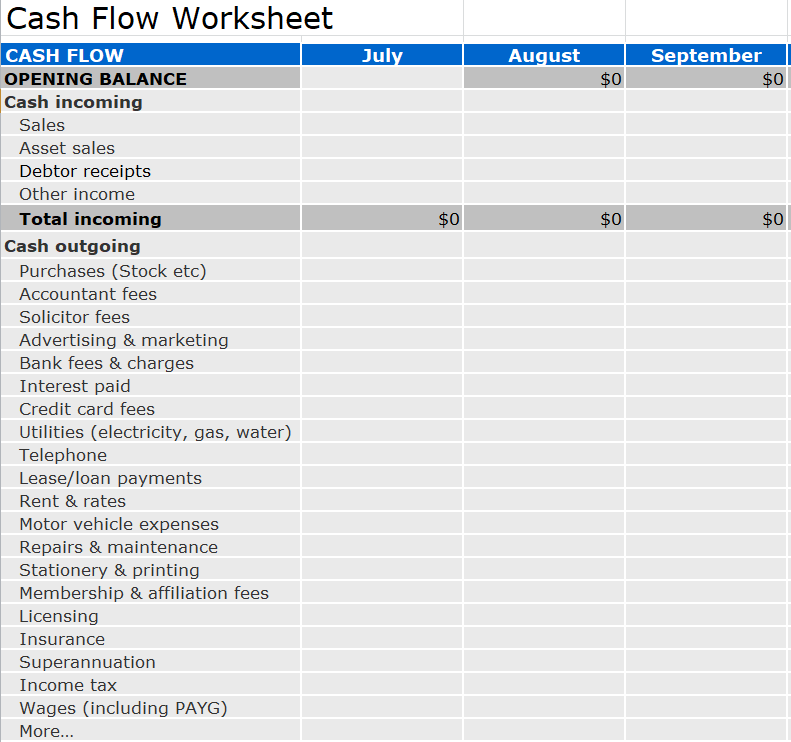
File Size: 46 KB
Performance Standard Worksheet Template
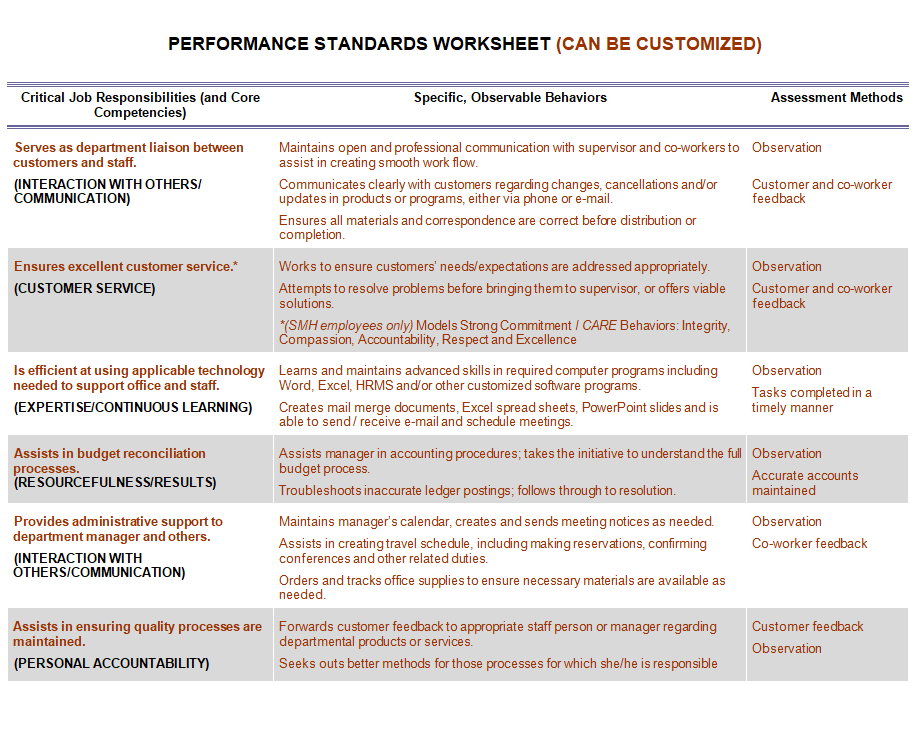
File Size: 07 KB
Household Budget Excel Worksheet Template
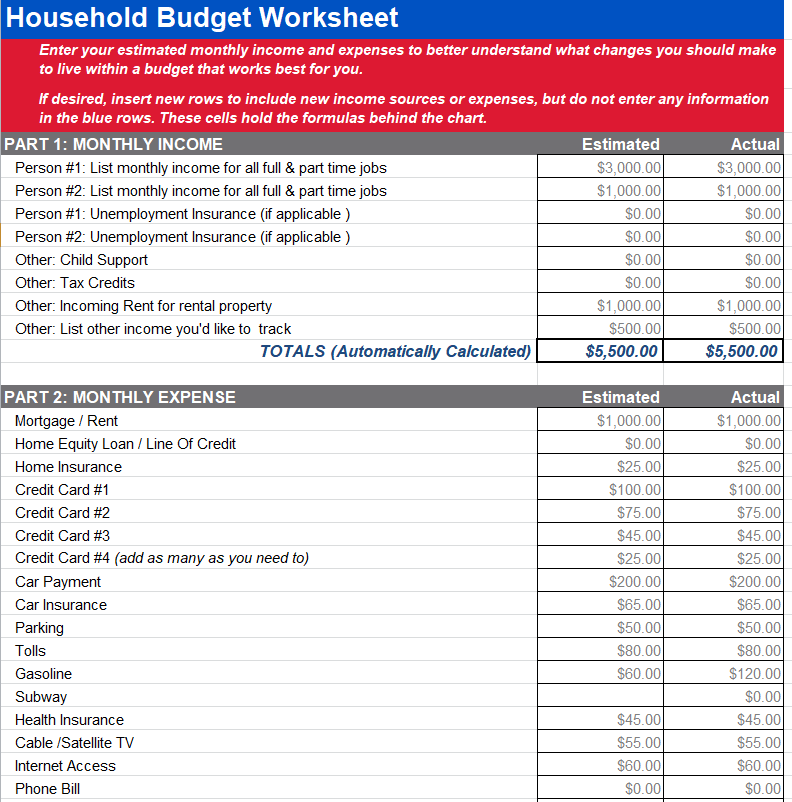
File Size: 07 KB
Daily Cash Worksheet XLSX Format
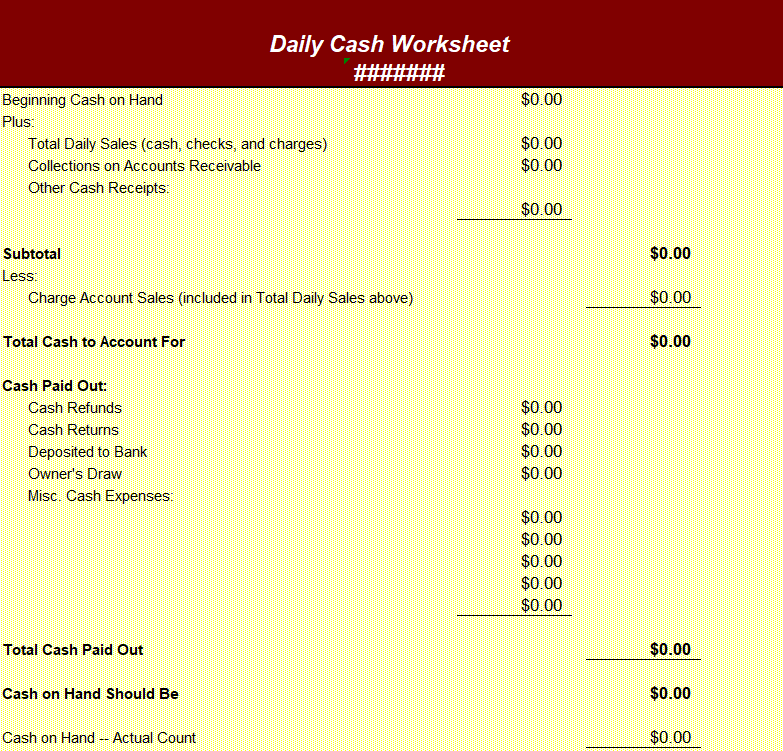
File Size: 11 KB
Handy Project Worksheet Template in WORD
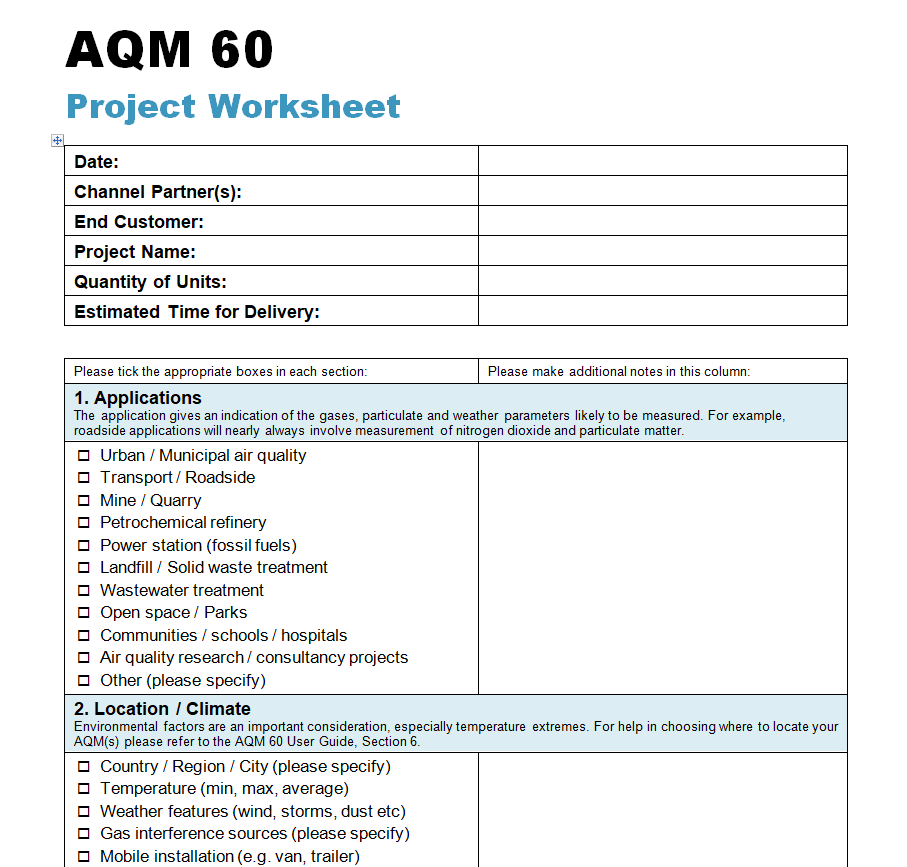
File Size: 57 KB
How to Create a Standard Worksheet Template?
There are a lot of different types of worksheet templates and samples available online.
These worksheet templates will help you create a standard worksheet template of your own or at least they will give you an idea of what a standard worksheet template actually looks like.
You can also check the free worksheet templates in different formats that are available for your use.
However, in order to create a standard worksheet template from scratch, you should know about some of its basic elements. Furthermore, the given below section provides you with the basic details of a worksheet sample for whatever purpose it is created.
Elements of a Standard Worksheet Template
Following is a list of some basic elements or details that a standard worksheet template should contain:
- Title: First thing first, give an exclusive title to your worksheet document. The title will indicate the actual purpose for which the worksheet template is being created.
- Institute or Organization’s Details: The worksheet sample should also include details of the institute or organization like the name, address, logo, etc. The worksheet template can also be drafted on the official letterhead of the organization.
- User Details: In your worksheet template, leave some space for the users to enter their basic details like name, address, contact information, etc. The type of information you want from the users of the worksheet will depend upon the type of worksheet you are creating. For example, if you are creating a vocabulary worksheet template for your students, you would want them to write some basic details like name, class, student ID, etc.
Extra details to include in a worksheet
- Description: Include a brief description of the worksheet template as it will make the users understand in detail what the worksheet is for. Make sure to keep your description brief and to the point.
- Date: Mention the date on which you are creating the worksheet template. Writing the date is important for record purposes.
- Content: Write the content of the worksheet in a clear and easily understandable format. The type of content written in a worksheet depends upon the purpose for which the worksheet is being created.
- Time Period: You can also mention the time period or timeframe in which you want the users to complete the worksheet.
- Instructions or Guidelines: For the convenience of the users, you should also consider providing the necessary instructions or guidelines to complete the worksheet template.
- Feedback: In the end, provide some space for the users of the worksheet template to give their opinions, remarks, or feedback.
Online Worksheet Templates PDF
Facility Inspection Worksheet Template
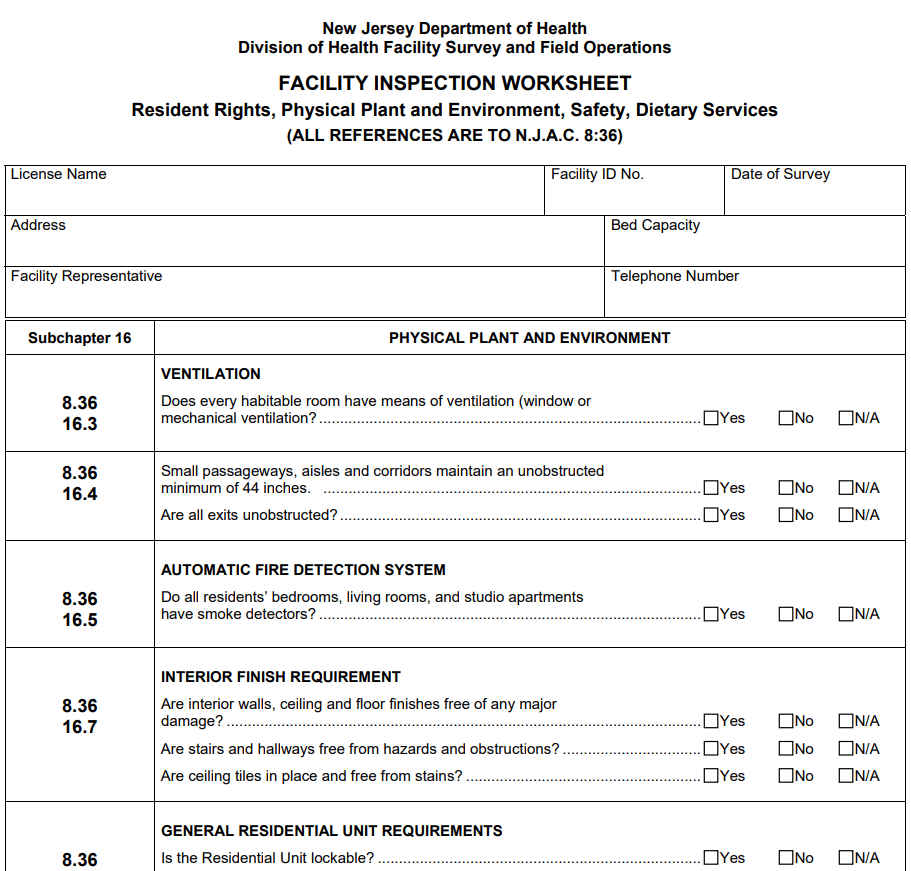
File Size: 26 KB
Pharmacy Inspection Worksheet PDF Template
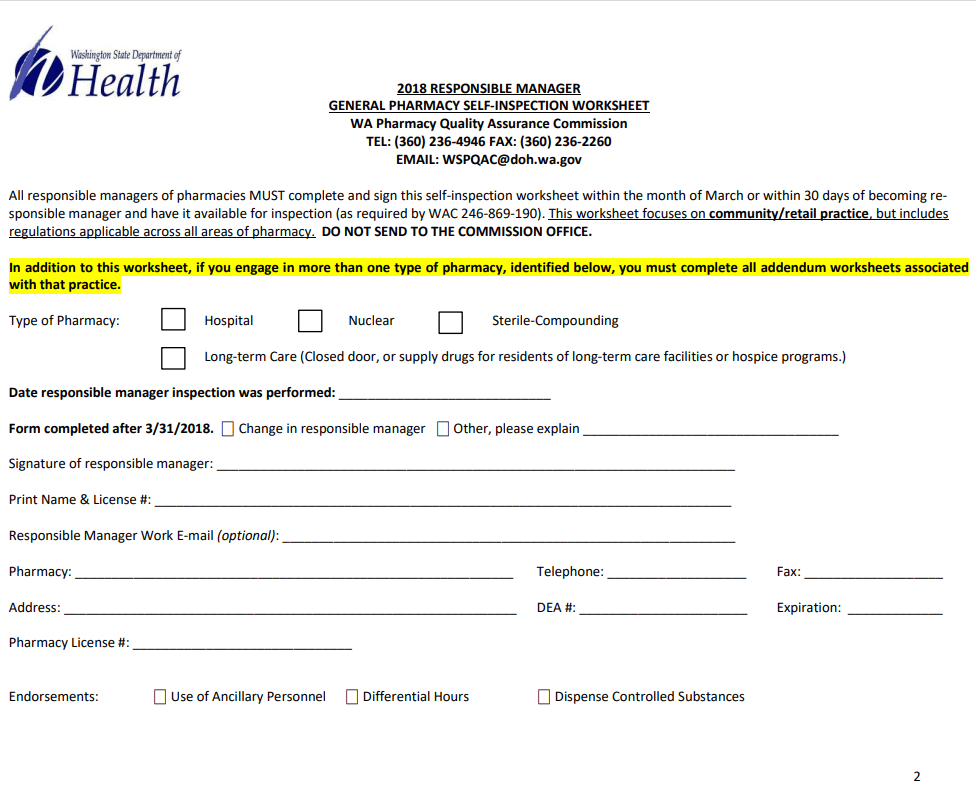
File Size: 938 KB
Damage Inspection Worksheet Sample
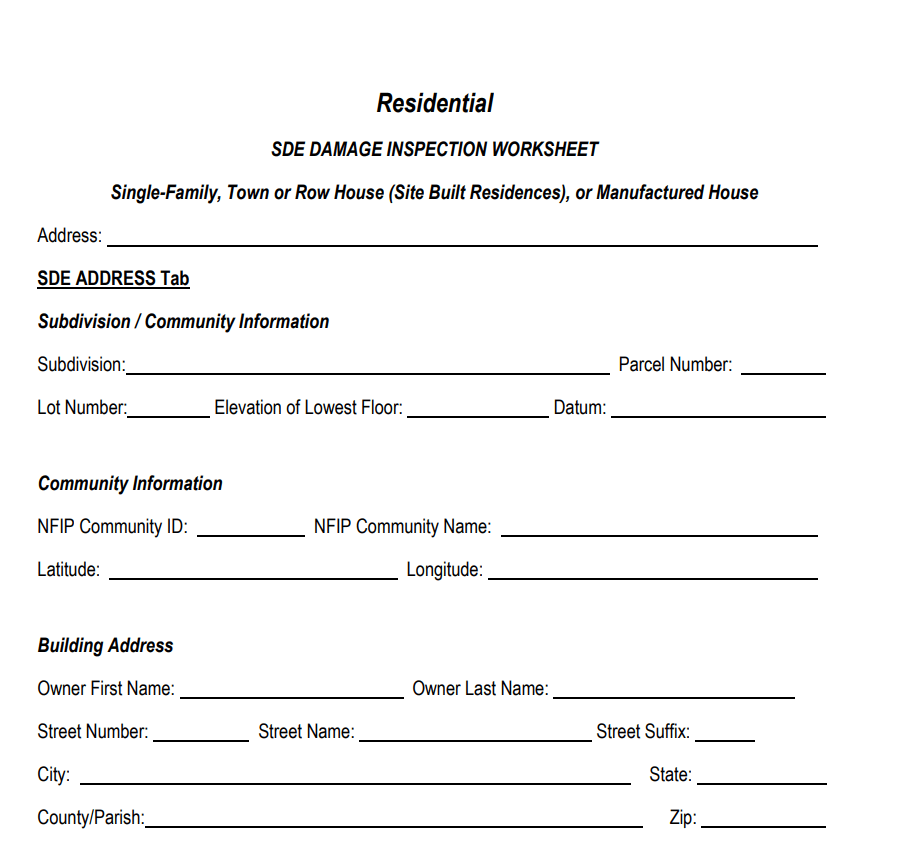
File Size: 199 KB
Sample Vocabulary Worksheet Template
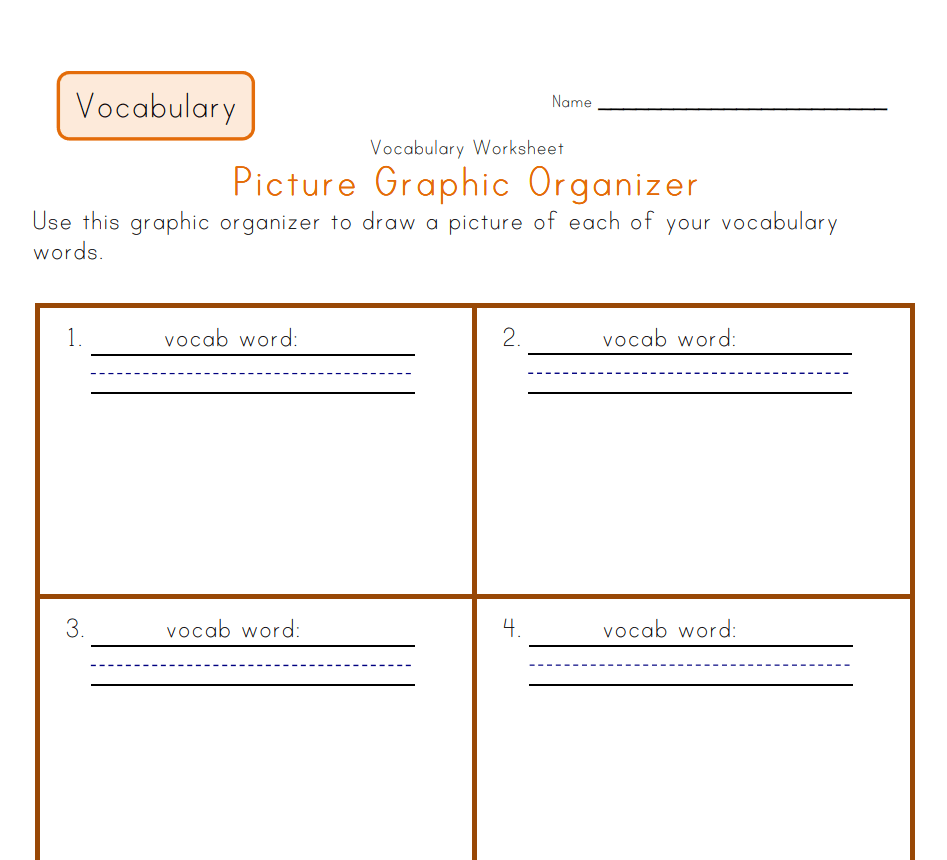
File Size: 22 KB
Standard Development Process Worksheet Template
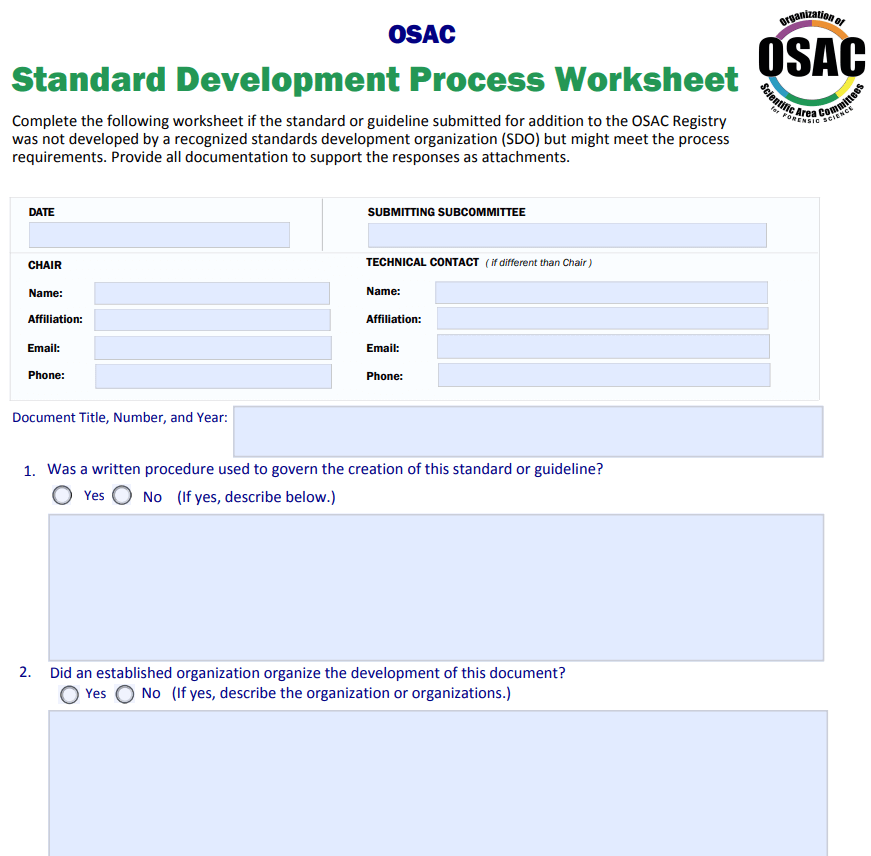
File Size: 02 MB
Vocabulary List Worksheet Sample PDF
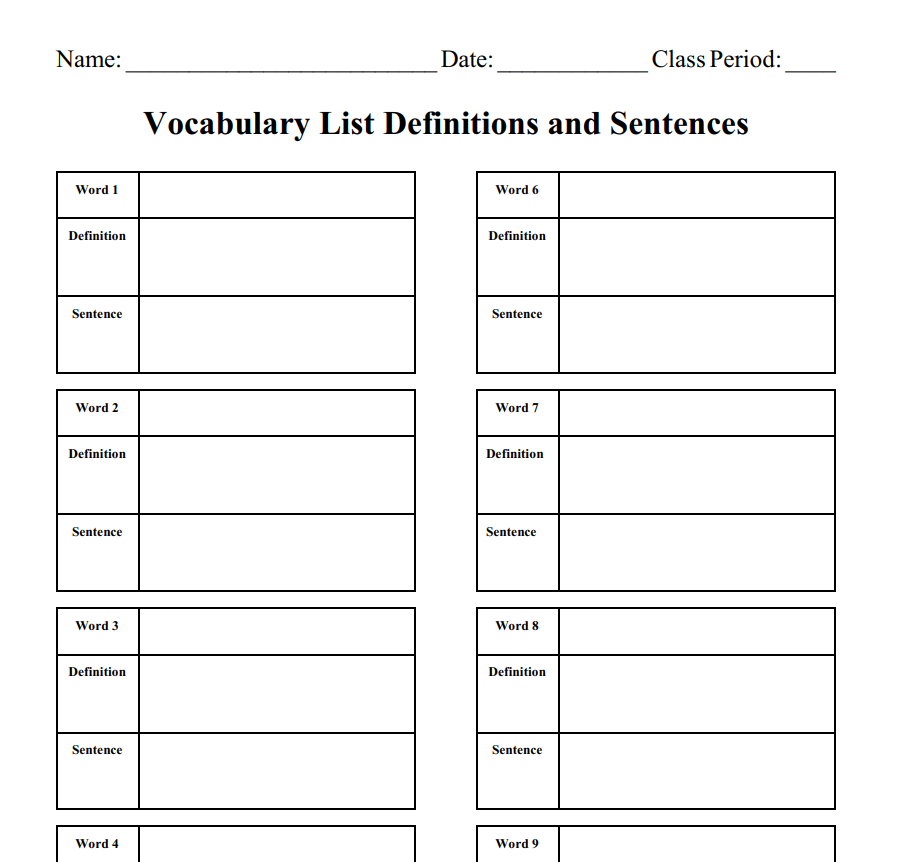
File Size: 18 KB
Standard Verification Worksheet Template
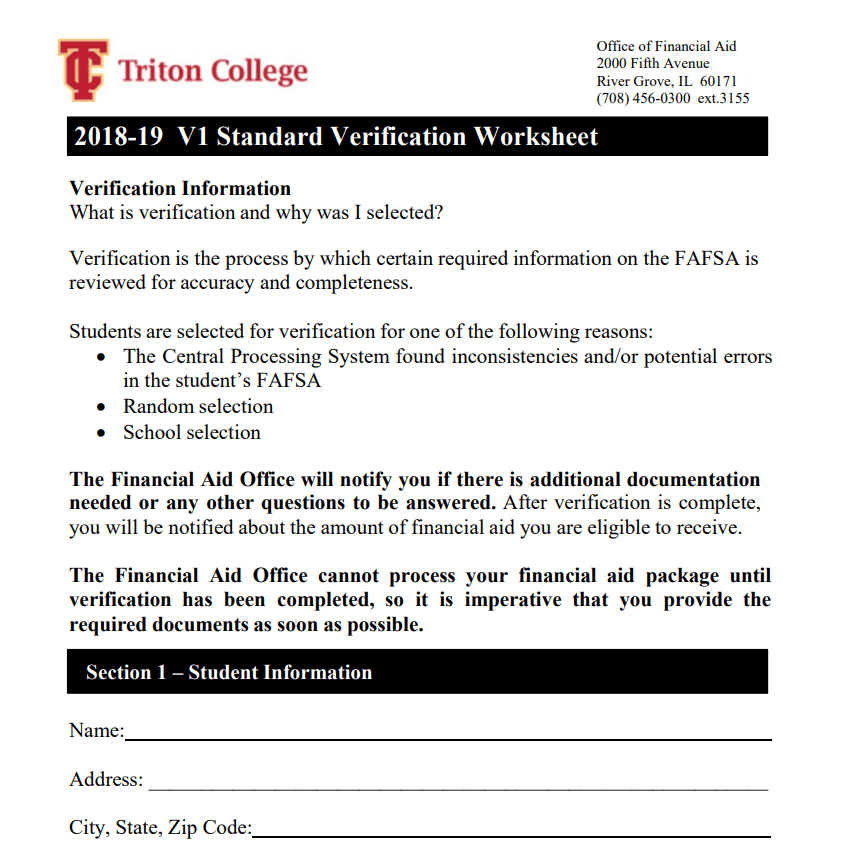
File Size: 289 KB
Academic Worksheet PDF Template
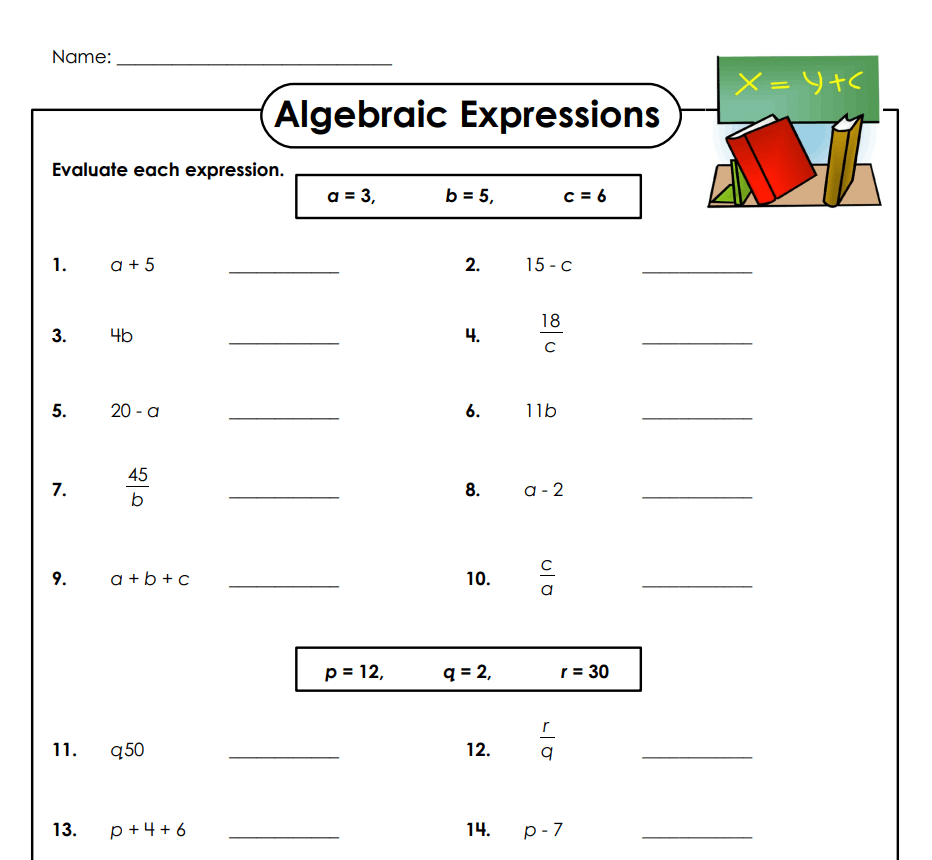
File Size: 86 KB
Student Verification Worksheet Template
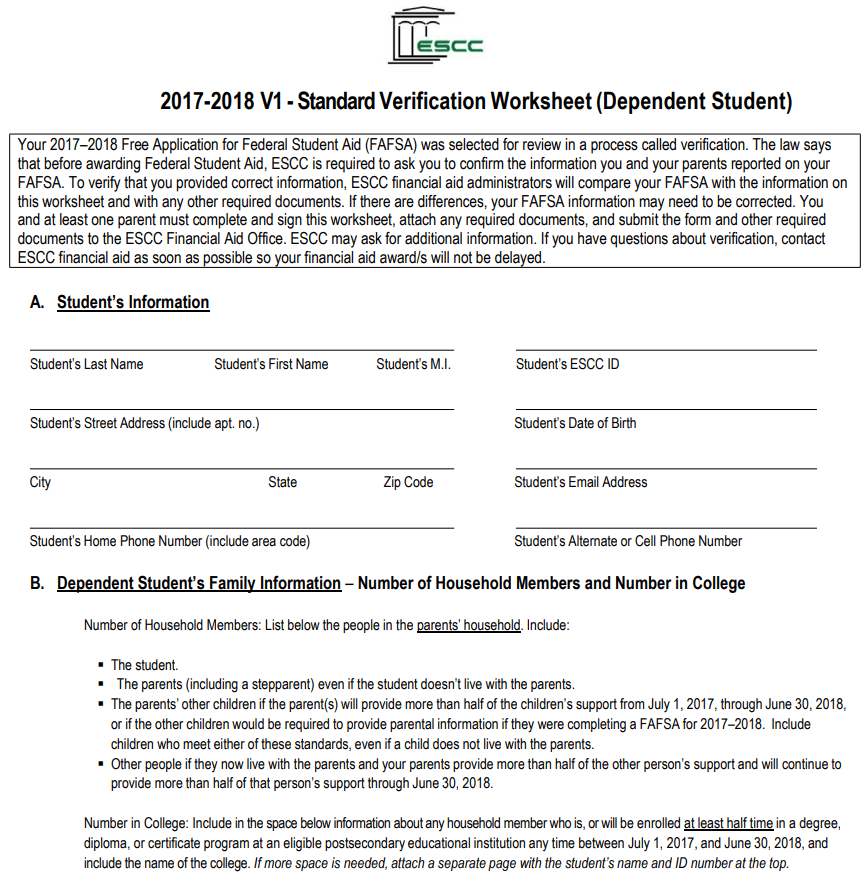
File Size: 280 KB
Blank Class Planner Worksheet Template PDF
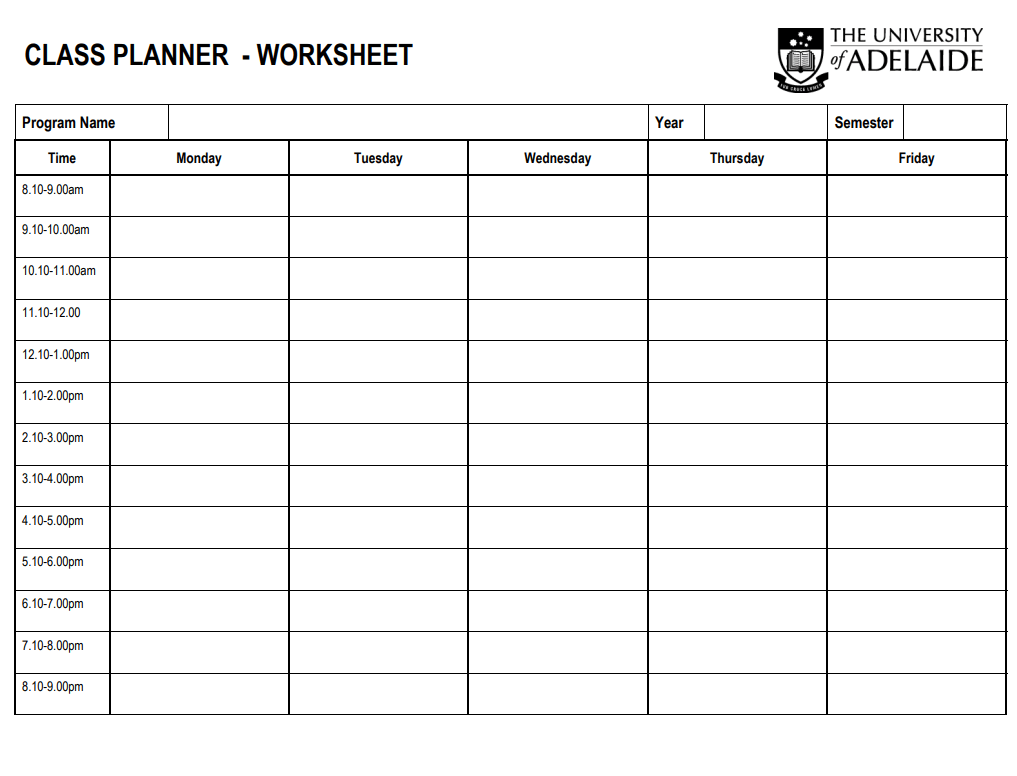
File Size: 10 KB
Mathematics Worksheet Template for Students
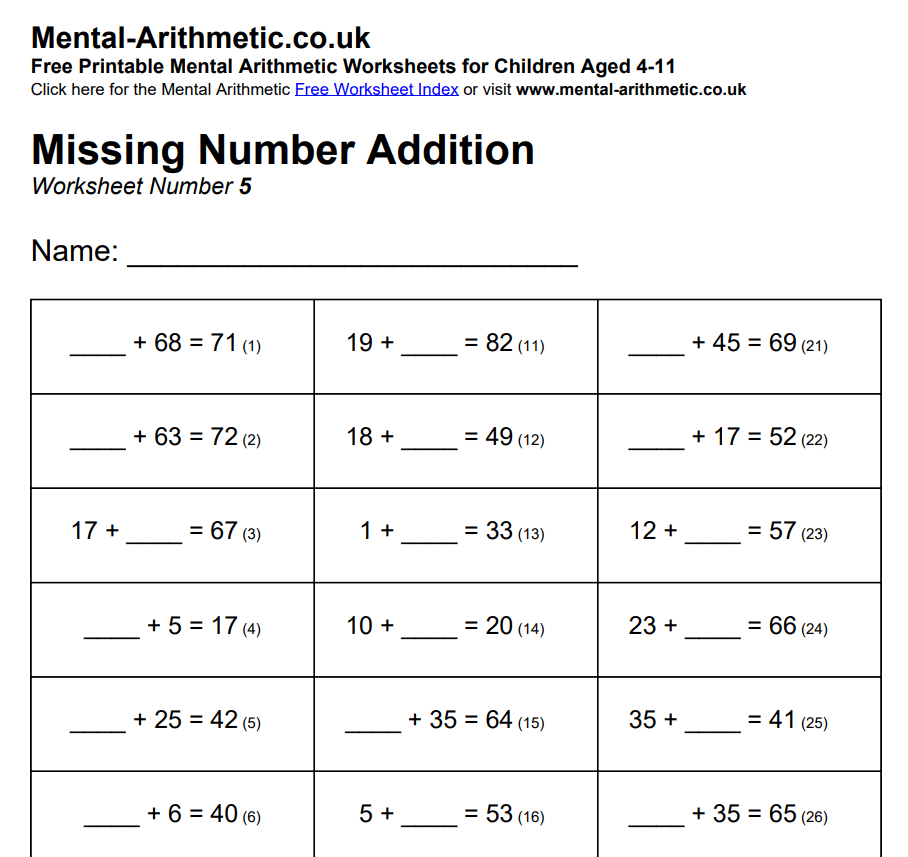
File Size: 04 KB
Elementary Students Vocabulary Worksheet Template
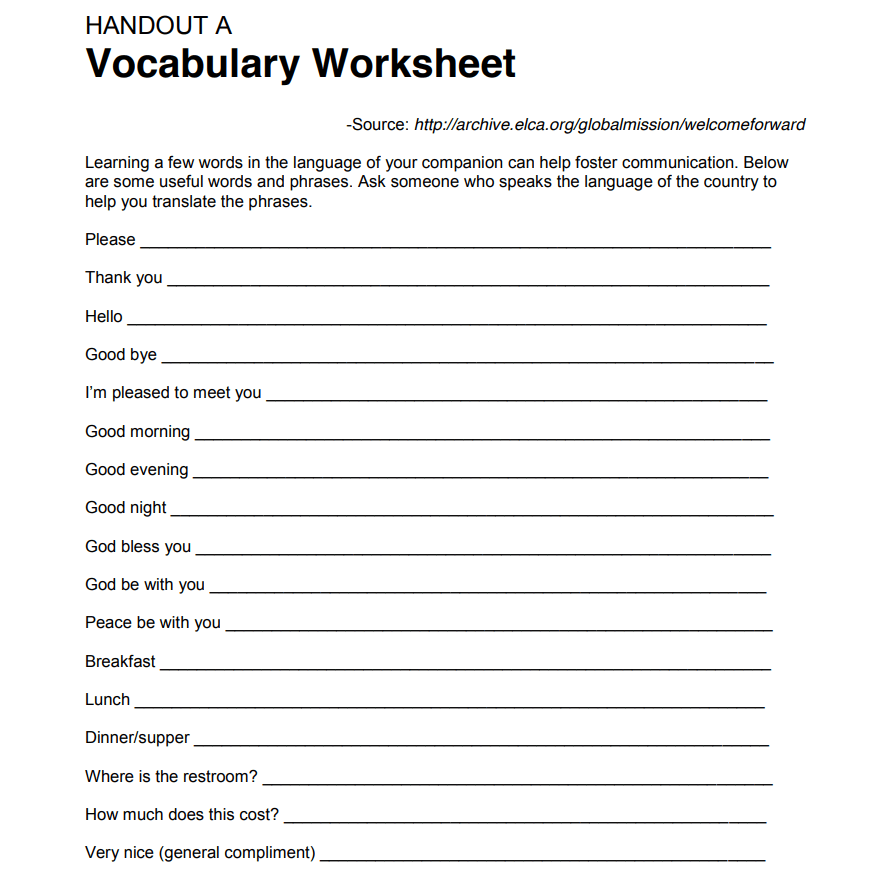
File Size: 193 KB
Match the worksheet to one practical purpose
Identify the activity, the person completing the page and the person using the result. Moreover, a daily activity record, a goal-setting sheet and an inventory worksheet need different information. Give the worksheet a title that makes its purpose obvious and add the relevant date or period.
Avoid combining several unrelated tasks merely because the template has spare space. Where a worksheet supports a specialist inspection or assessment, use the applicable approved process and competent input. A general downloadable form cannot establish that a technical check has been performed correctly.
Use field labels that another person can interpret
A heading such as “amount” is unclear when it might mean quantity, cost or time. State the unit and any relevant basis. For dates, use a consistent format and explain whether the field records a planned date or an actual event.
Keep instructions near the field they affect. If people commonly leave a section blank, ask whether it is confusing, unnecessary or genuinely not applicable. A blank entry should not automatically be interpreted as zero, completion or approval.
Example: a weekly activity worksheet
A small team wants to see which support activities use time during the week. Similarly, the worksheet identifies the date, activity category, responsible person and time basis. It distinguishes time spent from a future estimate.
After a short trial, the team notices that two categories overlap, so it clarifies the labels before using the sheet for a longer period. The purpose is to understand the work, not to imply that every minute recorded measures productivity.
A brief review of the first completed pages reveals problems that are difficult to spot in a blank layout.
Check calculations after adapting a spreadsheet
Inspect which cells contain formulas and which accept entries before replacing sample values. Also, test a few representative rows and compare the result independently. If you add columns or extend the list, check whether totals and other references still cover the intended data.
Keep numbers and units consistent. Do not assume that a preview showing a total proves the downloaded workbook calculates it. A worksheet can look correct while a formula refers to an old range or a cell has been replaced with a typed number.
Make the finished record easy to find and review
Use a clear filename and save an untouched blank master separately from completed copies. For a shared worksheet, identify its owner and the location of the current version. Keep sensitive information accessible only to the people who need it.
If the worksheet changes, record the version so that old and new results are not combined without understanding the difference. In addition, a printable page should also be checked for readable type, sufficient writing space and sensible page breaks after the final edits.
Try one completed page before making many copies
A useful pilot is deliberately small. Give a representative user the worksheet and the same information they would normally have. Ask them to complete it without a long verbal explanation.
Note the fields they interpret differently, the entries that do not fit and the instructions they overlook. Then ask the person using the result whether the page answers the intended question. Revise only what helps that purpose.
This is particularly valuable before distributing a form to a whole class or team, because a confusing label can produce many inconsistent records. Retain the blank master after the trial, but remove any private information from examples used to explain the form.
Try the worksheet before sharing it
- State the purpose, period and units.
- Test representative entries and calculations.
- Check the printed or shared layout.
- Separate the blank master from completed records.
Related templates
Use an inventory layout when the main purpose is recording belongings or equipment. home inventory resources.
Keep a summary report distinct from the worksheet used to collect its entries. sales report formats.
Record the location and owner of current worksheets during a handover. handover report templates.
Frequently asked questions
Is a worksheet always an Excel spreadsheet?
No. Furthermore, a worksheet can also be a Word document or printable PDF used to organize an activity or record information. Choose the format around the task and how the result will be used.
Can I change the columns in a template?
Yes, after inspecting the structure. Recheck formulas, instructions, headings and page breaks so the revised worksheet still records the information you need.
Does a PDF preview mean the file is fillable?
No. Moreover, a PDF may be intended only for reading or printing. Inspect the actual file for interactive fields or choose an available editable version.
Should I keep blank entries?
Use a consistent approach that distinguishes missing information from a genuine zero or an item that does not apply. Similarly, explain that approach where users need it.
Can these replace a required inspection form?
Not automatically. Check the process and requirements for the actual task. A general sample does not establish technical suitability or approval.
You can also browse more options in the Other Templates category.
Quick worksheet checklist
First, decide what the finished page should show. Next, remove any field you do not need. Then, test the layout with sample entries. After that, check every formula and total. Also, print one copy to check the spacing. In addition, ask a colleague to try it. However, do not skip the final proofread. Therefore, fix small errors before sharing. As a result, users can complete the page easily. Finally, save a blank master copy.
For example, name each file clearly. Similarly, add the date to every version. Meanwhile, keep the printed copies together. Besides, share only the final file. Therefore, nobody uses an old worksheet. Otherwise, small mistakes can spread. Overall, a tidy process saves time. In short, plan first and share later. Later, review the worksheet again. As a result, it stays useful.
Also, ask users for feedback. Then, improve the layout. Hence, each version is better than the last. Moreover, record what you changed.
