
A table of contents should help a reader find their way through a document. These table of contents templates for Word provide different arrangements for reports, books and other long documents. Choose a layout that reflects the actual heading structure rather than adding decorative levels the document does not use.
The collection has 33 downloadable examples with previews. Some layouts may be manually arranged; others may support automatic Word features. Inspect the actual file before assuming that changing a heading or adding a page will update the contents automatically.
Settle the document structure before polishing the contents page. Clear section names and consistent heading levels give readers more help than a perfect row of dotted leaders attached to confusing titles.
Choose how much of the document to show
Decide which levels of headings will help readers navigate. A short report may need only its main sections, while a longer document may benefit from selected subsections. Including every minor label can make the contents page difficult to scan.
Keep headings descriptive and use the same wording in the body and the contents. If the document has an institution, publisher or organization style requirement, check it before adapting the sample. A visually attractive example may not match the structure or page-numbering convention you need.
Recognize the difference between an automatic and manual layout
Word can build an automatic table from the document headings. A manually typed contents page does not gain that connection merely because it looks similar. Before editing a sample, check how its entries and page references are produced.
If you choose an automatic approach, maintain the source headings consistently. If you choose a manual layout, plan a careful final reconciliation after pagination changes. The appropriate method depends on the document and workflow; the preview alone cannot show which method the file uses.
| Automatic contents | Manual contents |
|---|---|
| Uses a connection to document headings. | Requires explicit reconciliation of entries. |
| Review the appropriate update option. | Check wording and page references after edits. |
33 downloadable examples and previews
Use the preview to compare the layout, then choose the download button for the actual file. Extract ZIP packages before opening them. Check the file format and contents before editing; a preview is not itself an editable document. Keep a blank original and save completed versions with clear filenames.
FREE Table of Contents (TOC) Templates WORD
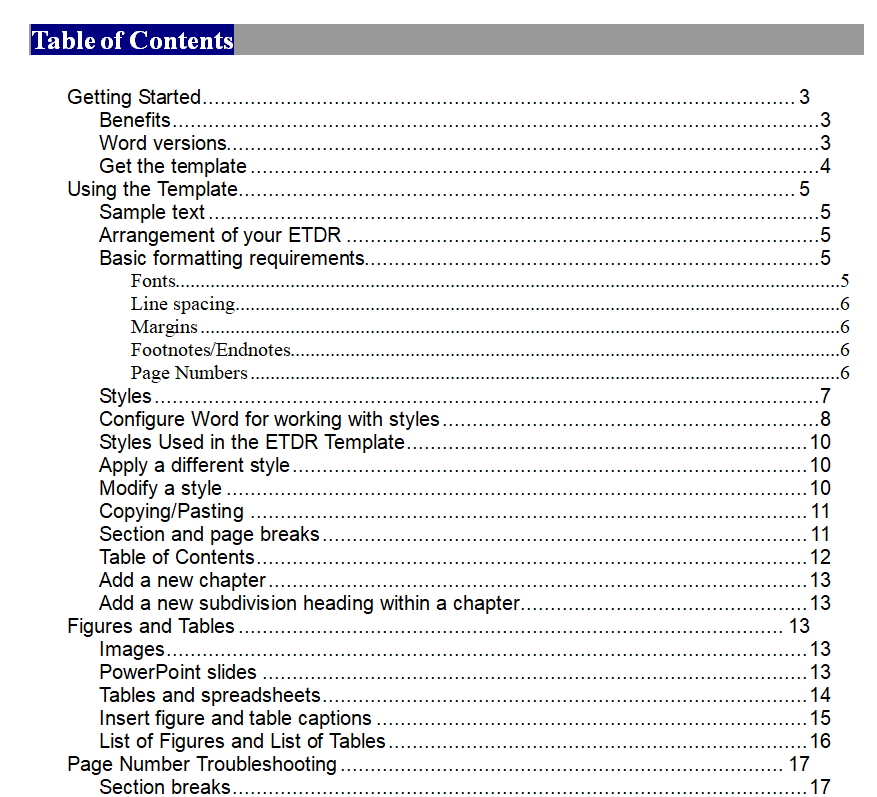
Official Table of Contents Template
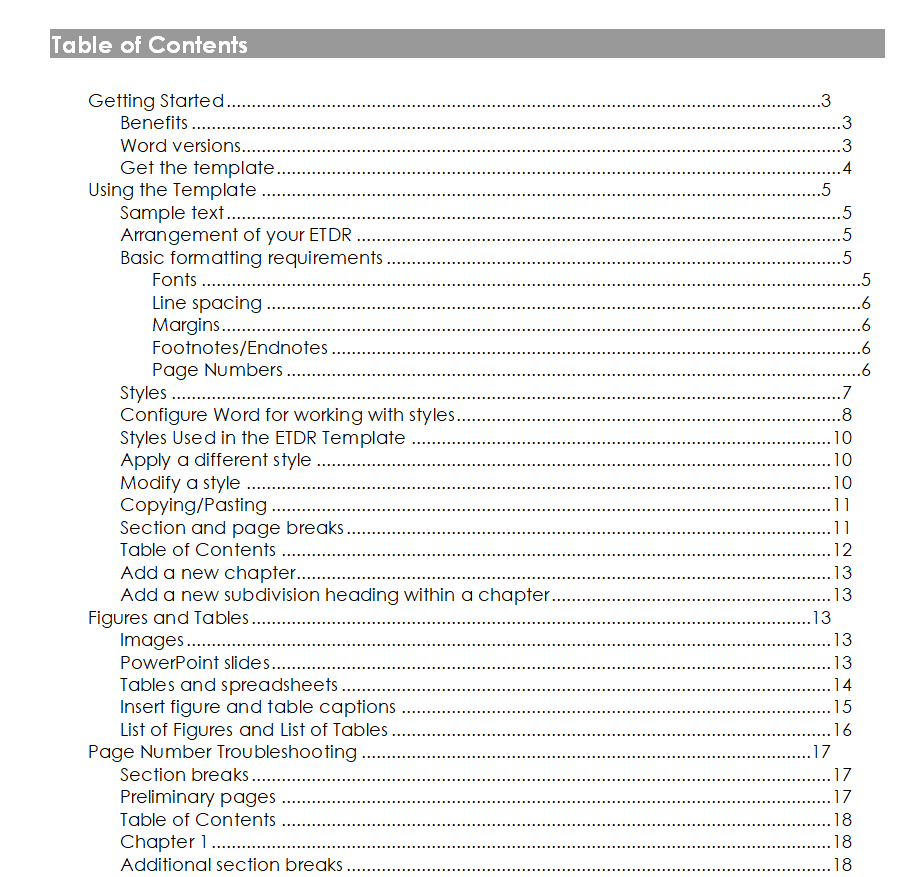
Book’s Table of Contents Template
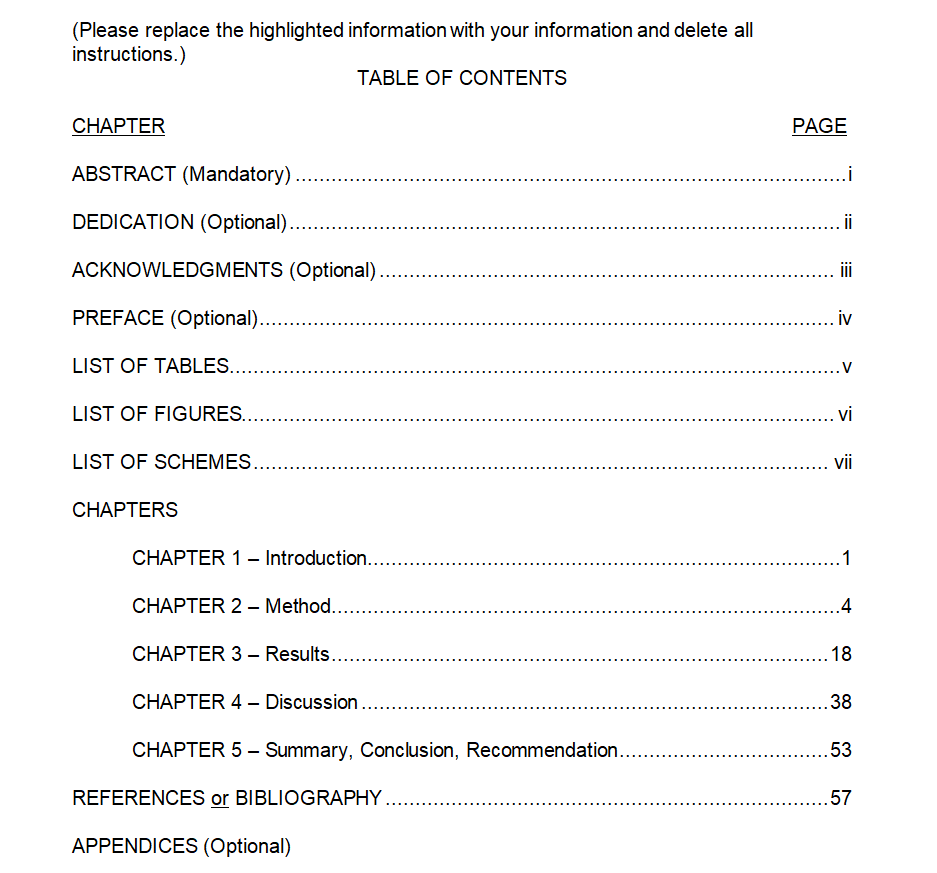
Practical Table of Contents Template
File Size: 09 KB
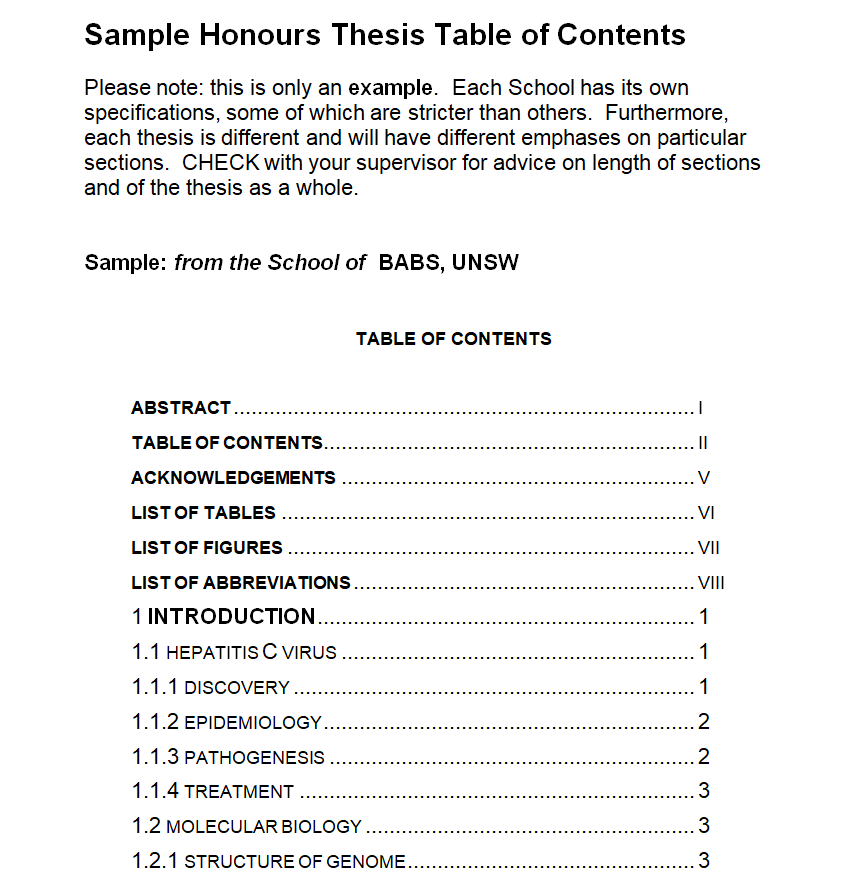
Honours Thesis Table of Contents Sample DOC
File Size: 09 KB
Professional Table of Contents (TOC) Template WORD
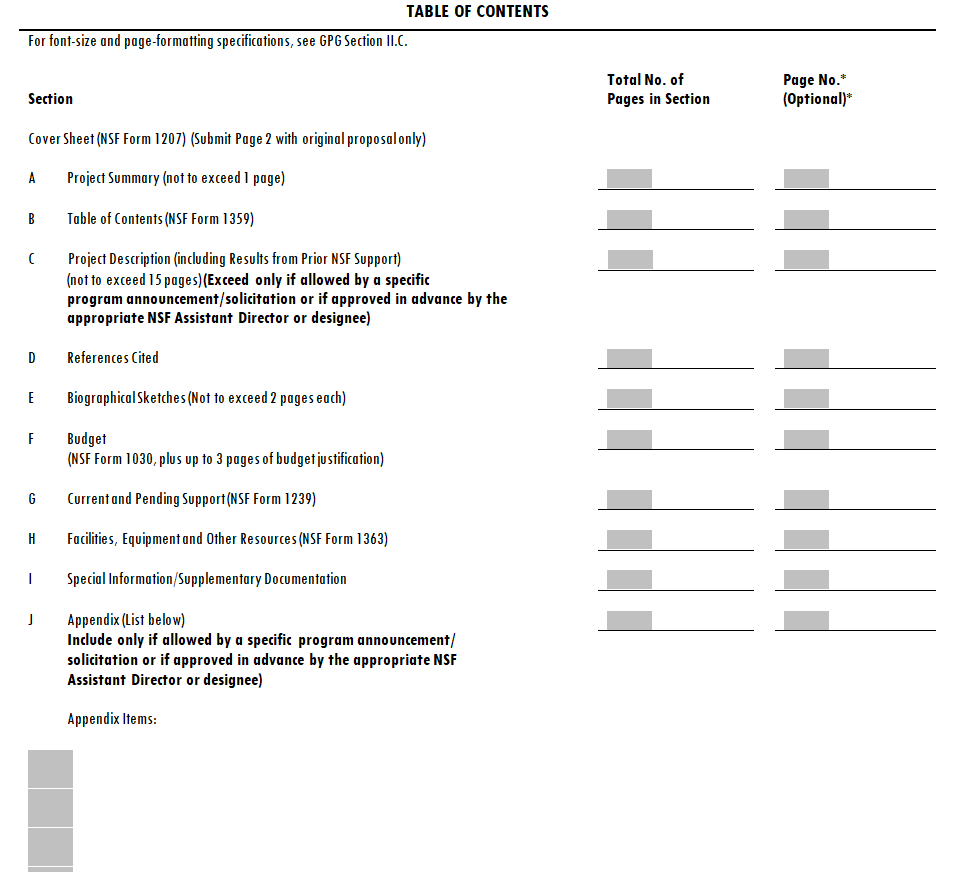
File Size: 20 KB
Elemental Table of Contents Template
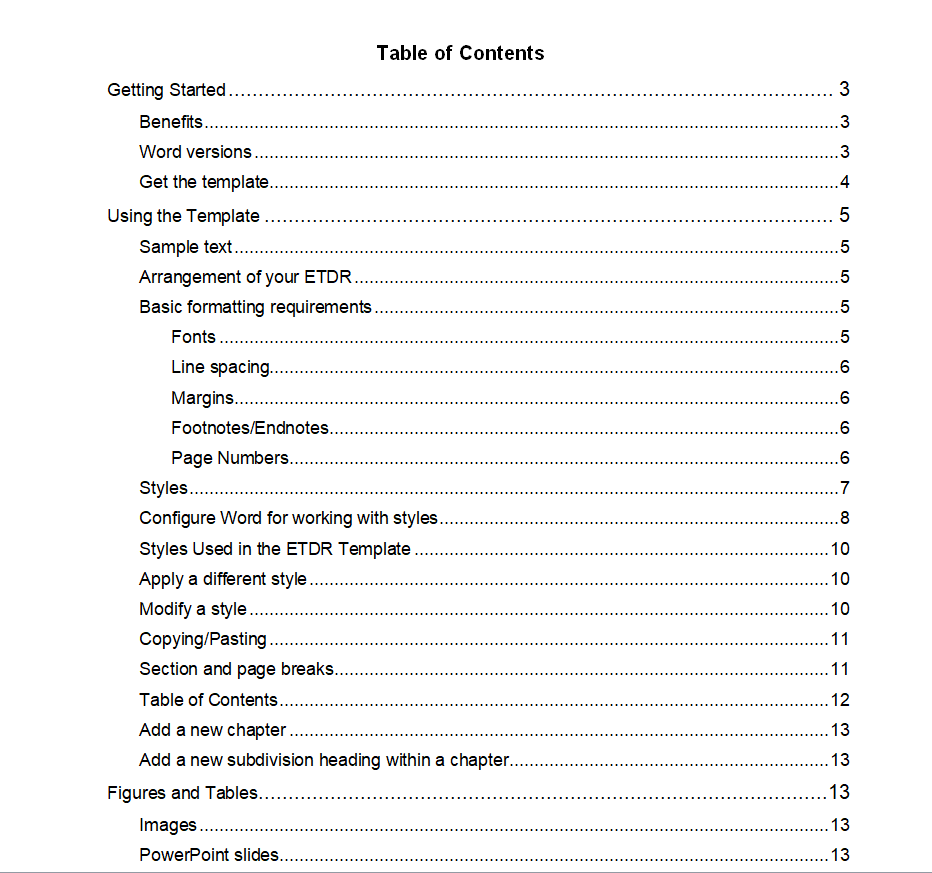
File Size: 57 KB
Project Report’s Table of Contents Template
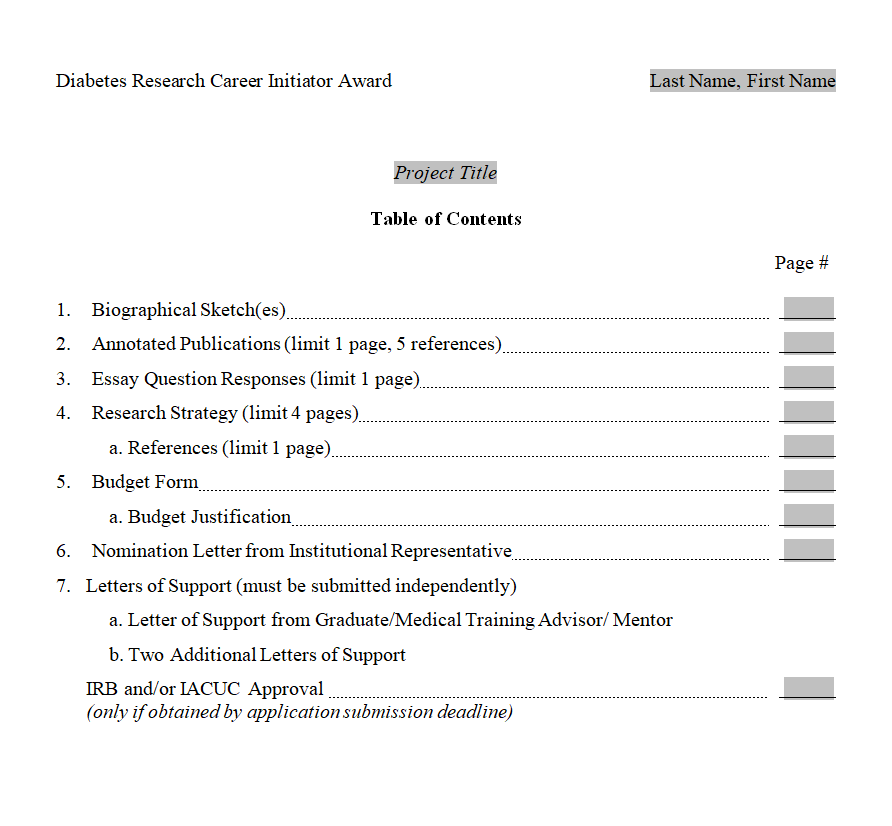
File Size: 16 KB
Table of Contents Template for SOPs
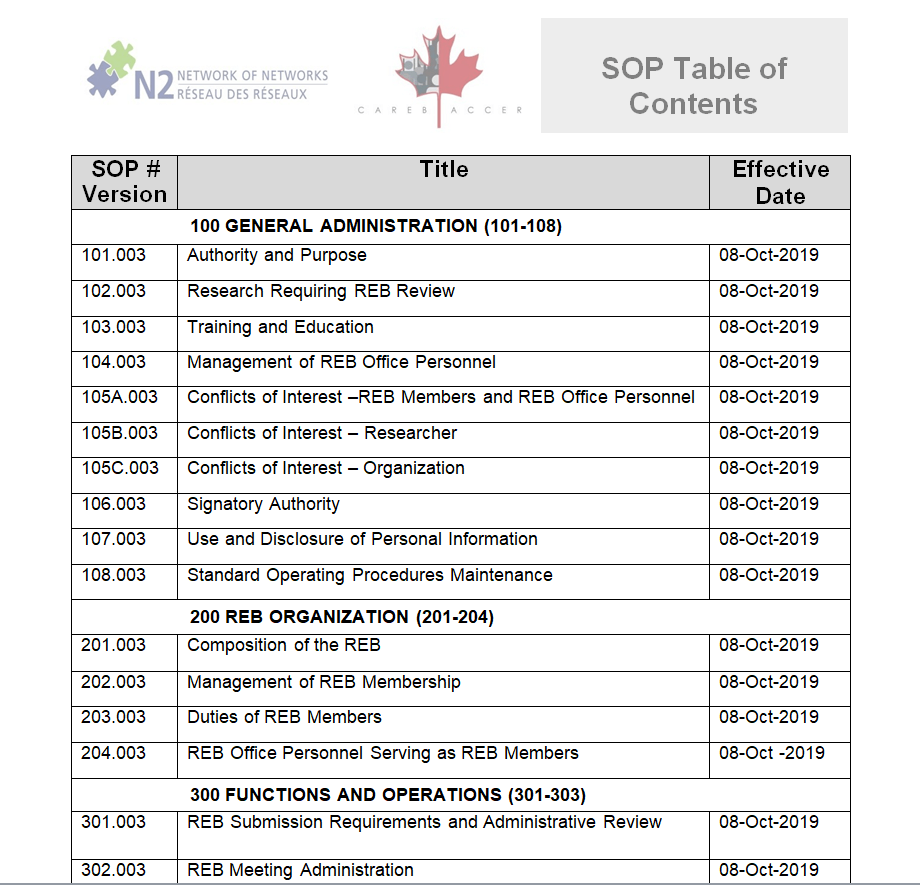
File Size: 29 KB
Blank Table of Contents Template
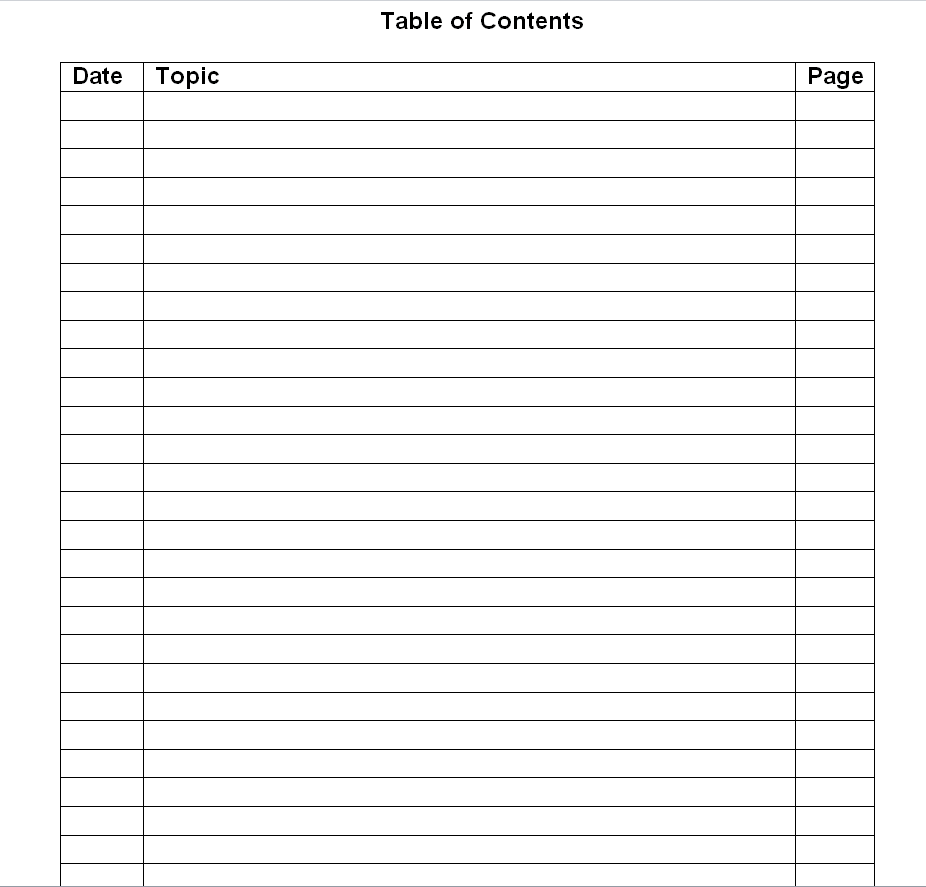
File Size: 05 KB
Table of Contents Example in MS WORD
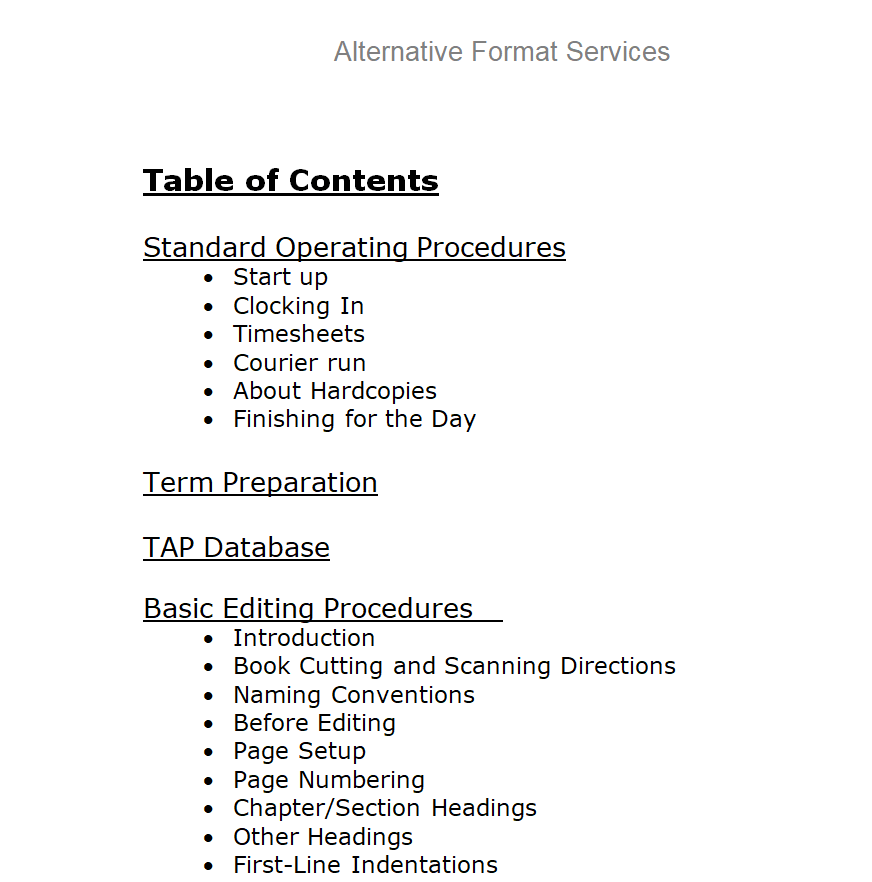
File Size: 04 MB
Research Report Table of Contents Template
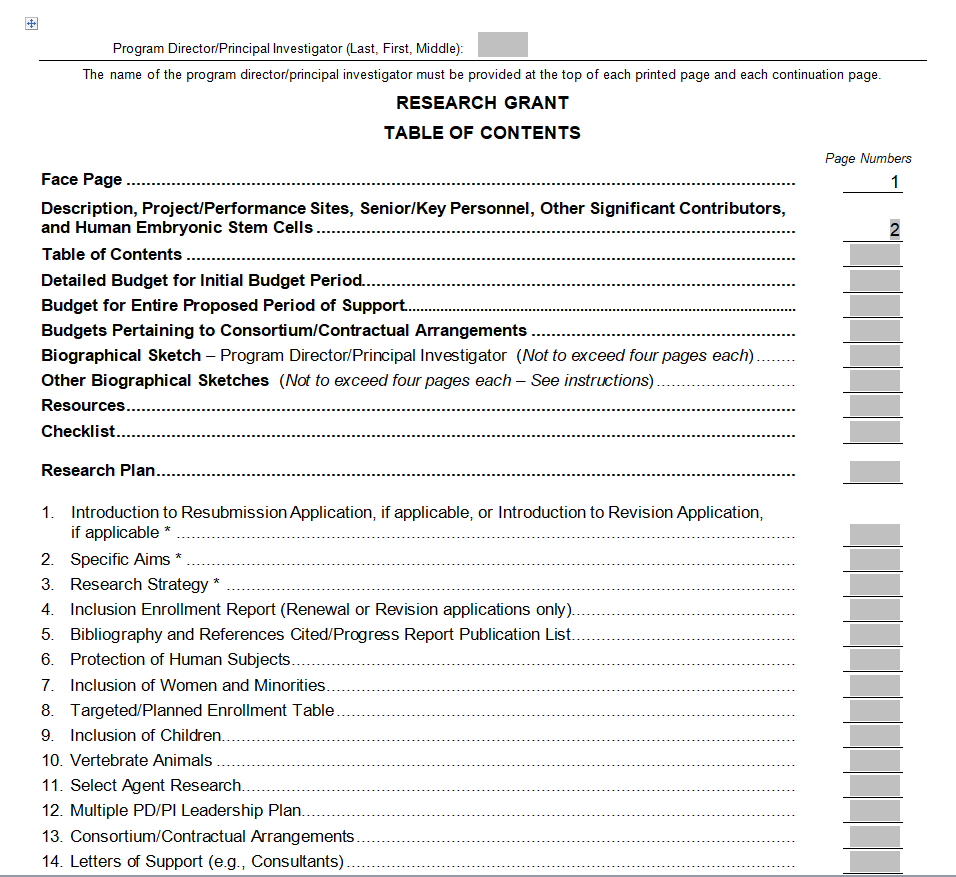
File Size: 16 KB
What is a Table of Contents?
A table of contents or TOC is a structured list of items or entries that are included in a document usually longer than 10 pages.
This could be any type of document like a research paper, an academic paper or book, a thesis, a business report, etc. A table of contents is also sometimes known simply as ‘Contents’.
It is basically a list of different sections or chapters of a book, report, or document.
A pre-formatted table of contents template is often used by many writers or authors to add a standard ‘Content’ section in their document. Every book or report is usually divided into several segments or sections.
The table of contents indicates which segment or section is located on which page number. The details provided in a table of contents section of a document usually depend upon the length of that document.
A table of content is placed right after the main title and just before the main body of the document. It includes the H1, H2, and H3 headers, and the page number for each entry is written in front of it.
You can create a table of contents template manually by typing each entry along with the relevant page number. However, it can also be done automatically using any word processing software such as Microsoft Word or Google Docs.
You can simply scroll down and check the step-by-step guide on how to insert a table of contents both in Microsoft Word and Google Docs with the help of relevant screenshots. Moreover, you can also checkout the editable table of contents templates below.
Importance of a Table of Contents
A table of contents is an important section of any book or a long-form official document. The listed below points will further highlight the significance of including a table of contents section in your documents.
- A table of contents gives a more professional and official appearance to a document, book, or report.
- The contents section provides a glimpse of the details and information that a book or document contains.
- The readers can easily find the relevant specific information within a document with the help of a TOC.
- A table of contents presents the sections and segments of a document in an organized way.
- With the help of a TOC, it is easy for the reader to locate and highlight the important details or information of a particular segment or chapter for any future reference.
- In the case of digital reports or books, the entries of the table of contents include hyperlinks that are directly linked to the relevant section or chapter. Whenever a reader clicks on a particular entry in the contents section, he/she gets easily directed to that particular section of the document.
Professional Table of Contents (TOC) Formats
Biography’s Table of Contents Format
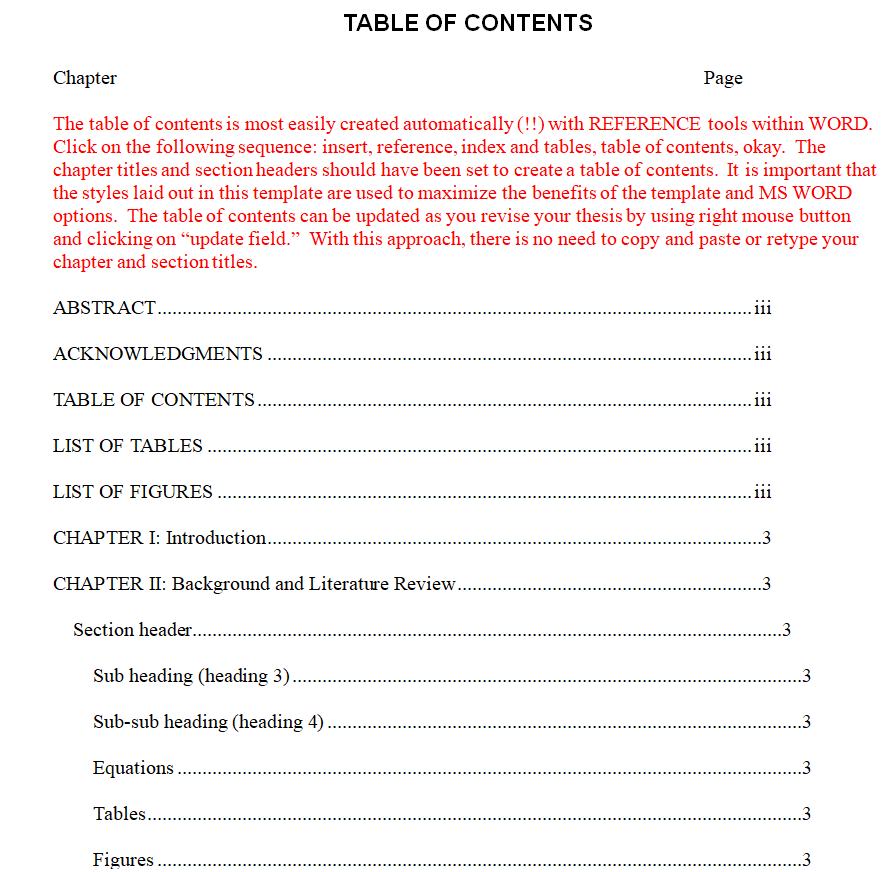
File Size: 04 KB
Assignment Table of Contents in WORD Format
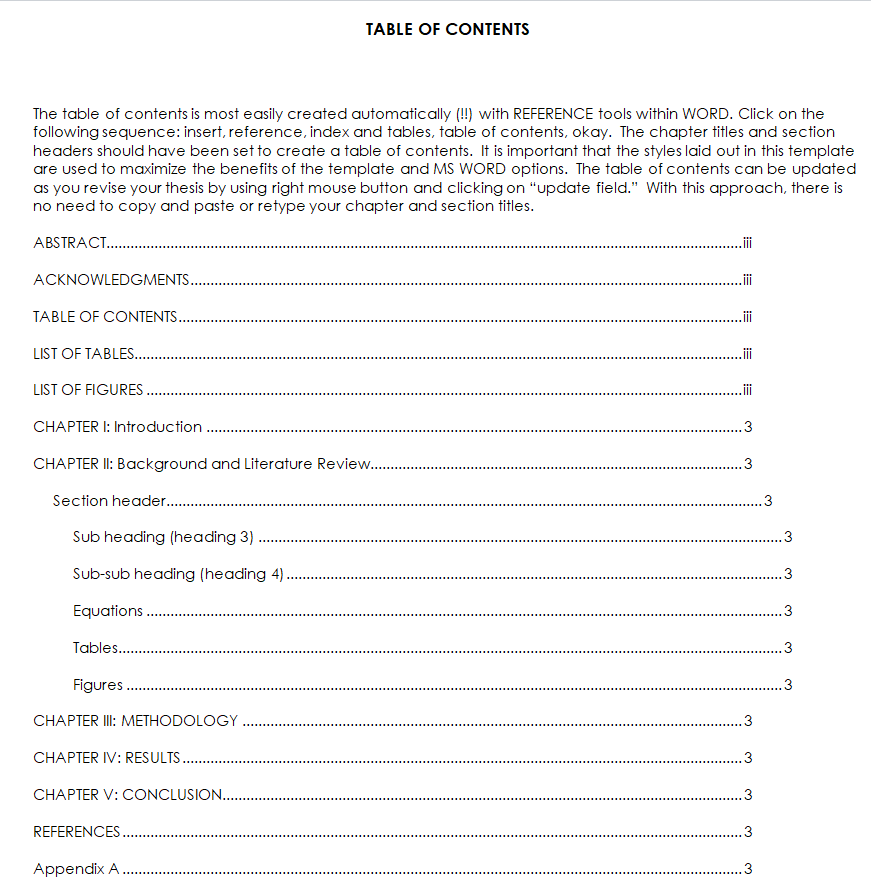
File Size: 08 KB
Simple Table of Contents Format
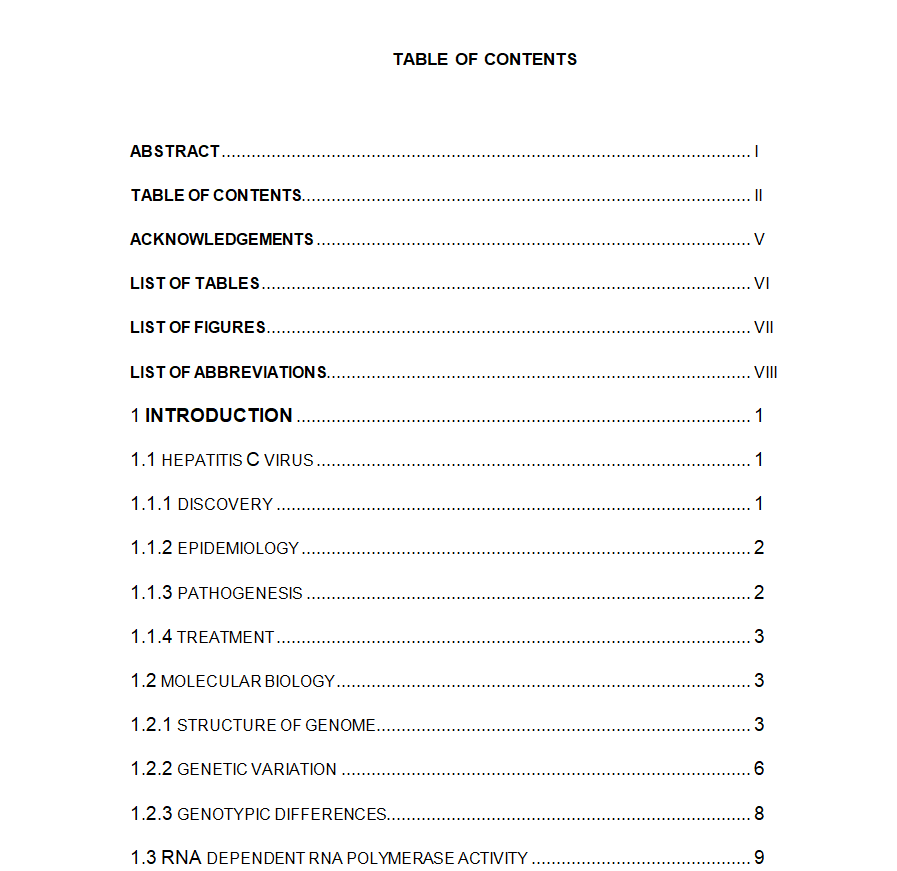
File Size: 09 KB
Formal Report Table of Contents Template
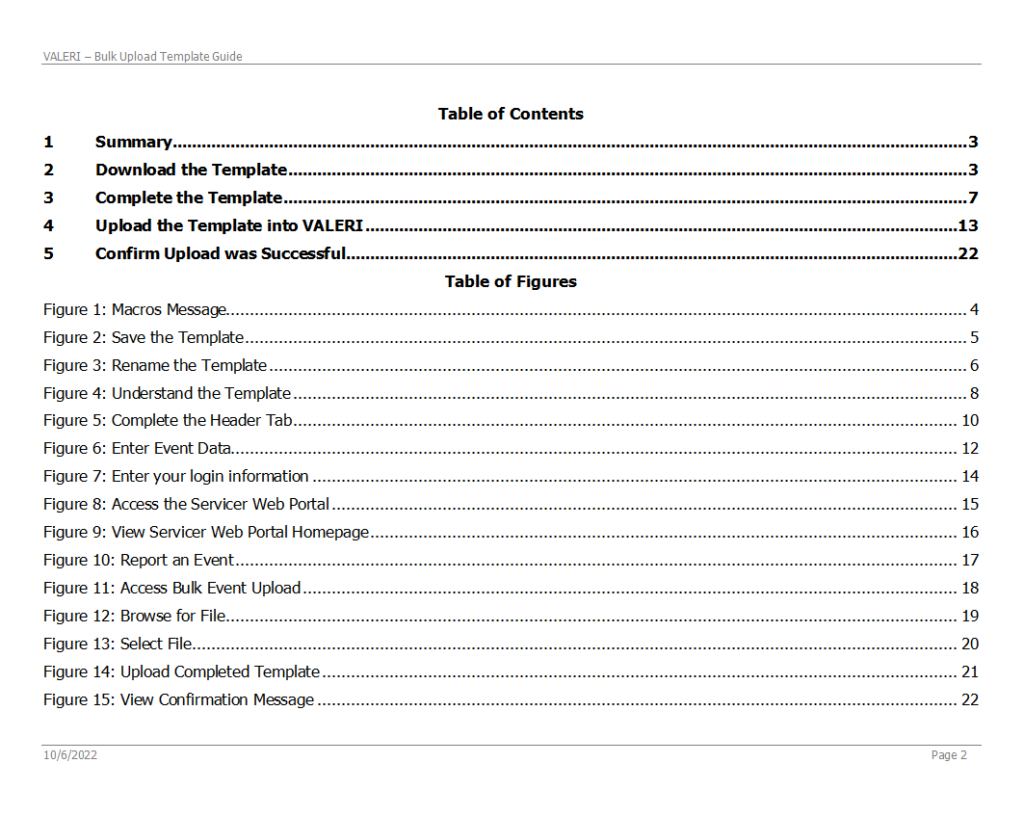
File Size: 01 MB
Table of Contents Sample Design
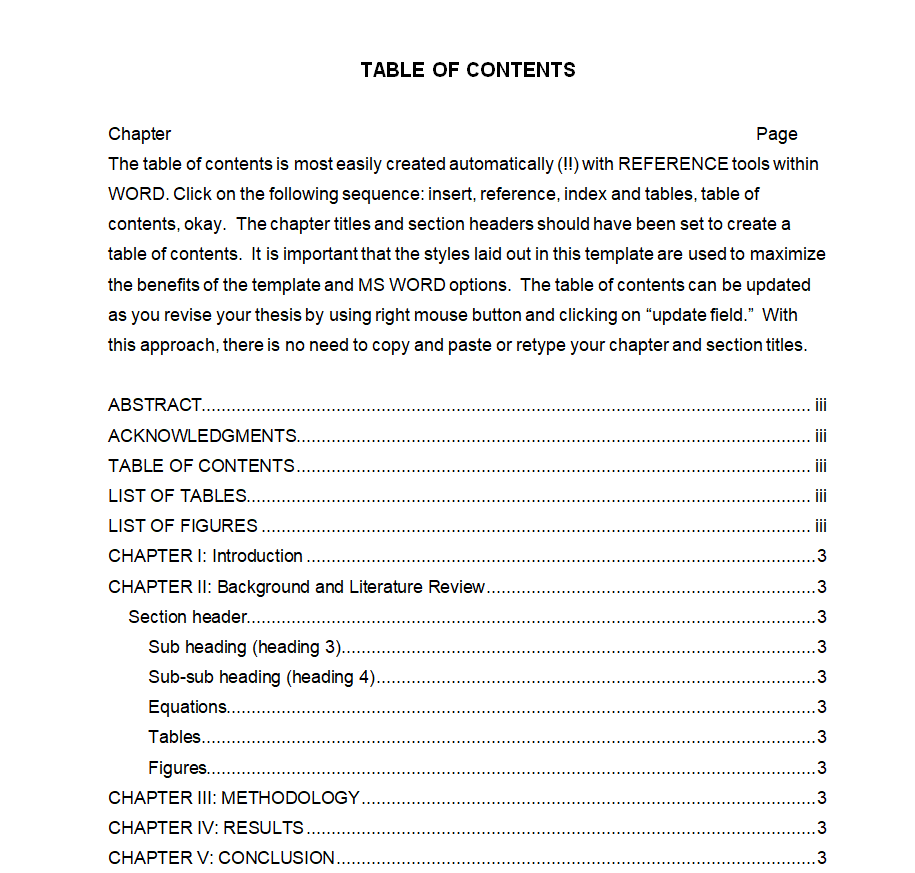
File Size: 187 KB
Standard Table of Contents Format
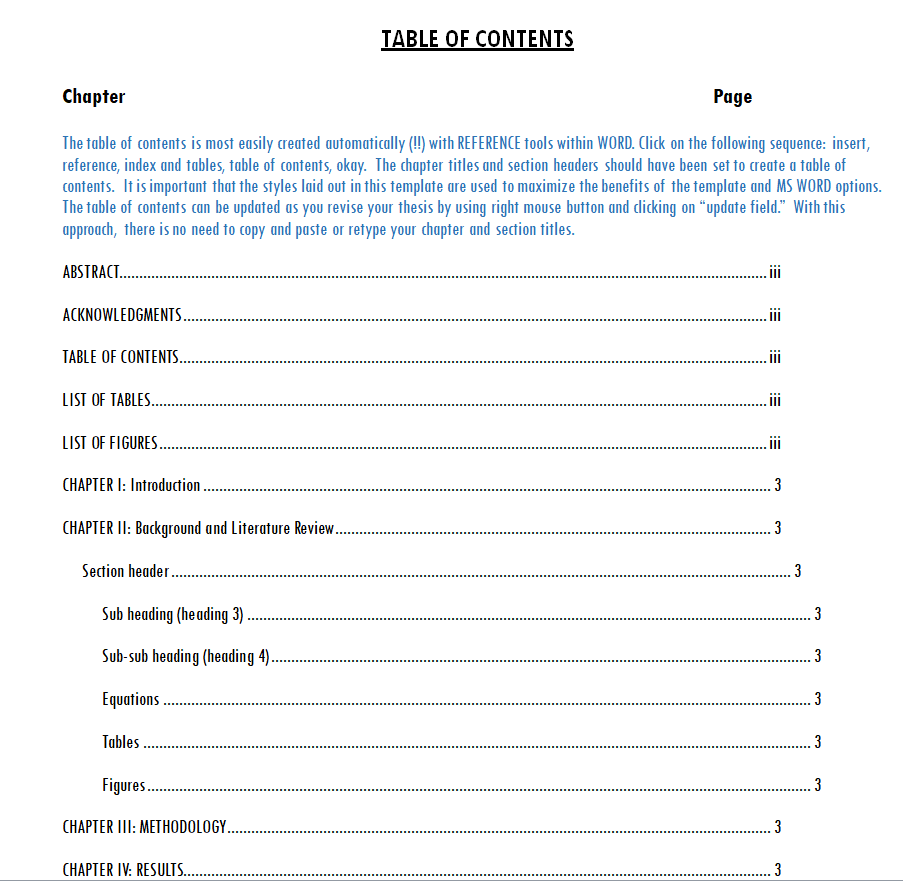
File Size: 12 KB
Research Proposal Table of Contents Format
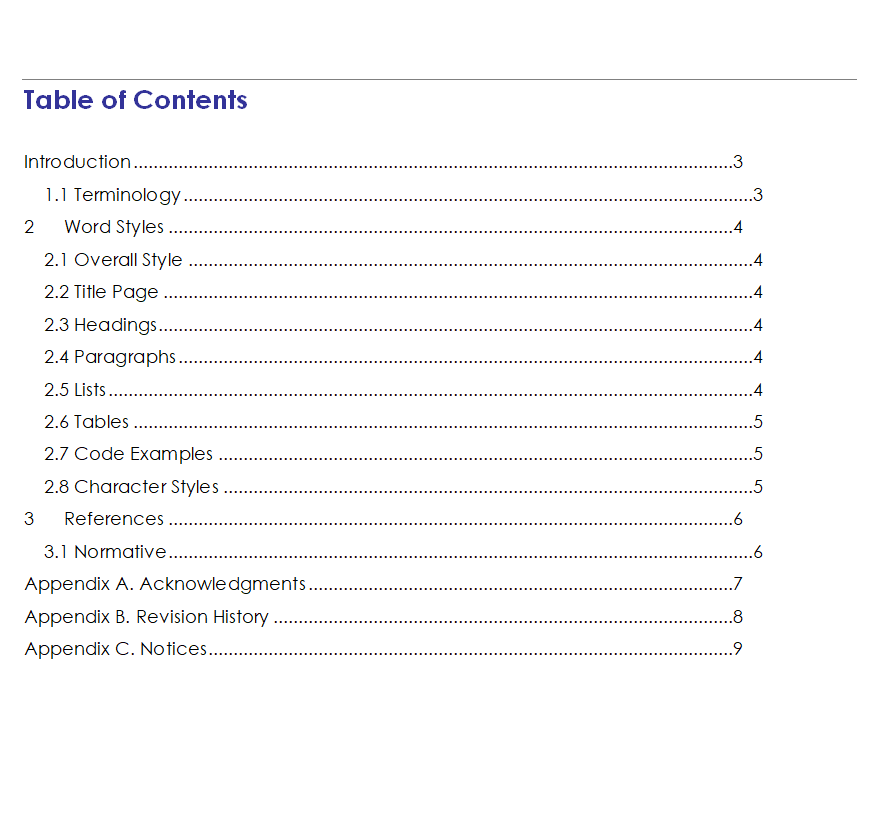
File Size: 08 KB
Business Contract’s Table of Contents Format
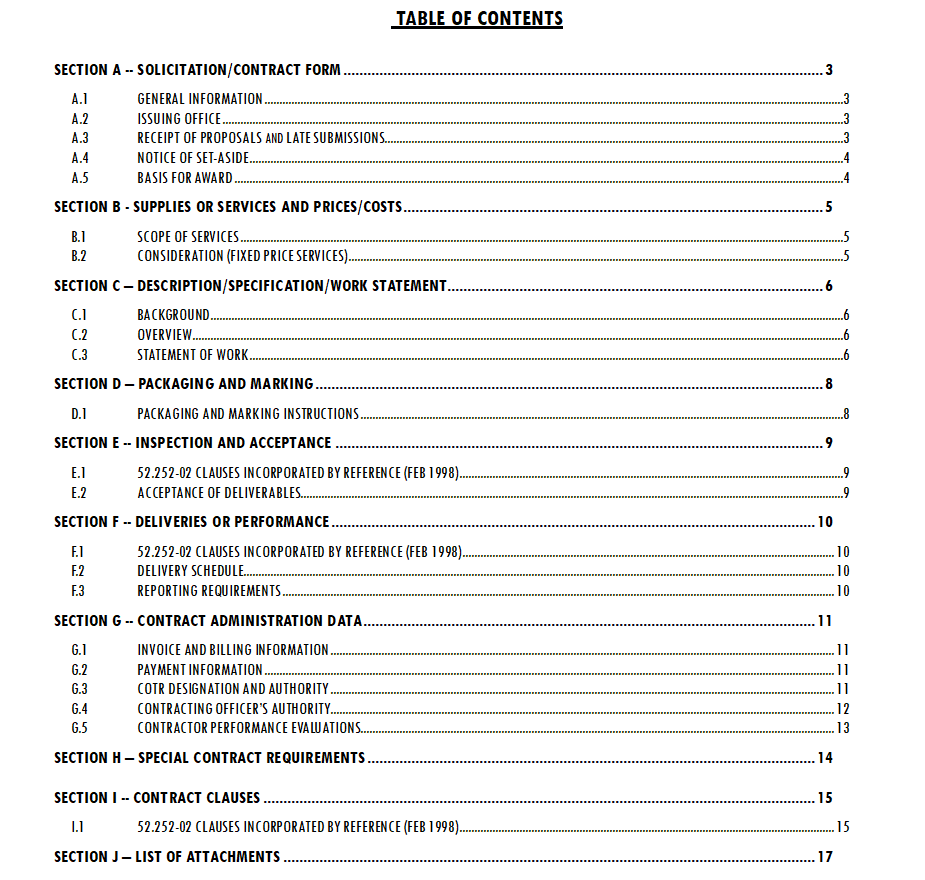
File Size: 12 KB
MS WORD Table of Contents Sample
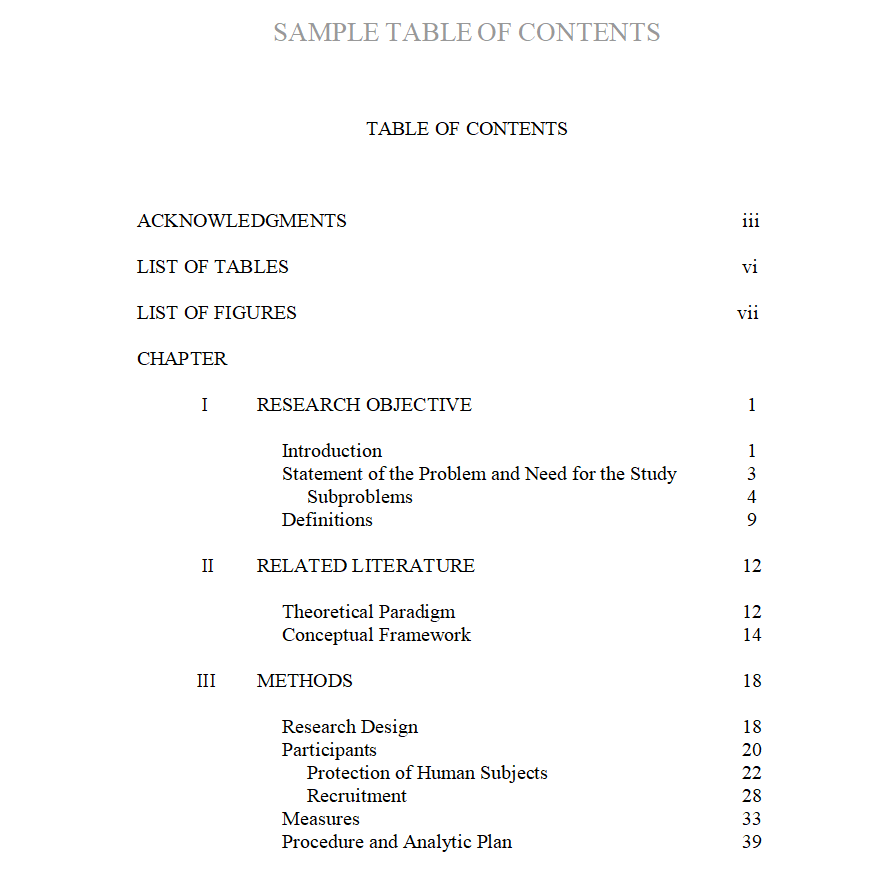
File Size: 14 KB
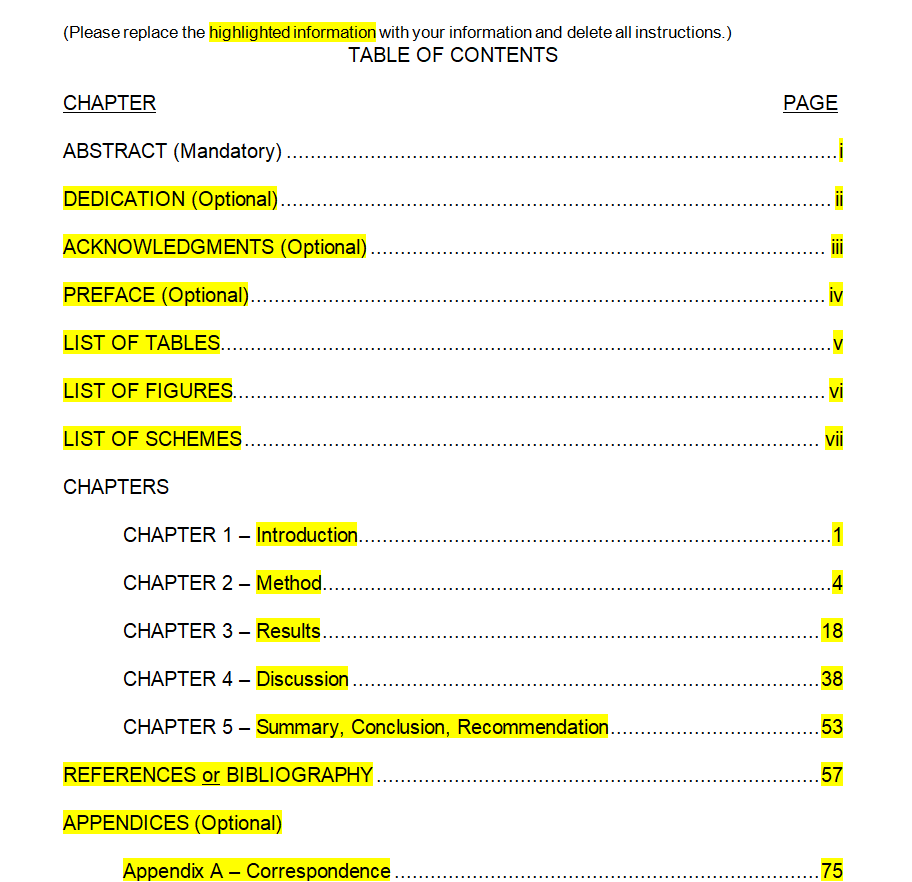
Free Editable Table of Contents Example
File Size: 07 KB
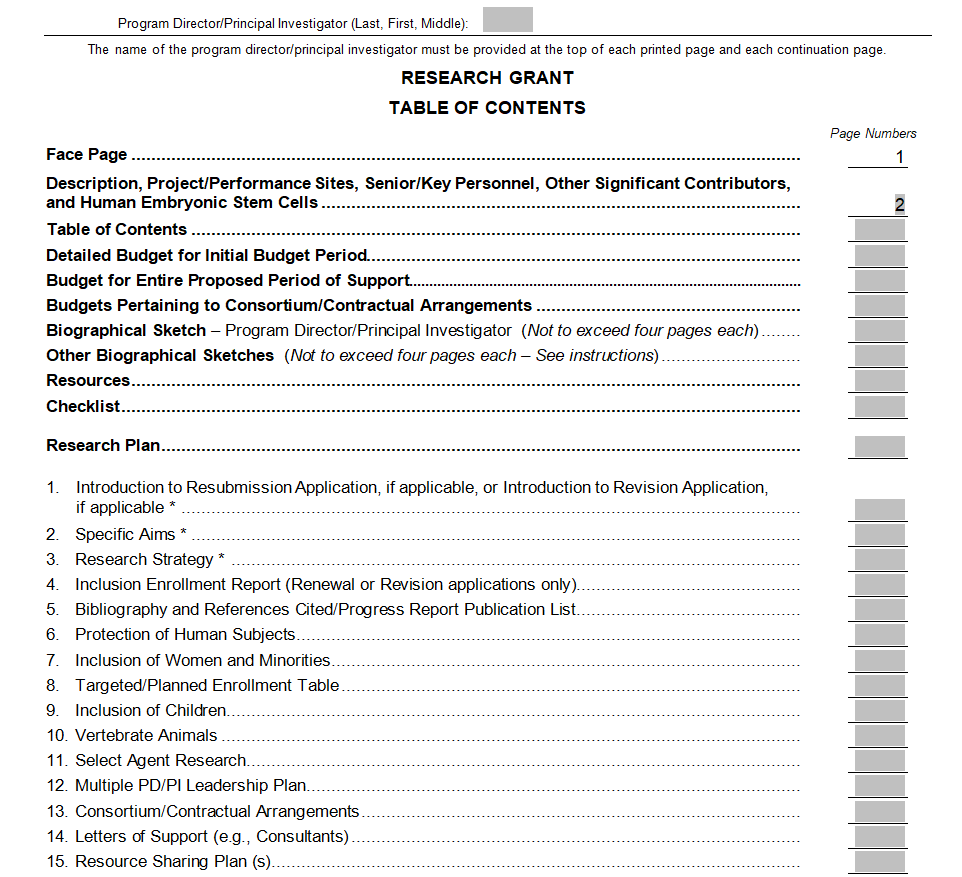
Table of Contents Template for Research Grant
File Size: 19 KB
How to Insert a Table of Contents in MS WORD?
As mentioned earlier, you can also use any of the table of contents templates given right here on this page. Using these templates will save a lot of your time and effort.
However, if you want to add a table of contents in a document in Microsoft Word by yourself, a step-by-step guide is given here along with relevant screenshots.
Adding an automatic table of contents in a word document is not something that is very difficult. All you have to do is to follow the given below simple steps to insert a professional-looking table of contents in your word document. Whatever version of Microsoft Word you use, these steps will remain the same.
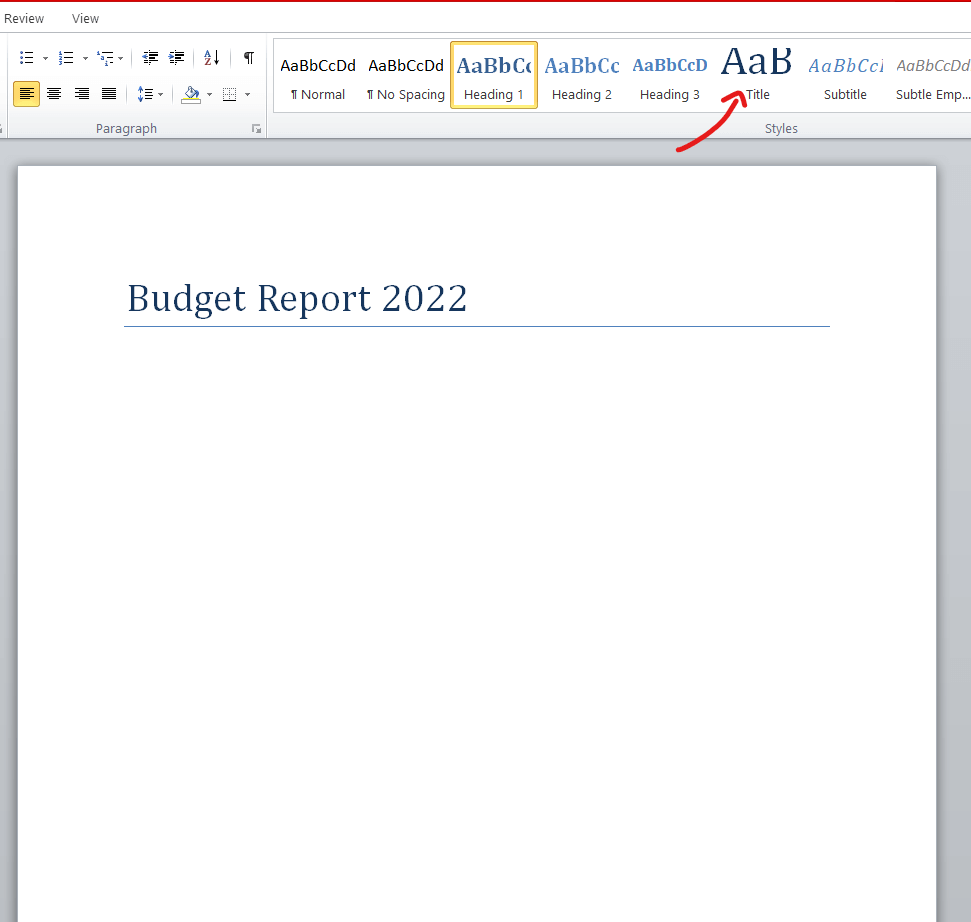
Step 1:
First, write down the title of your document in an appropriate format by hovering your cursor towards the Styles section in the Home tab and selecting the Title style.
Step 2:
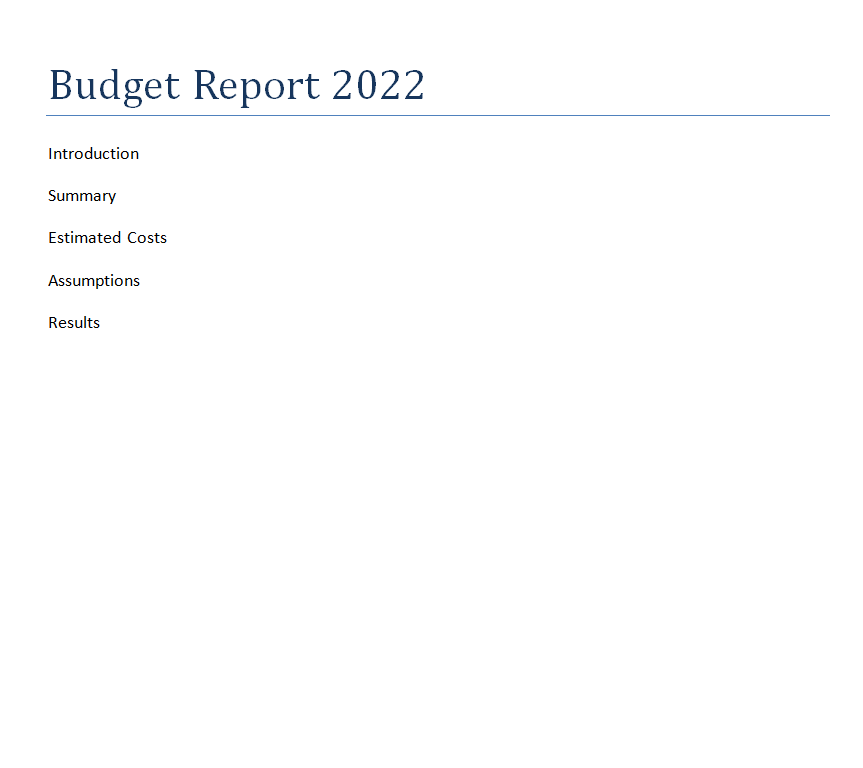
Write down all the entries of the document in separate lines below the title.
Step 3:
Select all the entries and format them by selecting the appropriate format from the Styles section in the Home tab.
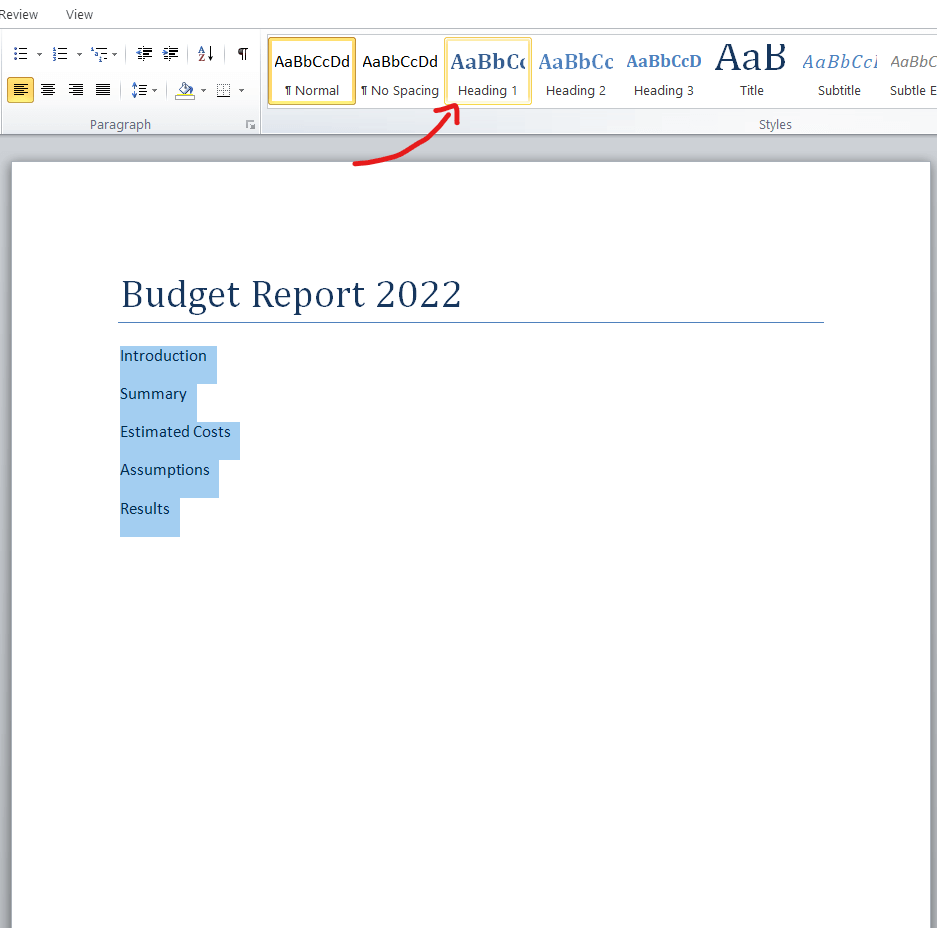
Step 4:
After that, select the place where you want your table of contents to appear. This is normally placed between the title and the first chapter or section of the document.
Place the cursor before the first heading and below the title of the document and then press Enter. This will create the space where your TOC will be placed.
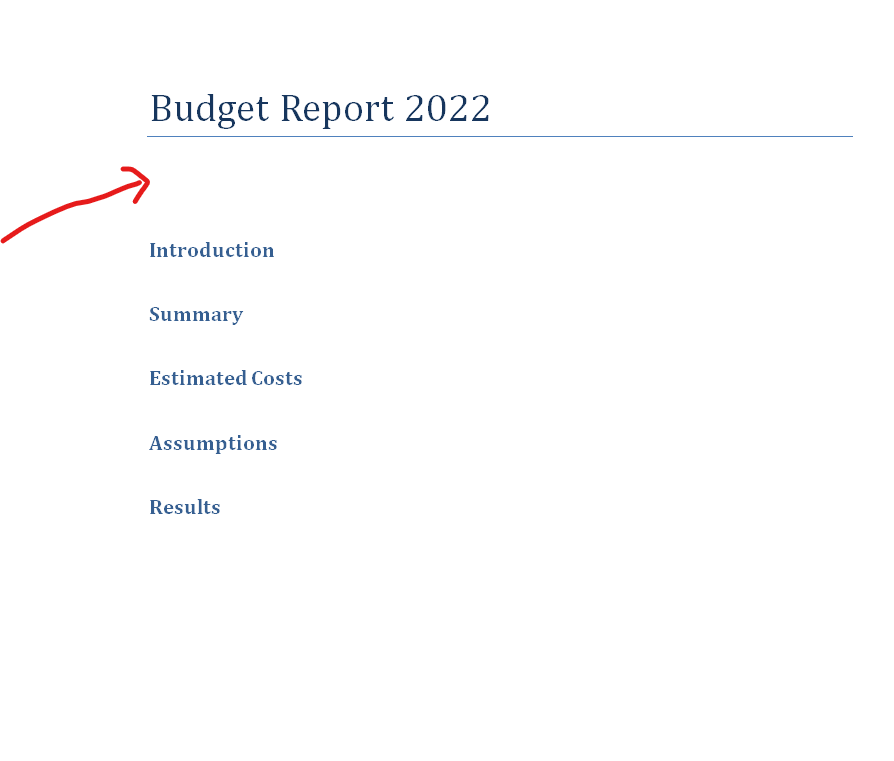
Step 5:
Hover your cursor over the References section.
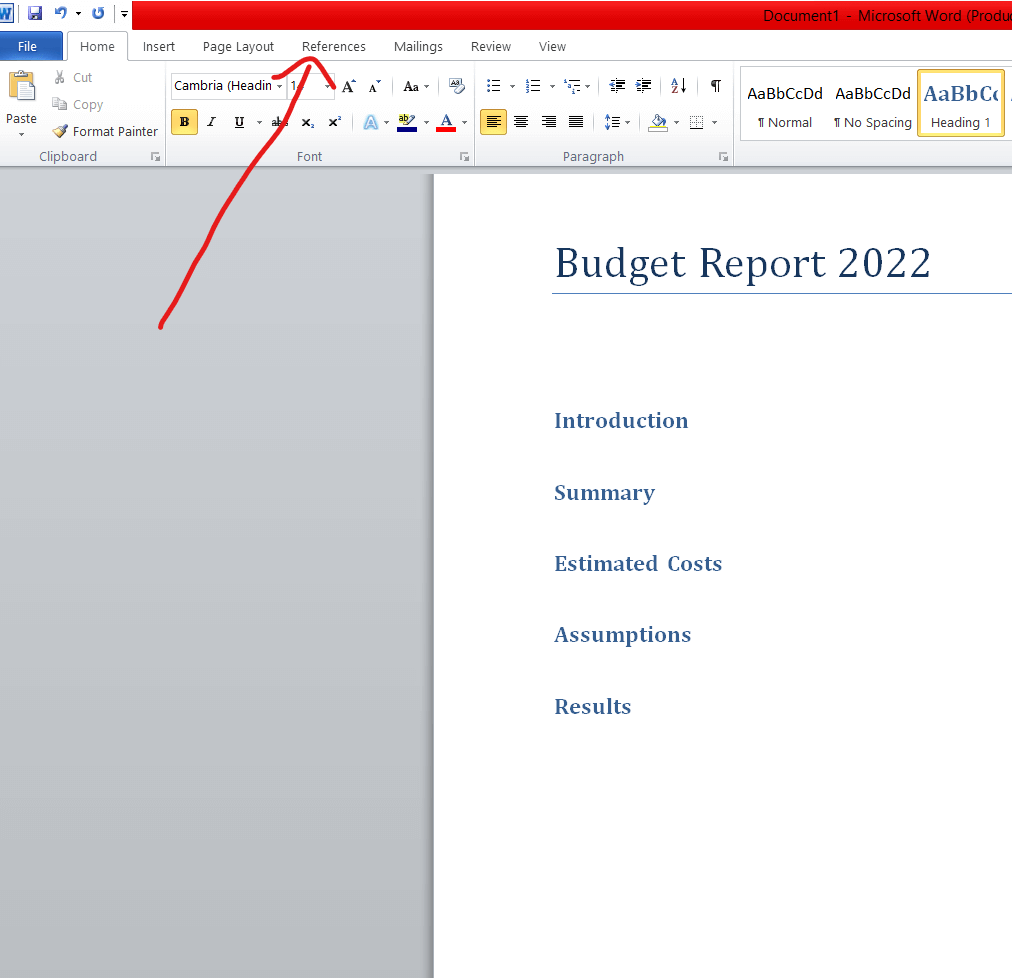
Step 6:
In the Reference section, you will find different types of tables of contents. You can select the automatic table of contents as well as the customized TOC.
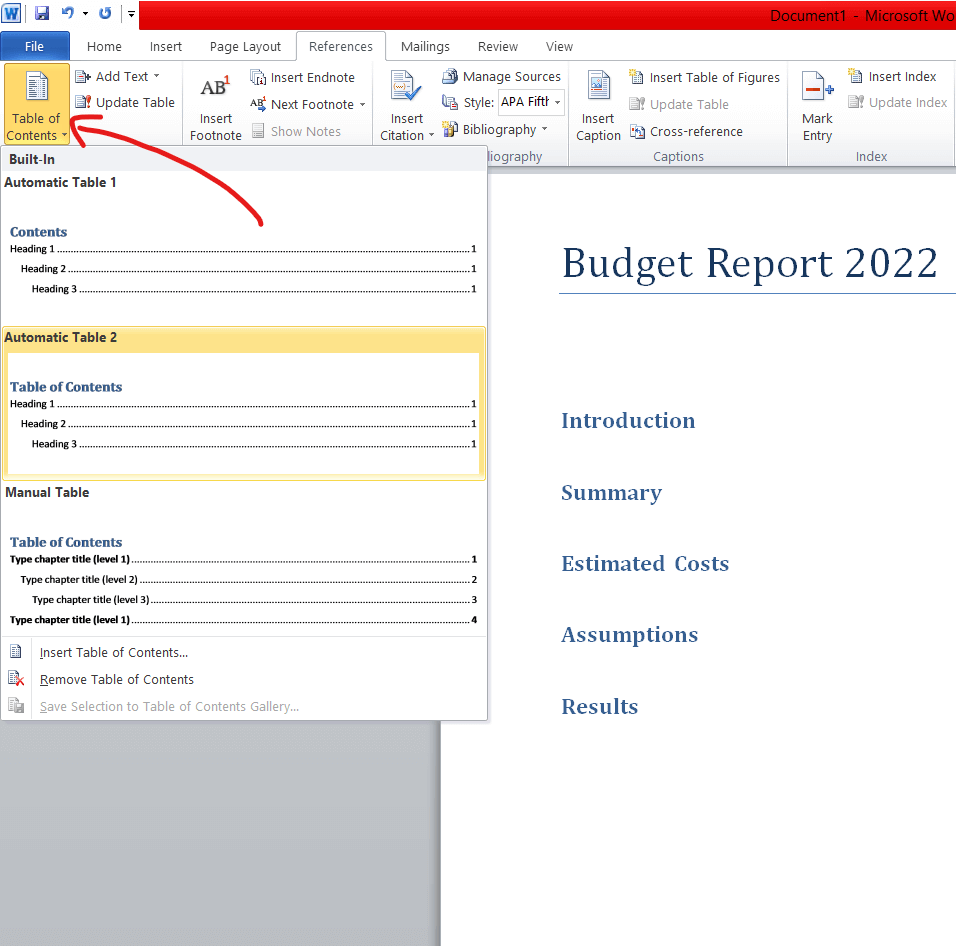
Step 7:
Select and click the TOC of your choice and it will be added to your document.
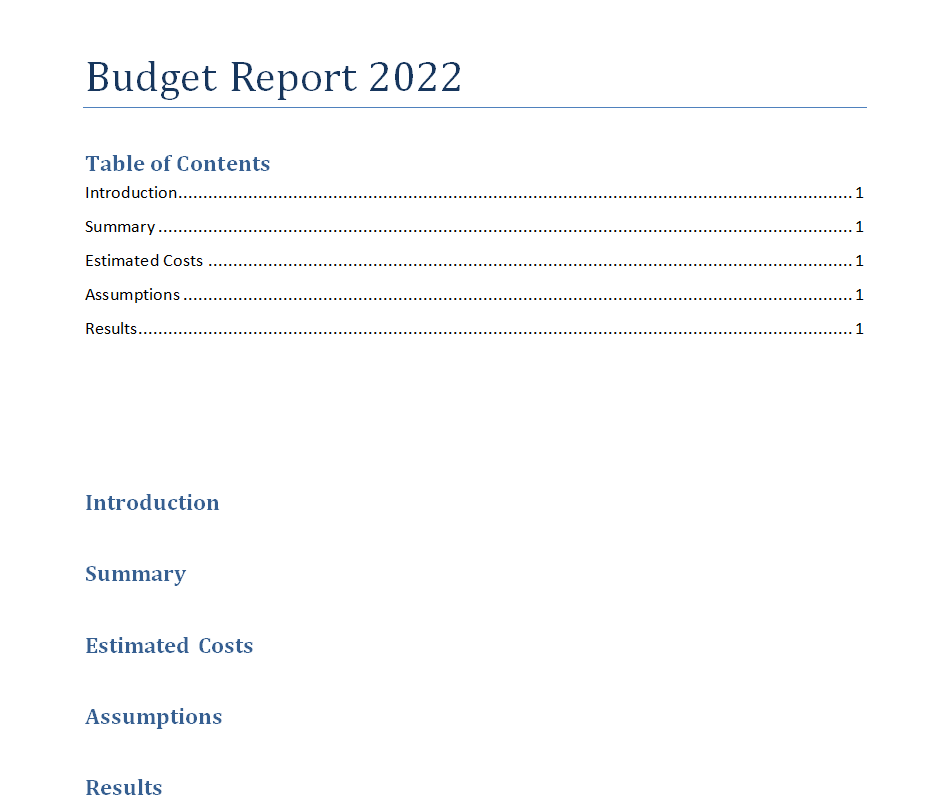
Step 8:
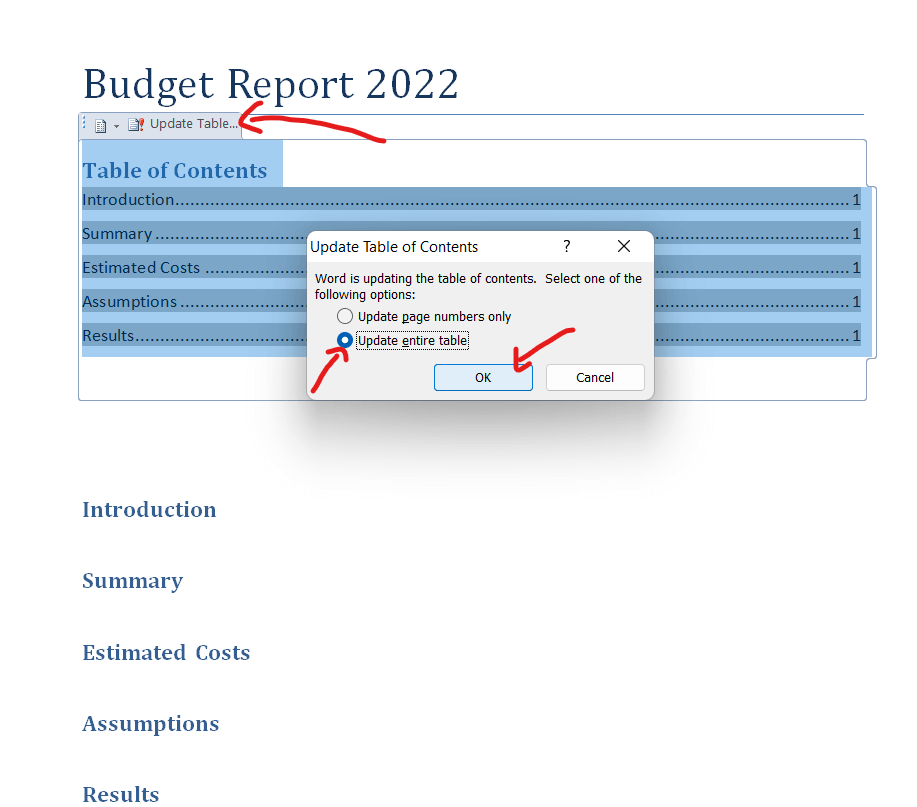
If you make any modifications to your document later, you can also update the table of contents. For this, you can simply move your cursor towards the TOC, click it, and an Update Table option will appear.
After that, simply select the Update the Entire Table option and click OK. This way, your table of contents will be updated automatically.
More Table of Contents Doc Templates
Financial Report Table of Contents Template
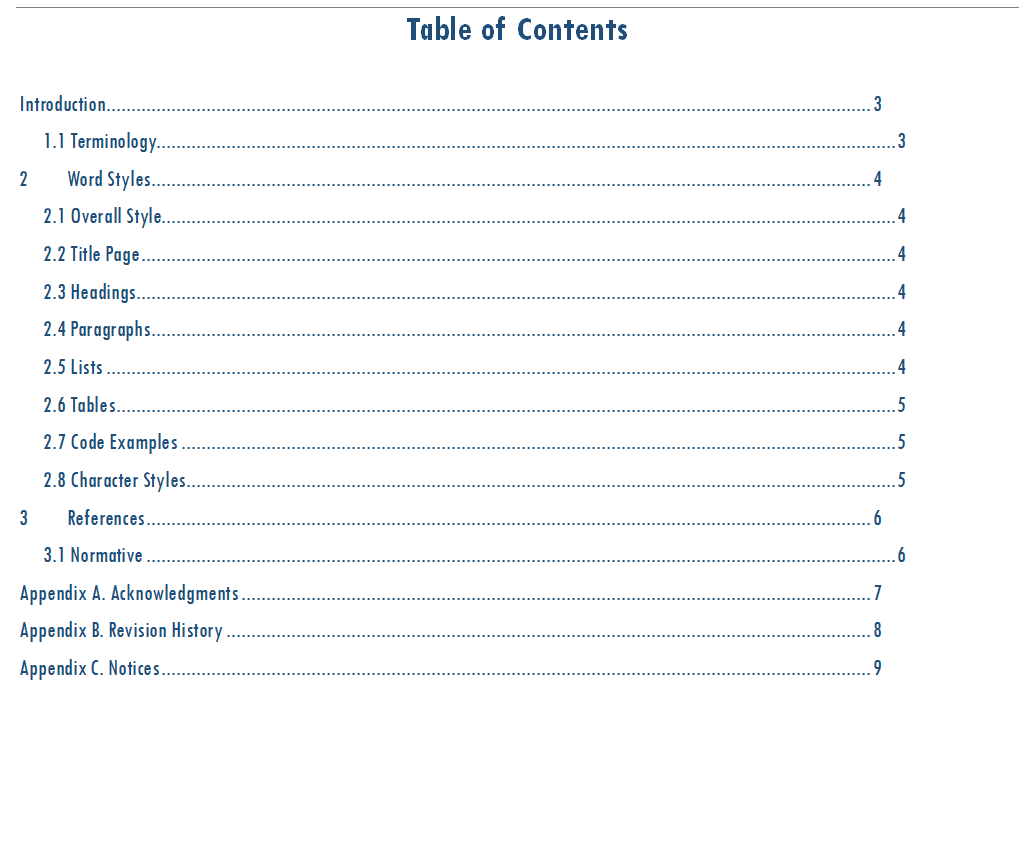
File Size: 11 KB
Table of Contents Template for a Long Term Agreement
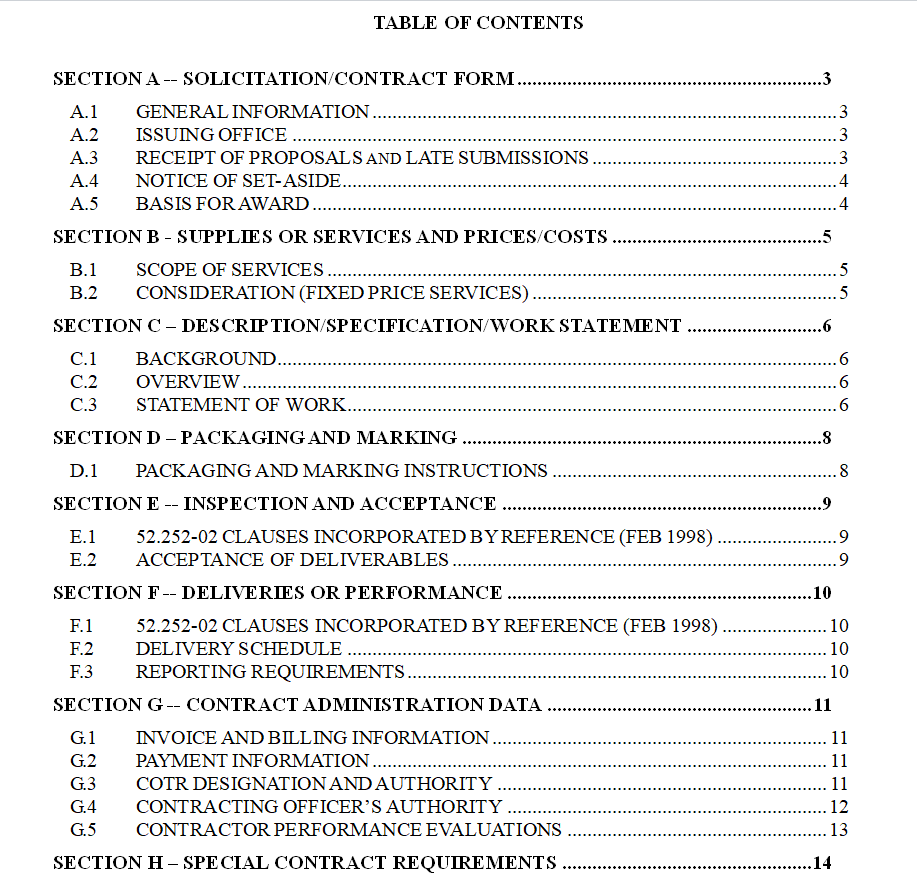
File Size: 06 KB
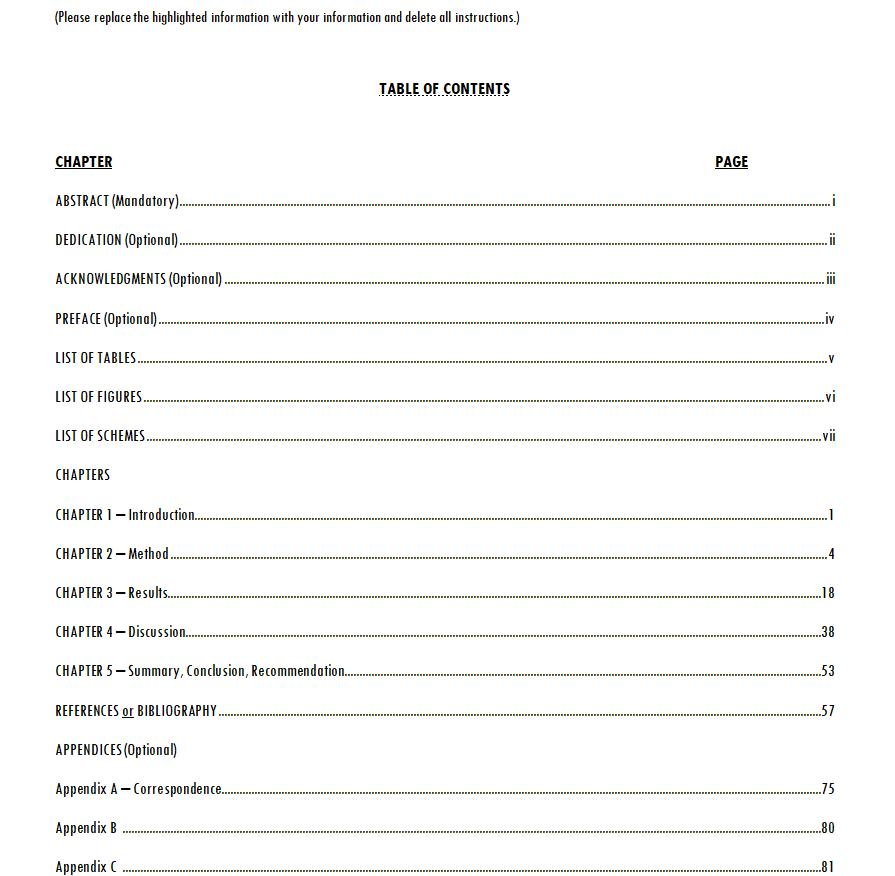
Table of Contents Template Free Download
File Size: 13 KB
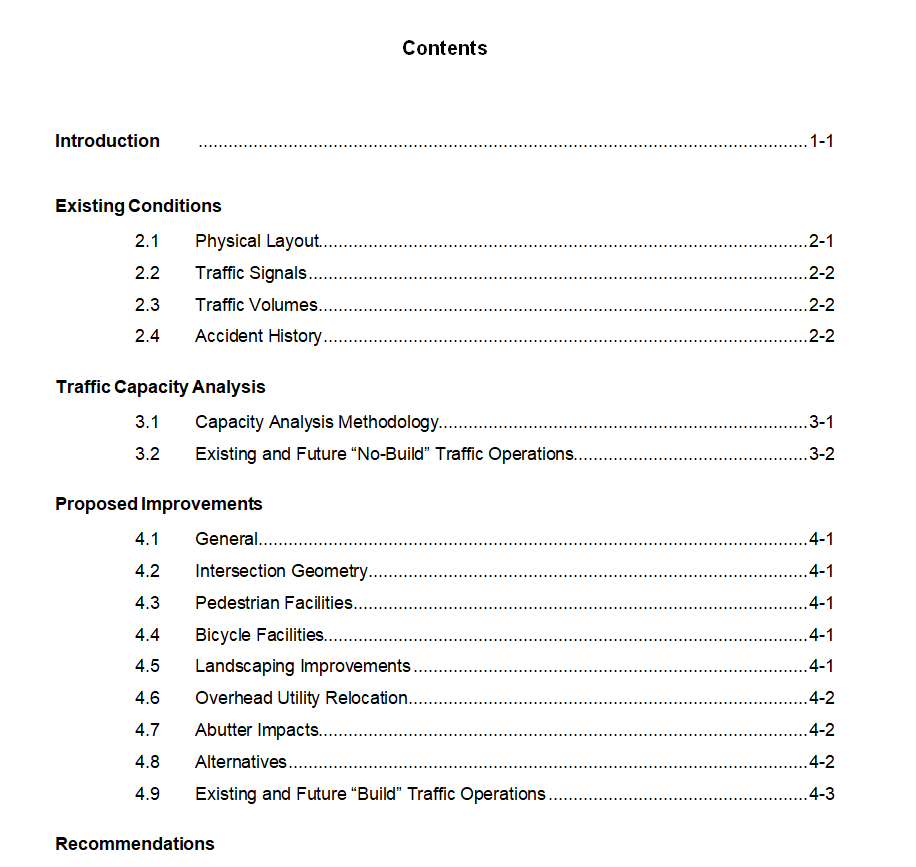
Traffic Report Table of Contents Template
File Size: 08 KB
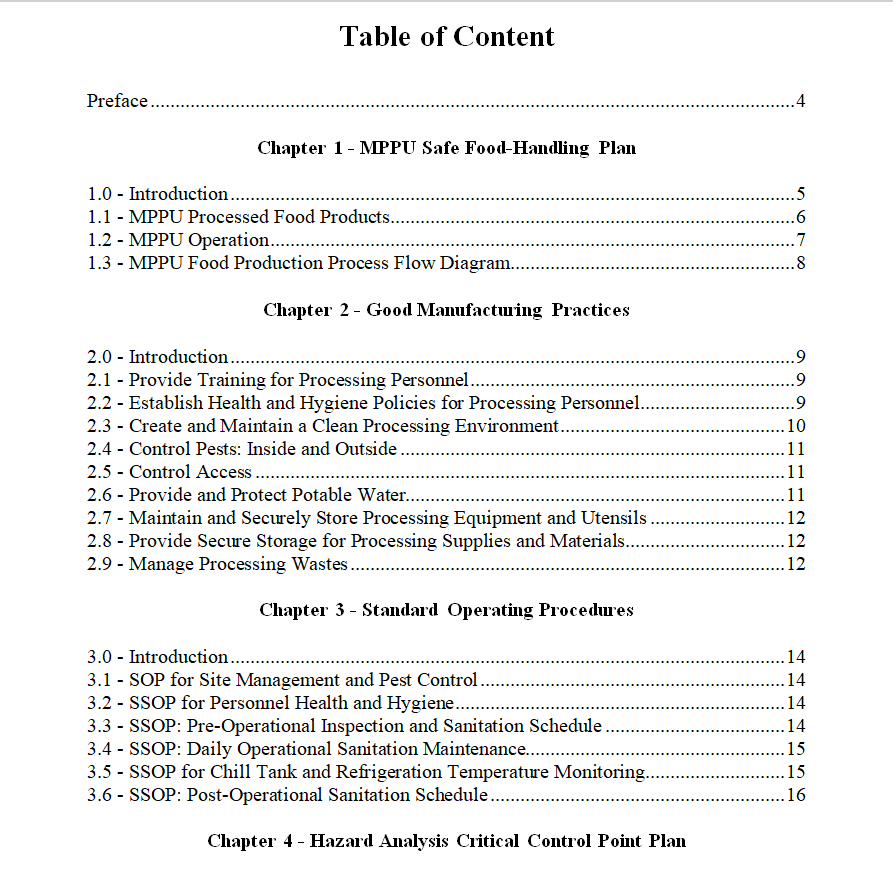
Business Report Table of Contents Example
File Size: 02 MB
Table of Contents Template for an Academic Book

File Size: 23 KB
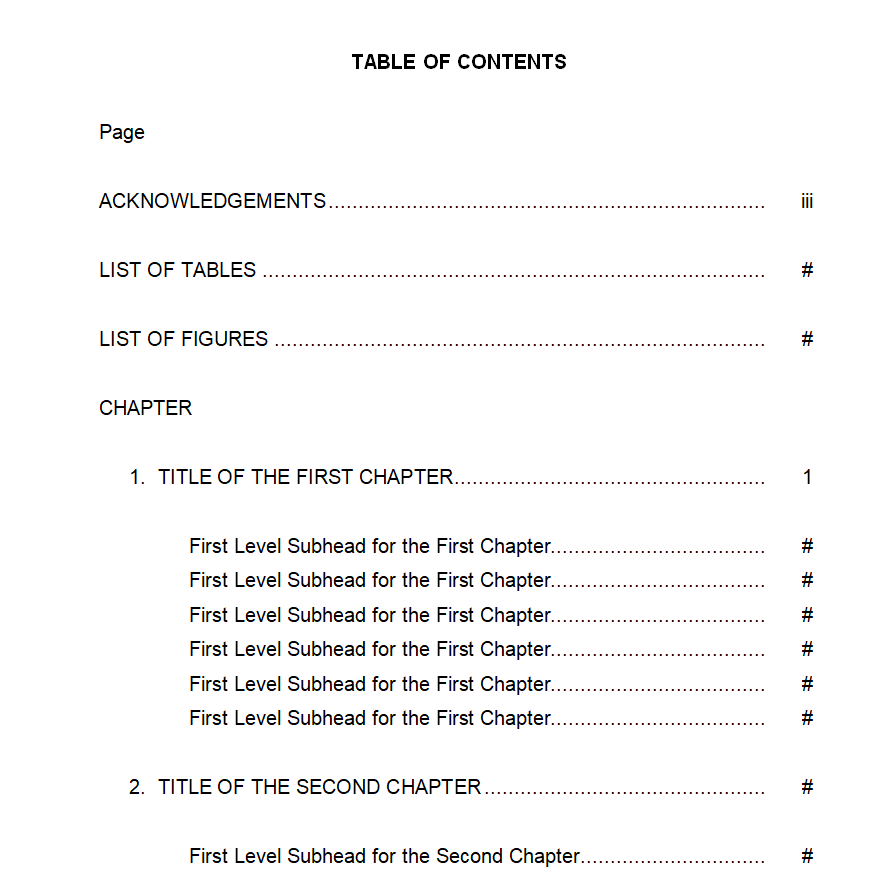
General Table of Contents Layout
File Size: 14 KB
Corporate Report Table of Contents Template
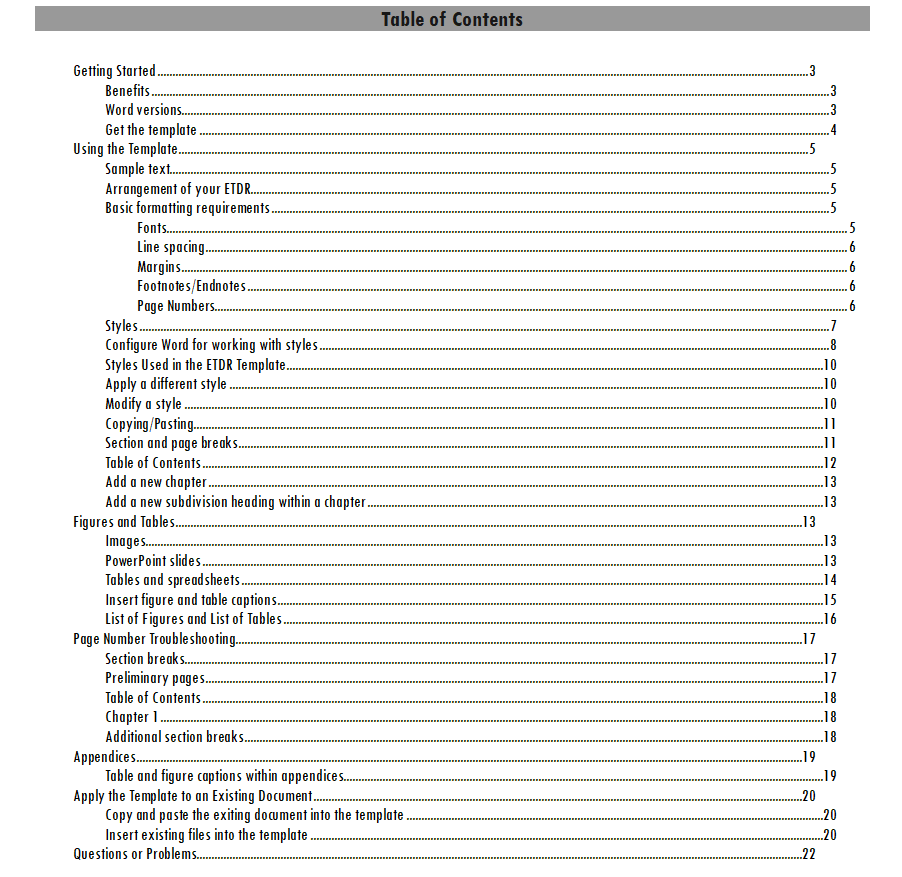
File Size: 12 KB
Short Table of Contents Sample DOC
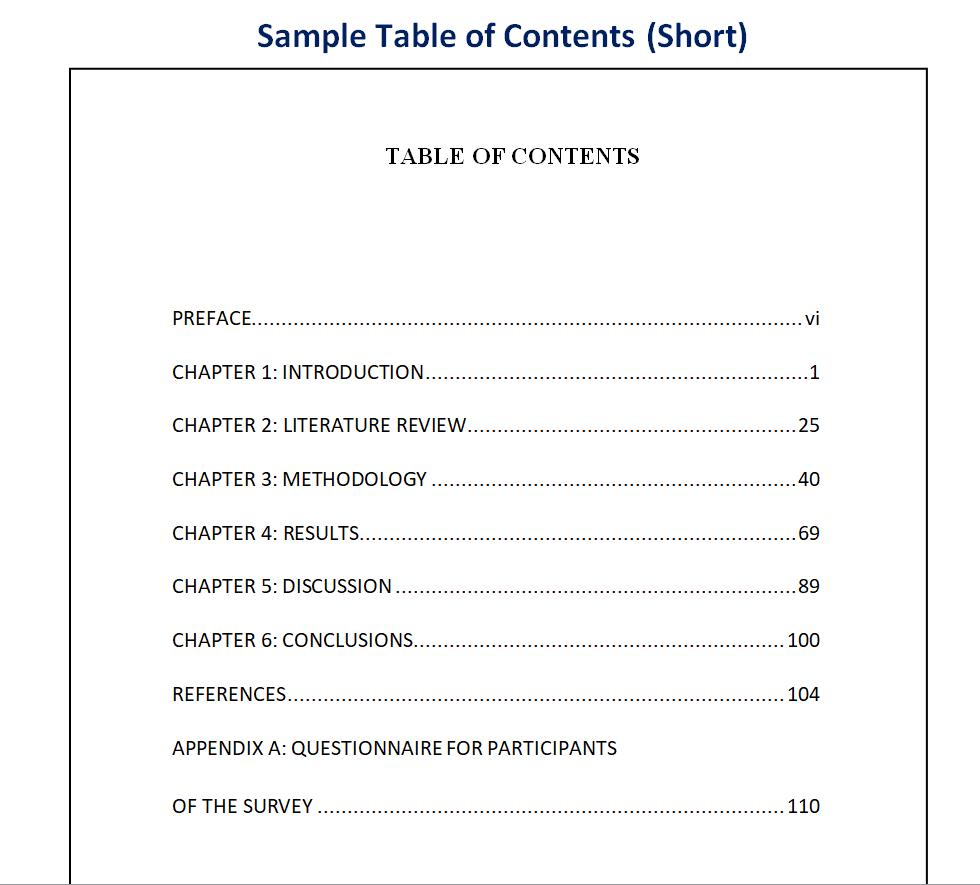
File Size: 07 KB
Sample Table of Contents Template in WORD
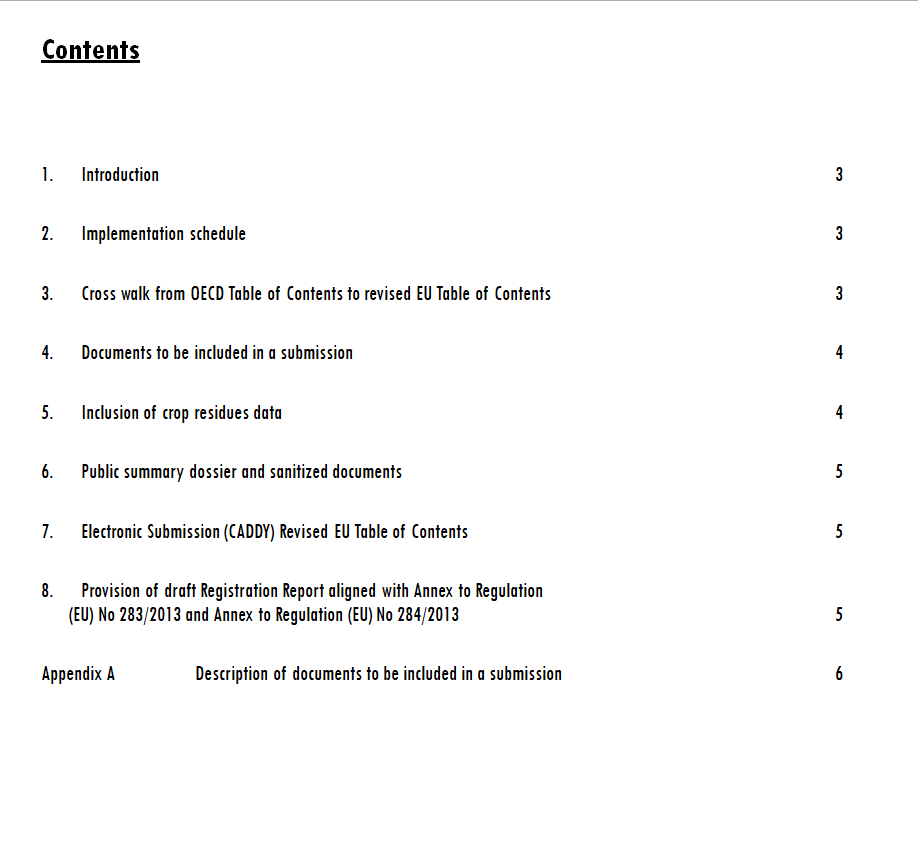
File Size: 11 KB
Table of Contents Template for Thesis
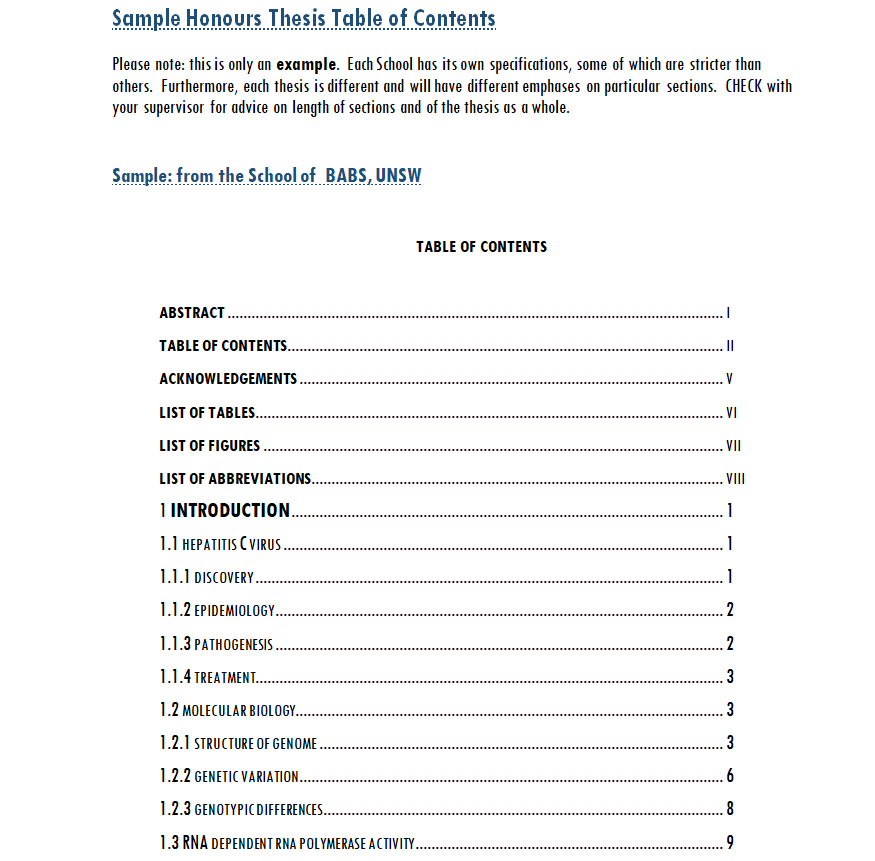
File Size: 14 KB
How to Insert a Table of Contents in Google DOCS?
Google docs is another word-processing online software that is used by many. The process of adding a table of contents in a google docs document is almost the same as in the case of a word document. However, there are a few changes in the layouts of both software.
For this purpose, a step-by-step guide is given below that one can use to insert the table of contents in a google docs document.
Step 1:
Select a blank document and add the title of the document.
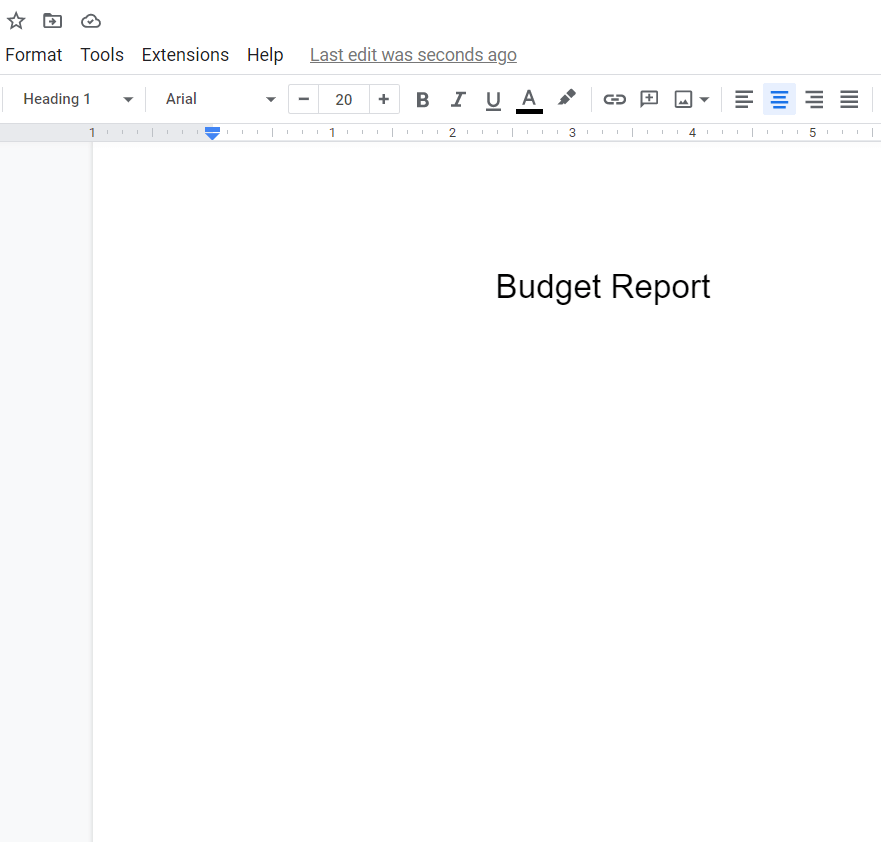
Step 2:
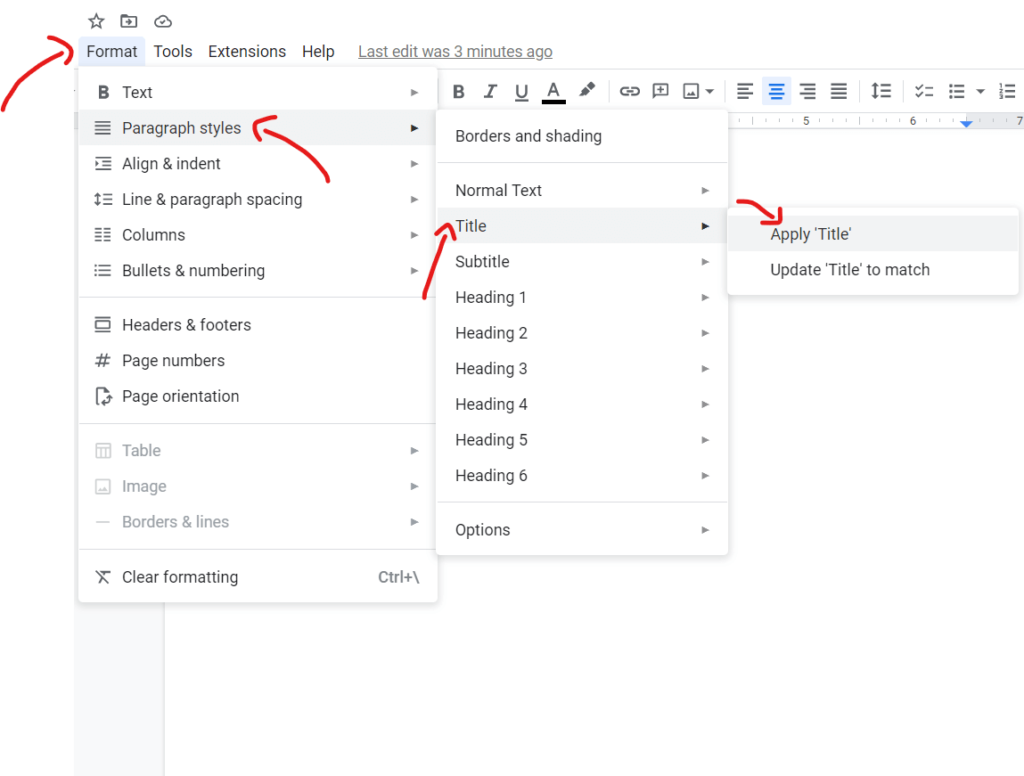
After that, format the title by selecting the written text and hovering your cursor over the Format tab. From there, select Paragraph Styles > Title > Apply Title.
Step 3:
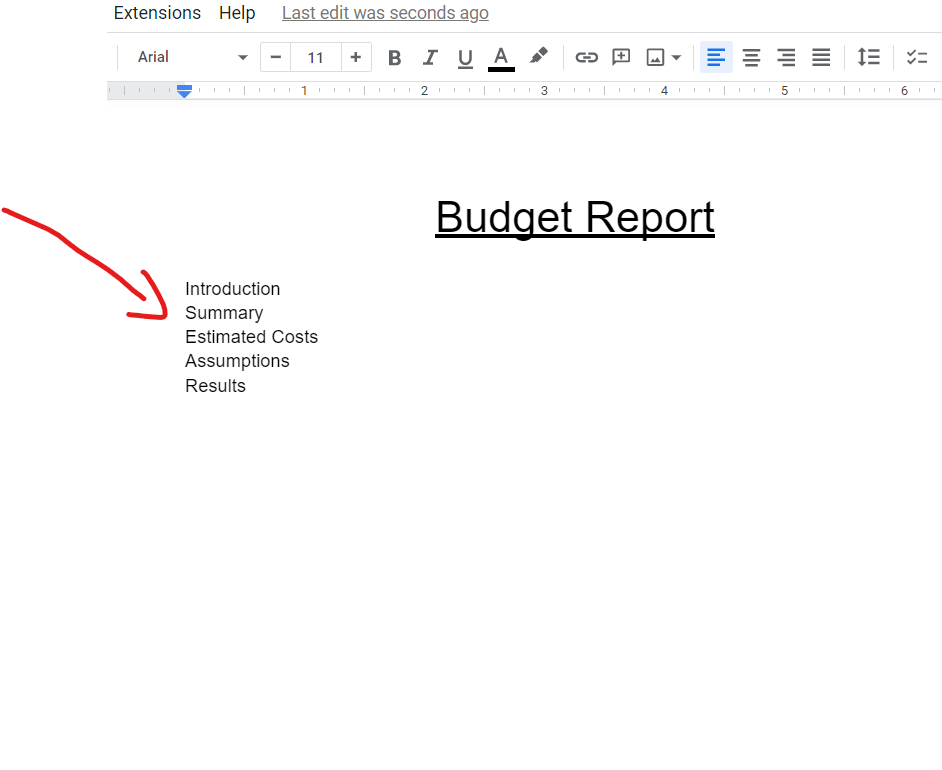
Write down all the entries of the document in separate lines below the title.
Step 4:
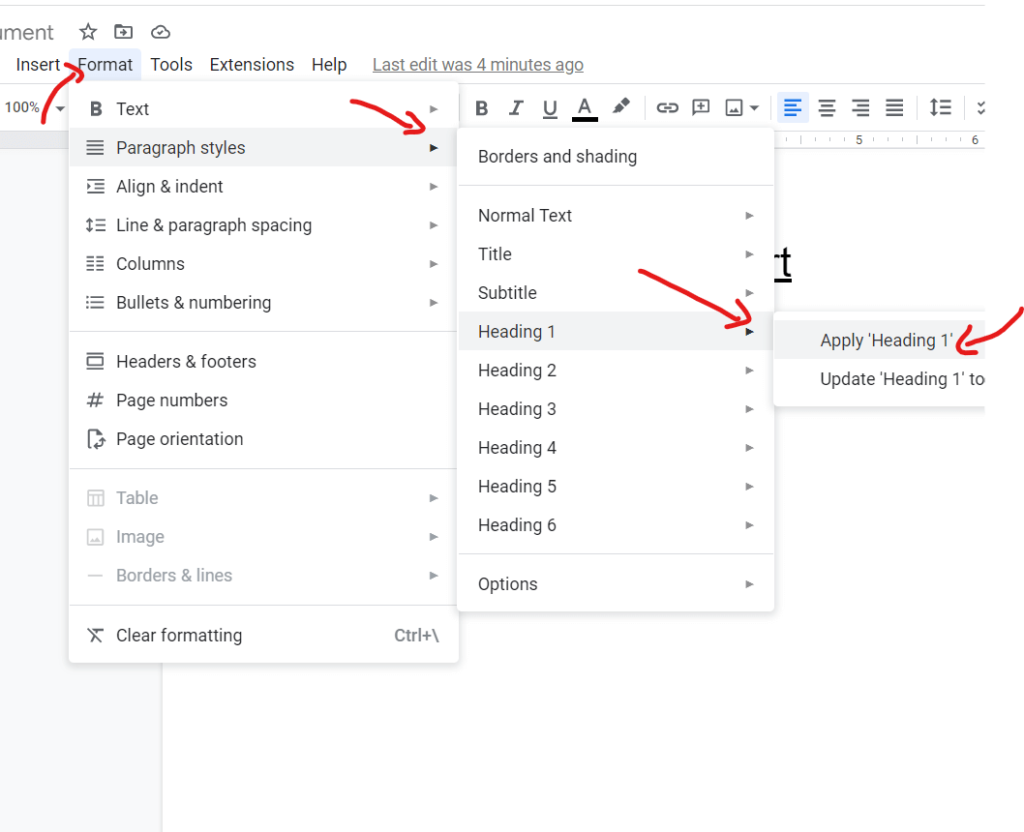
After that, select all the entries and then assign them the appropriate format. This can be done by clicking Format > Paragraph Styles > Heading 1 > Apply Heading 1.
Step 5:
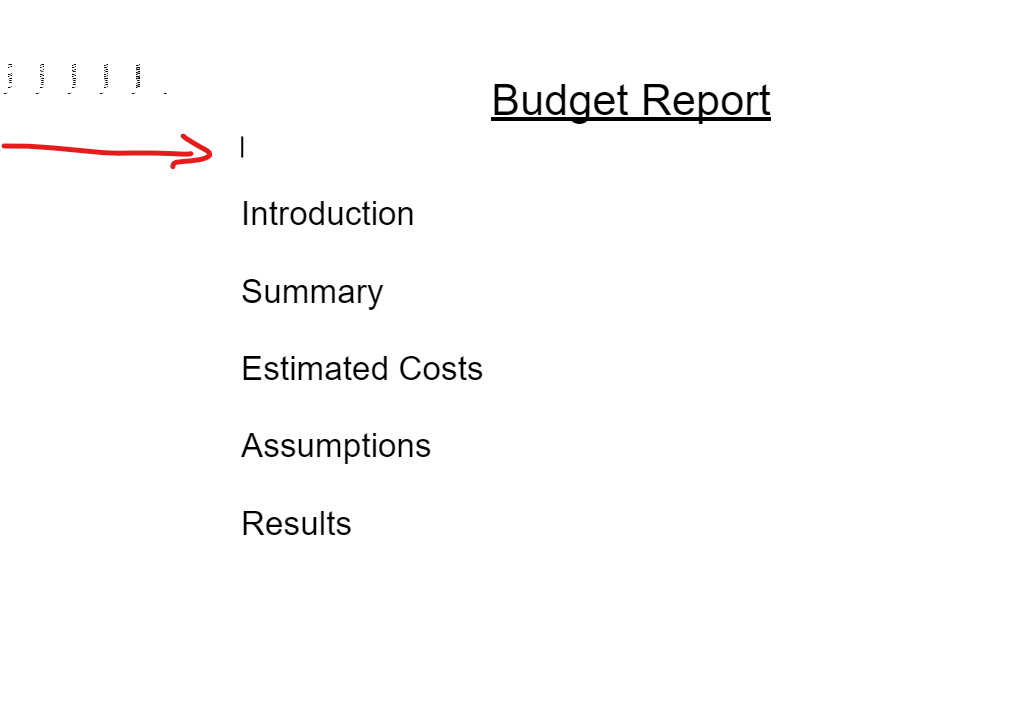
After formatting the entries, place the cursor where you want to place the table of contents i.e., below the title of the document and before the main body or text.
Step 6:
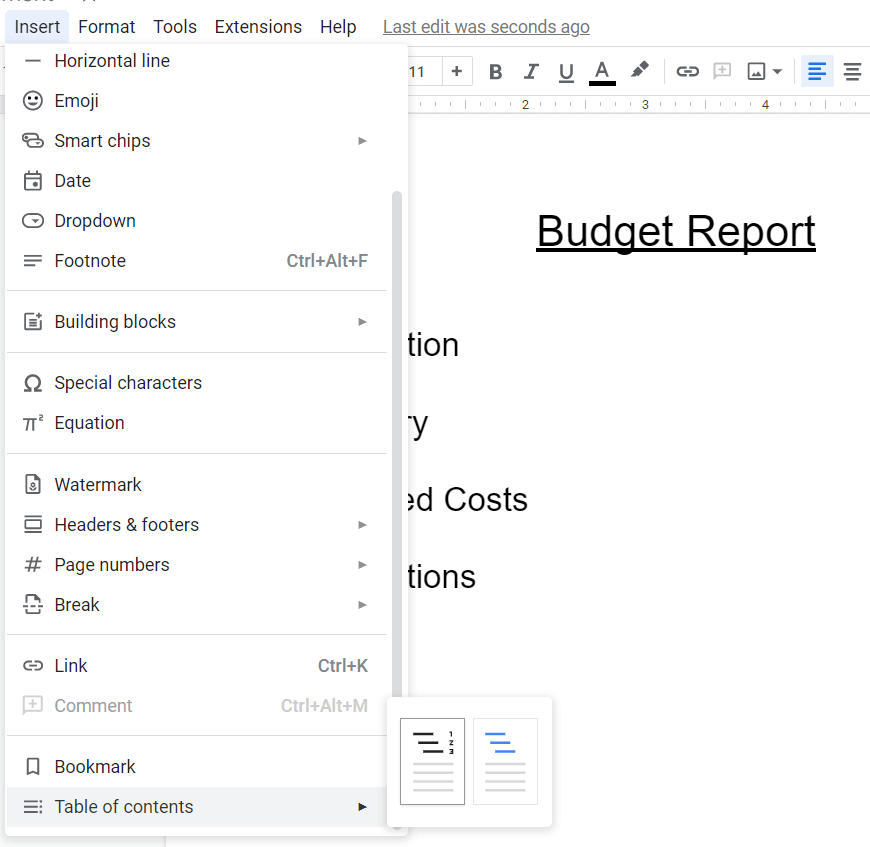
Now, to insert the table of content, hover your cursor over the Insert tab, scroll down and select the Table of Contents to add a TOC with numbers or blue links.
Step 7:
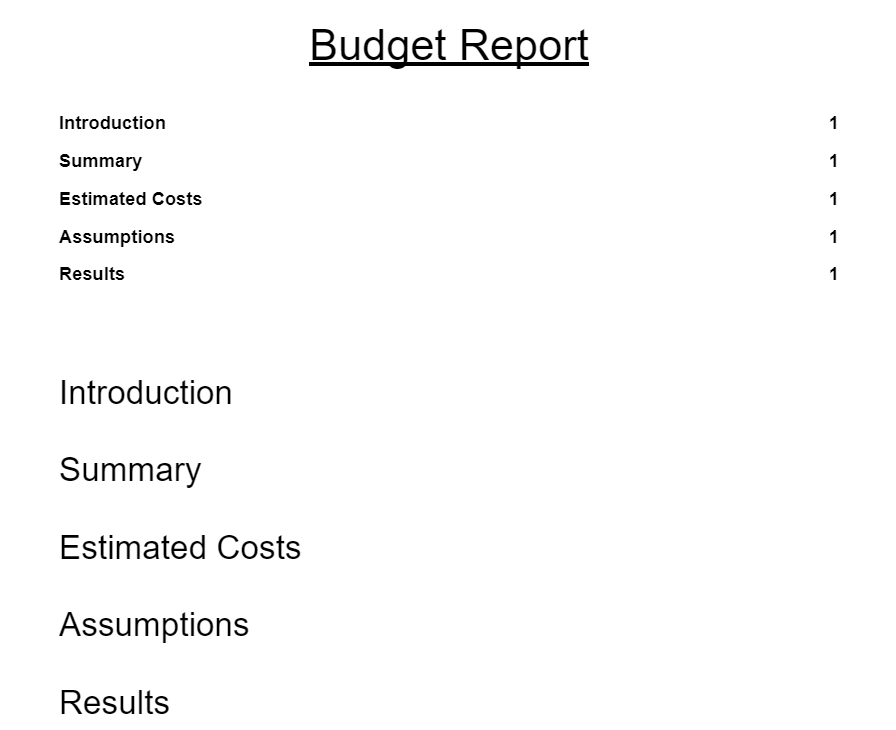
After that, the table of content will be added to your google docs document.
Keep page references and heading text consistent
A contents page can be outdated even when its page numbers appear plausible. Sections may have been renamed, moved or removed. Check the entries against the current document rather than an earlier outline.
In an automatic Word table, the update options distinguish page-number changes from updating the whole table. For a manual table, review both the wording and references yourself. After the final export, check the PDF too, including any navigation links you expect readers to use.
Use formatting controls rather than improvised spacing
Maintain a consistent alignment and hierarchy. Avoid using long strings of spaces to push page numbers toward a margin, because edits and font changes can disturb them. Inspect the approach already used by the template before replacing it.
Keep headings readable and the relationship between levels obvious. When adapting a document for print, leave suitable room for its actual page and binding arrangement.
For screen use, check the final reading experience and navigation rather than judging the contents page only as an isolated image.
A report changes after its first review
A project report gains a new section and two existing headings are renamed. The editor checks the heading levels in the body first.
If the contents page is automatic, the editor updates the full table so the renamed entries are included, then checks the resulting document. If it is manual, the same changes must be reconciled explicitly.
Finally, the PDF export is reviewed for the expected page references and navigation. This sequence prevents an attractive contents page from directing readers to an earlier version of the report.
Use the contents page as an editorial check
Read the contents without the rest of the document. Do the sections form a sequence a new reader can understand? Are two headings doing the same job? Does a broad heading conceal several unrelated subjects?
Questions like these can reveal a structural problem before you spend time adjusting fonts. Make any necessary changes in the body as well as the contents.
Keep a copy of the approved outline where it helps coordinate several contributors, but do not allow it to become a competing final contents list. The published document should have one consistent structure.
Contents-page checks before export
- Check the heading hierarchy in the body.
- Identify whether the contents is automatic or manual.
- Reconcile entries after the final structural edits.
- Inspect page references and navigation in the shared output.
Related templates
Use a publication layout that supports the contents structure. Word magazine layout resources.
A photo collection needs a different page sequence from a written report. wedding album layout resources.
Keep a long handover record navigable with clear sections and references. handover report templates.
Microsoft explains how to insert a table of contents and update its entries and page references.
Frequently asked questions
Will every downloaded template update automatically?
No. Inspect the actual Word file. A manually arranged layout and an automatic contents field may look similar in a preview but behave differently when the document changes.
Why might a heading be missing from an automatic table?
Check that the source heading uses the intended heading style and level, then update the table. Microsoft provides guidance for creating and maintaining automatic tables.
Should I update page numbers or the entire table?
If heading text or structure has changed, review the option that updates the whole table. A page-number-only update does not reconcile all entry changes.
How many heading levels should I show?
Include the levels that help the intended reader navigate. Follow applicable document requirements and avoid crowding the contents with minor labels that add little value.
Do I need to check the exported PDF?
Yes. Review the final page references and any expected links. Editing and exporting can change the result, so the working Word view is not the only output to inspect.
You can also browse more options in the Other Templates category.
